As an instructor, you can access the Grades page for a student in your course. This Grades page shows you how a student views his or her grades in the course and also allows you to add individual comments to group submission assignments. You can choose to restrict options in the grades page to students, such as hiding grade summary totals and hiding grade distribution graphs.
You can also view the grades page for a generic student in Student View.
Notes:
- The student's grades shown in the Grades page may vary from the grades shown in the Gradebook. The student's Grades page is affected by hidden assignments, outstanding manually graded quiz questions, weighted assignment groups, and weighted grading periods. The Gradebook always contains the most current and accurate information about a student's current grade.
- Student Grades can also be viewed from a student's user details page.
Open Grades
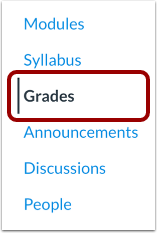
In Course Navigation, click the Grades link.
Access Grades via Context Card
You can view a student's Grades page from the context card.
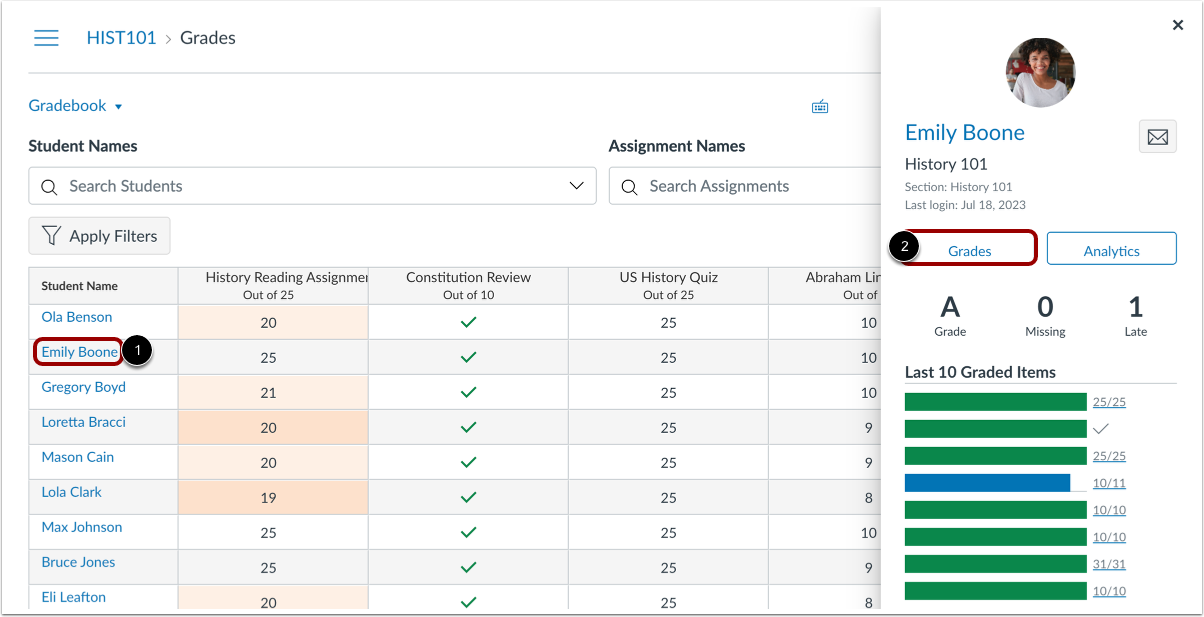
To view a student's context card, click the name of the student [1]. Then click the Grades button [2].
Access Grades via Grade Detail Tray
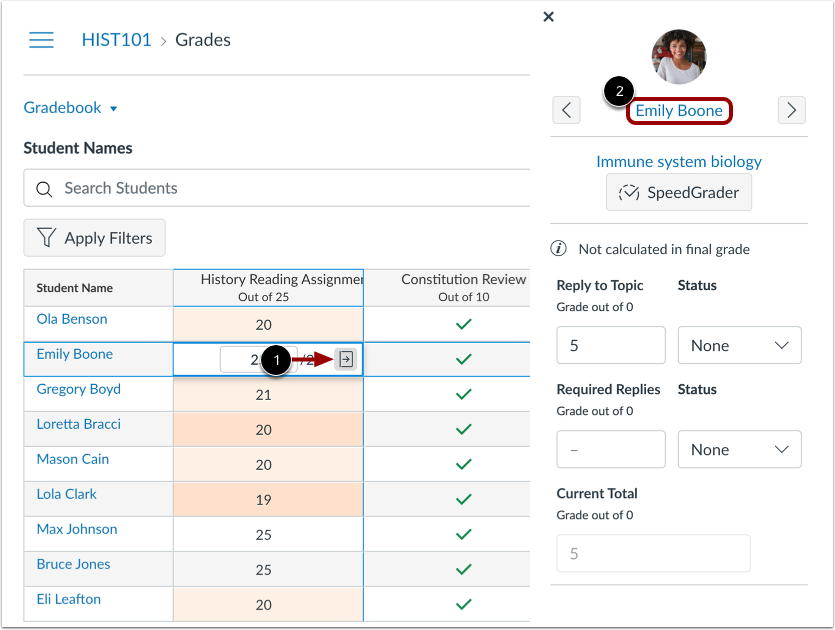
You can also access the student's grades page from the Grade Detail Tray. Click the assignment cell for a student and click the Grade Detail Tray icon [1]. Then click the name of the student [2].
View Student Grades
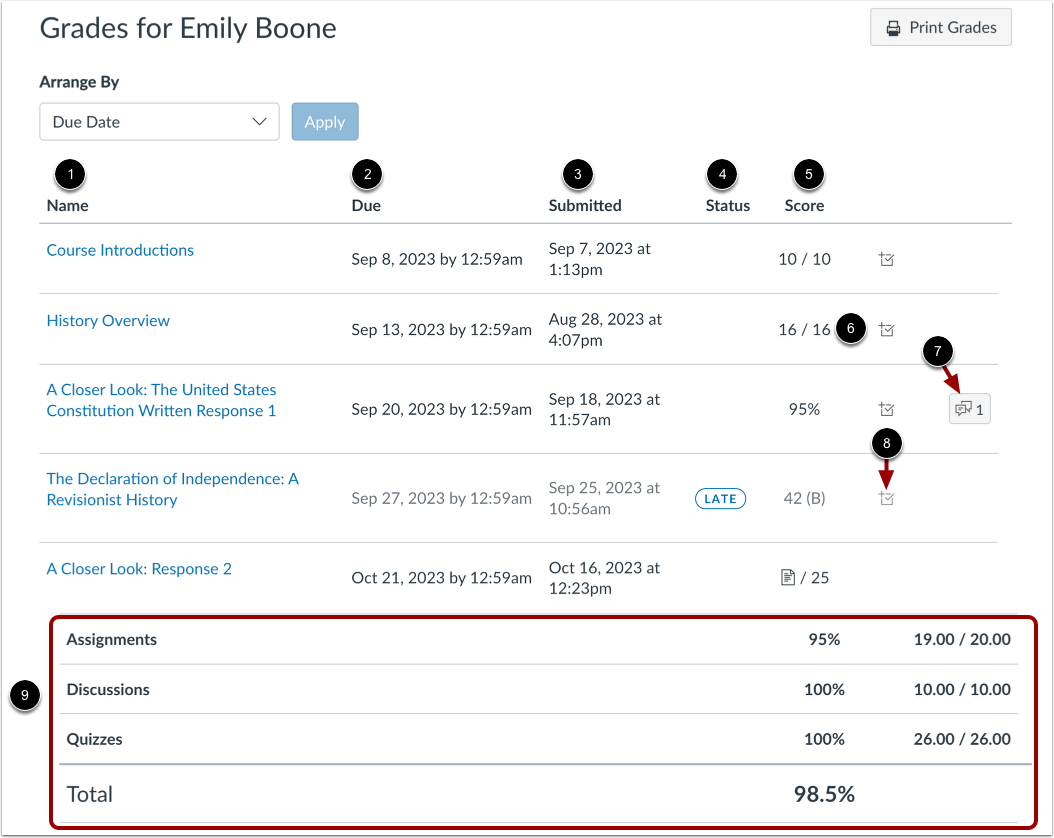
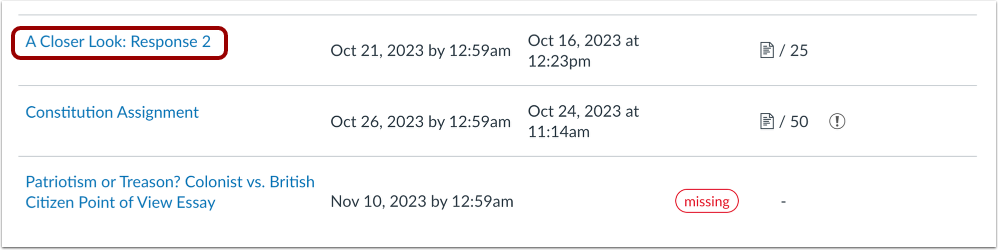
In the Grades page, you can see how a student views their grades in the course. Students can view the name of the assignment [1], the due date [2], the submission date [3], the assignment status [4], the score or assignment submission type [5], the total number of points for the assignment [6], and any comments [7] and rubrics, if any.
If allowed, the student can view distribution score details and graphs in the assignment scoring details [8]. You will only see scoring details if more than five other students have submitted that assignment in the course. If you do not see the scoring details, then fewer than five students have submitted the assignment. As the instructor, you can hide grade distribution graphs.
Students can also view their assignment group score totals and their total grade for the course at the bottom of the Grades page [9]. As the instructor, you can hide total scores.
Notes:
- The student's grades shown in the Grades page may vary from the grades shown in the Gradebook. The student's Grades page is affected by hidden assignments, outstanding manually graded quiz questions, weighted assignment groups, and weighted grading periods. The Gradebook always contains the most current and accurate information about a student's current grade.
- When your course includes grading periods, the student Grades sidebar displays assignment groups when an individual grading period is being viewed. However, groups only display if the groups are active as part of the selected grading period. An assignment group displays if the group has at least one assignment due for the student in the selected grading period.
- When grading periods are weighted and the All Grading Periods option is selected, the sidebar displays the weights of each grading period.
- If an assignment allows multiple attempts, the Submitted column only displays the most recent submission date.
View Assignment Details
You can also view assignment details, preview assignments, and view feedback the same way a student experiences assignments in Canvas. The assignment details page is also where a student views any annotated feedback you may add to an assignment.
To view submission details, click the name of the group assignment.
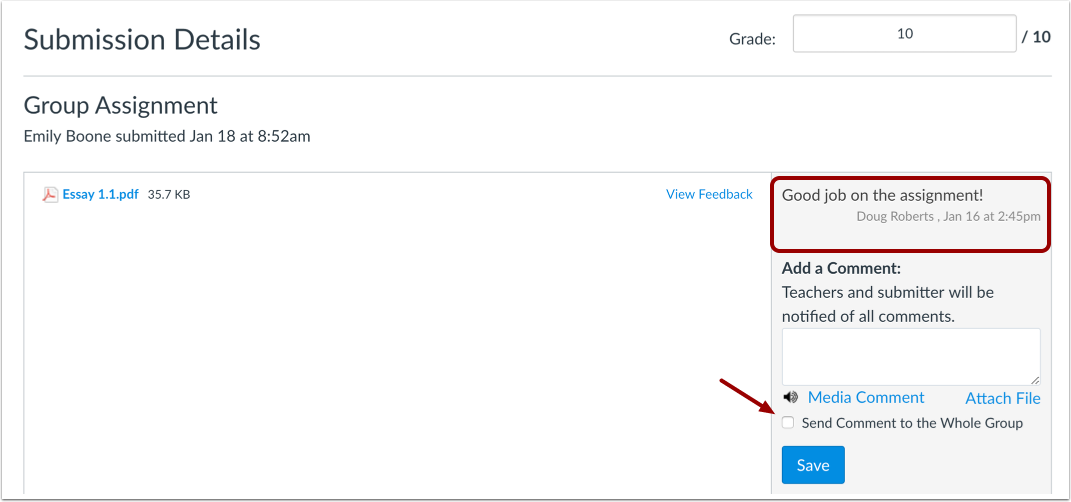
For group assignments, the submission details page may include individual comments added to a group assignment.
By default, group assignments that award the same grade to all group members do not display any individual comments when grading group assignments in SpeedGrader. Likewise in SpeedGrader, you cannot add comments for an individual user in a group assignment.
However, the assignment details page allows you to leave individual comments for the student in group assignments where all members get the same grade. To reply to the student (and not all group members), do not select the Send Comment to the Whole Group checkbox.
Individual comments also appear in the Submission Comments filter in Conversations.