00:07: How do I use the Moderate page in New Quizzes?
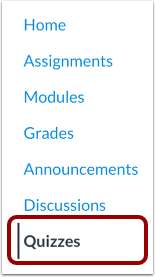
00:10: In Course Navigation, click the Quizzes link.
00:14: To view reports for a quiz, find the quiz
00:17: you want to open. Click the Options icon, and then click the Build link.
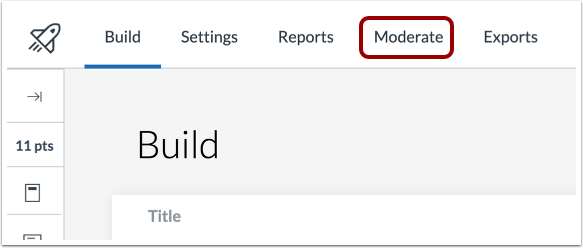
00:22: Click the Moderate tab.
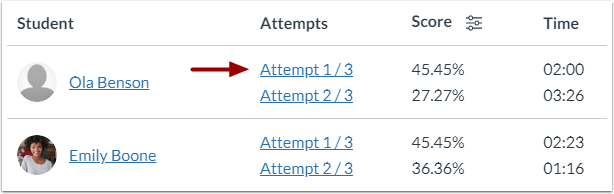
00:24: The Moderation page displays a list of students in the course, their
00:28: quiz attempts, the score for each attempt, the time for each attempt, attempt
00:33: logs, and total quiz accommodations.
00:36: To display scores as a percentage or raw score, click the Configure
00:40: icon
00:42: To moderate a quiz for an individual student, click the Moderate button. Moderation
00:47: options include managing timer settings and reopening a student's most recent
00:51: attempt.
00:52: To manage student course wide quiz.
00:54: Accommodations click the student named link.
00:58: To open SpeedGrader, click the SpeedGrader button.
01:02: To search for a specific student type their name in the search field.
01:05: If enabled by your institution, you can also search by canvas ID
01:10: or sis ID.
01:12: To filter displayed results by all attempts.
01:14: No attempts left attempts, left submitted attempts, or attempts were
01:18: Auto grading failed. Click the sort by drop-down menu.
01:22: To moderate a student's quiz and reduce answer choices.
01:26: Click on the student's name in the moderation list, click the reduced
01:30: answer choices toggle on this removes one incorrect answer
01:34: from all multiple choice questions with four or more options.
01:38: To apply the changes, click the Apply button.
01:42: To view the details of a student attempt,
01:44: click the attempt link.
01:47: The student results page includes a student’s answers and grades for
01:51: each question. From this page, you can review student answers. Depending
01:55: on question type, you may be able to regrade quiz questions.
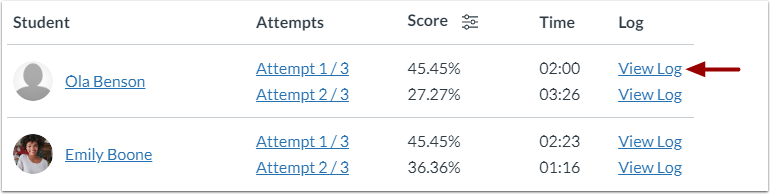
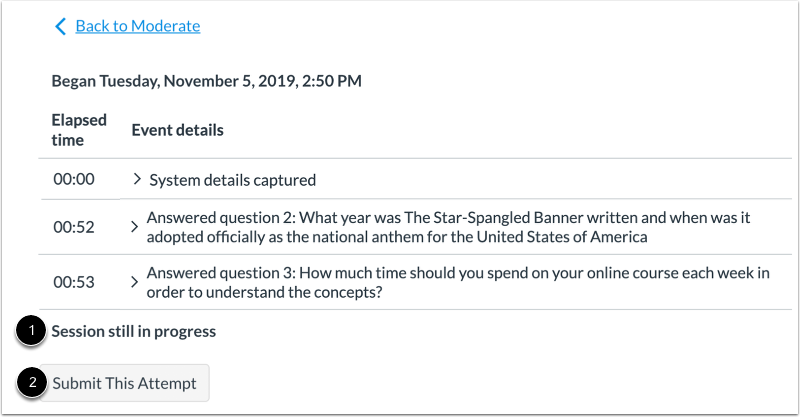
02:00: To view details about a student’s quiz attempt, click the View Log link.
02:05: In the log, you can view the time and date a student began the quiz and
02:10: completed the quiz. You can also view each event that occurred
02:13: while the student was taking the quiz. You can view the amount of time elapsed
02:17: during the event as well as basic event details.
02:21: To view more details about a quiz event, click the Expand icon.
02:25: You may be able to view details about the student's computer or an answer they
02:29: selected. The log also includes moments of stopping and resuming
02:33: the quiz.
02:35: The attempt log indicates if an attempt is still in progress. To
02:39: manually submit the student attempt, click the Submit This Attempt button.
02:44: If students are currently taking a quiz, the moderate page displays
02:48: the number of in-progress attempts to manually submit in progress attempts,
02:53: click, the attempts link
02:55: In some instances, new quizzes, may fail to automatically grade a
02:59: student quiz to view failed. Autograding quiz attempts, click the auto
03:04: grading failed option in the sort by drop-down menu to manually grade.
03:08: The students quiz, click the attempt link
03:11: This guide covered how to use the Moderate page in New Quizzes.