00:06: How do I adjust events and due dates in a course import?
00:10: In Global Navigation, click the Courses link, then click the name of the
00:15: course.
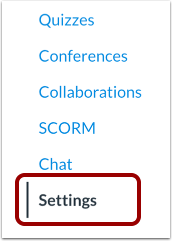
00:16: In Course Navigation, click the Settings link.
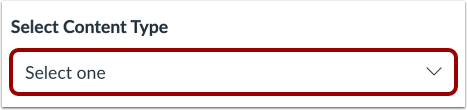
00:20: Click the Import Course Content link.
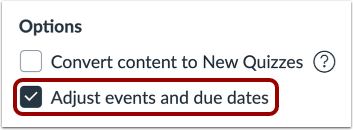
00:29: If you want to adjust the due dates associated, with the course of events and assignments, click
00:34: the adjust events and due dates checkbox.
00:37: If you want to shift dates in the course, select the Shift dates radio
00:41: button.
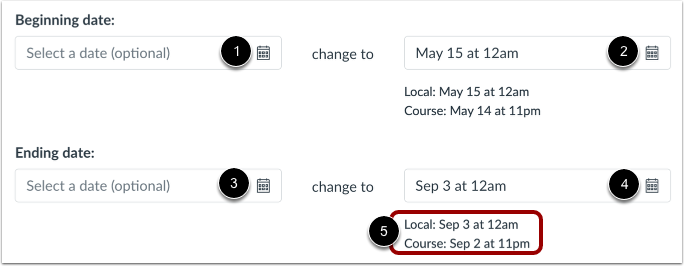
00:43: In the beginning date field. Enter the starting date of the course you are importing.
00:47: You can also click the calendar icon to select a date in the change
00:51: to field and enter the new date. When you want the course to begin, or click the calendar
00:56: icon,
00:57: In the Ending date field, enter the end date of the course you are importing, or click
01:02: the calendar icon to select a date. In the change to field, enter the
01:06: new date when you want the course to end.
01:09: The local and course dates and times display below.
01:12: The selected dates canvas will take the new start and end dates for the course
01:16: and distribute, all assignments with due dates as evenly as possible across the
01:20: course States and keep them due on the same day of the week.
01:23: As the original course, if the imported course, and the new course, varying
01:27: course, length assignments, will be assigned proportionally, once the course
01:32: is imported, you can easily confirm and adjust any assignment dates, using
01:36: the calendar.
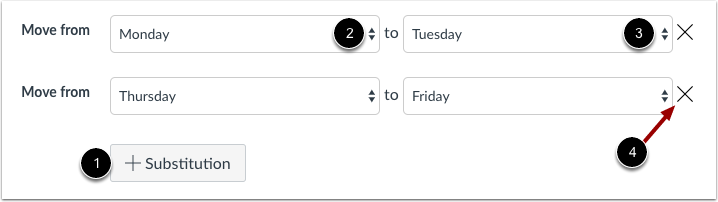
01:37: You can also explicitly define day substitutions to adjust for changing
01:42: class schedules, such as moving all assignments on Mondays to Tuesdays.
01:46: To create a date substitution, click the Substitution button.
01:51: You can also explicitly define day substitutions to adjust for
01:55: changing class schedules, such as moving all assignments on Mondays
01:59: to Tuesdays. To create a date substitution, click the Substitution
02:04: button. In the Move from field, select the day of the week;
02:08: in the to field, select the new day of the week for the substitution.
02:12: To remove a substitution, click the Remove icon.
02:17: You can create as many substitution dates as necessary.
02:20: Canvas will take the date substitutions and adjust assignments with
02:24: due dates appropriately across the course dates.
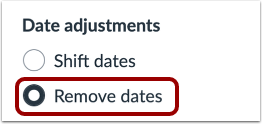
02:28: If you want to remove all associated due dates in the course, select the Remove
02:32: dates radio button. Dates will be removed from the following features:
02:36: Assignments, Announcements, Quizzes, Calendar events, Modules, and
02:40: Files.
02:42: When importing content, a message displays explaining that importing the
02:46: same course content or export package more than once overwrites any existing
02:51: content in the course.
02:53: Click the Add to Import Queue button.
02:56: The Content imports section displays the status of your import. Running
03:01: reports display a progress bar.
03:04: If you chose to select specific content in your course, the current job
03:08: will show as Waiting for selection, which means you must select the content
03:12: you want to import. The import may also display other status
03:16: indicators as part of the import process.
03:19: Learn more about course import statuses. View
03:23: the content from any completed imports by accessing any link
03:27: in Course Navigation.
03:30: This guide covered how to adjust events and due dates in a course import.