00:07: How do I use modules to view the progress of students in a course?
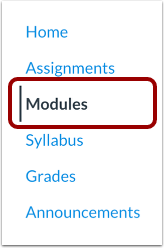
00:11: In Course Navigation, click the Modules link.
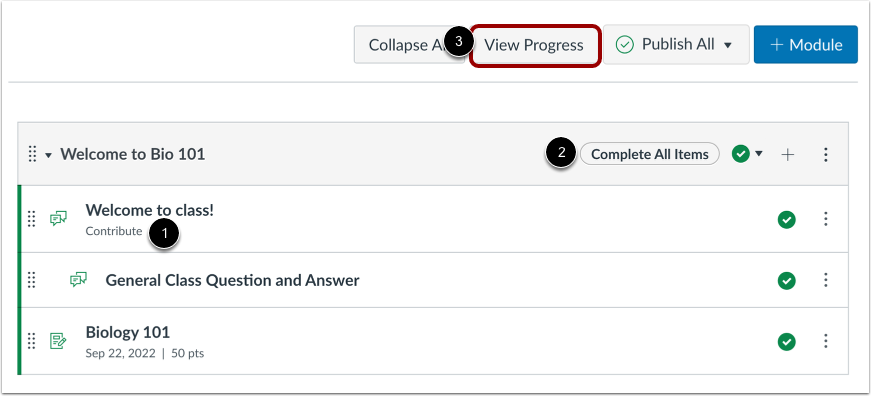
00:15: Modules displays an overview of each module and the content within each module.
00:20: Any completion requirements are listed next to the module content item.
00:25: Prerequisite requirements are posted at the top of the module.
00:30: To view student progress in your course, click the View Progress button.
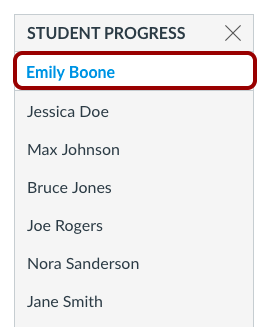
00:35: When opening the View Progress window, Canvas will always default to show the
00:39: first student in your course (listed alphabetically by last name).
00:44: To view progress for another student, click the student's name in the Student
00:48: Progress list.
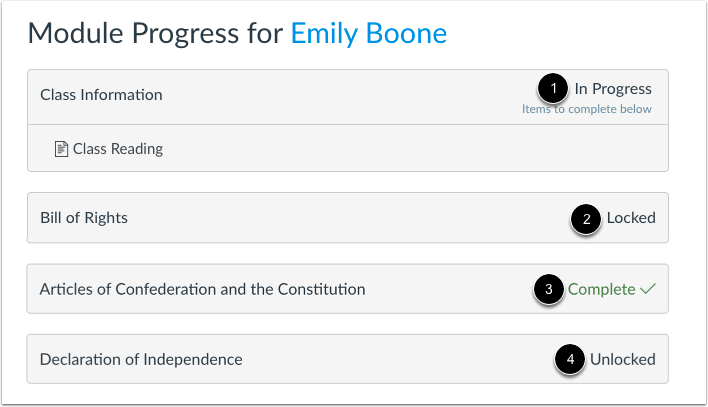
00:50: The Module Progress window shows the progress of each student in your course.
00:54: Modules can be complete, in progress, locked, or unlocked.
00:59: In Progress means the student has started but not finished the module.
01:04: Locked means the module cannot yet be accessed by the student because of completion
01:08: or prerequisite requirements.
01:11: Complete means the student has completed the module, or the module has no completion
01:15: requirements.
01:17: Unlocked means the student can access but has not yet started the module.
01:22: This guide covered how to use modules to view the progress of students ion a course.