00:07: How do I view the Mastery Paths range breakdown results for an assignment?
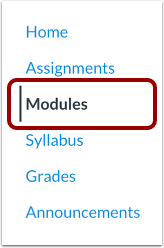
00:11: In Course Navigation, click the Modules link.
00:15: Click the name of the Mastery Paths assignment.
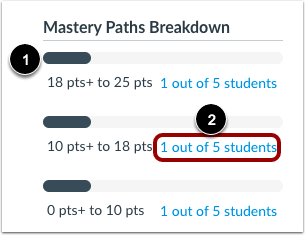
00:18: In the sidebar, view the Mastery Paths Breakdown section.
00:23: The section displays each of the three ranges and the number of students who scored
00:28: in each range.
00:30: The colored bar shows the percentage of students in that range.
00:34: To view details for a range, click the link with the student results.
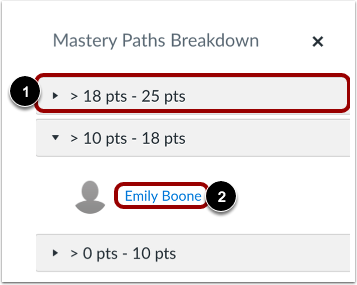
00:39: The breakdown window displays the names of students in your selected range.
00:44: If you want to view student names in another range, click the range heading. The
00:48: current range will collapse and the selected range will expand.
00:52: To view results for a specific student
00:54: in a range, click the name of the student.
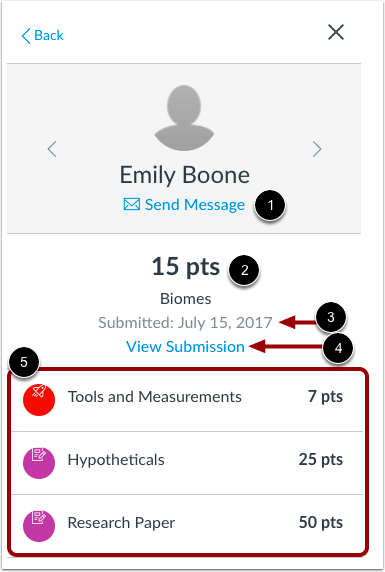
00:58: When viewing a specific student, you can see the details about that student below.
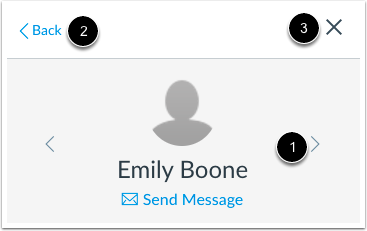
01:03: The student's name, you can click the send message, link, which opens a new browser tab
01:07: in conversations. You can view the students Mastery
01:11: path Source item score and the date of the submission.
01:15: If you want to view the student's submission, click the View Submission link,
01:19: which opens the student's submission details page in a new browser tab.
01:24: You can also view the conditional items in the Mastery Path that have
01:28: been assigned to the student. Each item includes the points possible for
01:32: the assignment. If the conditional items include graded
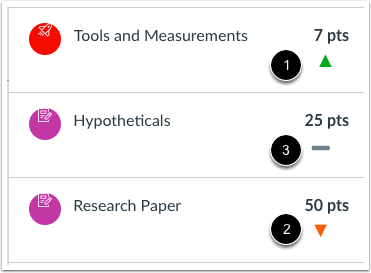
01:36: assignments, Canvas displays an icon indicating
01:39: the student's score compared to the original assignment score.
01:43: The comparison uses percentage scores from the source item and conditional
01:47: item. For example, if a student scored 80% on
01:51: the source item and 85% on the conditional item, a
01:55: green arrow displays.
01:58: A green arrow indicates a student scored higher.
02:02: A red arrow indicates a student scored lower.
02:06: And a gray bar indicates the score was equal.
02:10: Student grades are visible in the Gradebook.
02:13: To view another student in the same scoring range,
02:16: click the Next or Previous arrow.
02:19: To return to the list of student names and ranges, click the Back link.
02:24: To close the breakdown window, click the Close icon.
02:28: This guide covered how to view the Mastery
02:30: Paths range breakdown results for an assignment.