If you are enrolled in a course as an instructor, the Course Home Page is the first page students see when they open the course. The Home Page also helps students understand how they can navigate through the course. You can customize the Home Page to create a specific workflow for your students.
To help you learn how to navigate a Canvas course, this lesson uses a course that has already been populated. To learn how to build a new course, visit the create a new course shell lesson.
Note: If your institution has enabled the Course Setup Tutorial, course pages such as Assignments and Discussions are responsive to the full width of the browser and minimize white space in the sidebar. This responsive behavior applies to all users in your institution.
00:07: How do I use the course homepage as an instructor?
00:12: The course, homepage involves course, navigation, the content area and
00:16: the sidebar.
00:18: To view the course, homepage as a student, click the view as student button.
00:23: The course, homepage is viewed from the course navigation, Homelink.
00:27: Course, navigation includes links that help you in your students, get to specific locations
00:31: in the course. As an instructor you can customize, what links
00:36: are shown in your course. Learn more about the course navigation, menu.
00:41: To expand or collapse, the course navigation, menu, click the menu icon.
00:46: When you choose to expand or collapse, the global navigation menu, your
00:50: preference is applied to all of your courses.
00:53: Homepage content and all canvas content is displayed in the content
00:57: area. The content can be a page.
01:00: The syllabus discussions announcements quizzes
01:04: or imported content is set by your course homepage layout.
01:08: Your homepage can also be set to display recent announcements at the top of the page.
01:13: The content can also show the course activity stream.
01:17: The homepage content also defines what sections display in the sidebar.
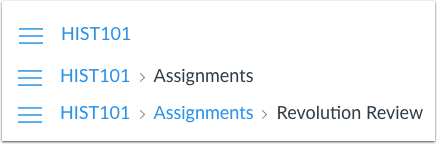
01:23: Breadcrumbs appear above the course content area.
01:26: As you view course, content from your homepage, the breadcrumbs, leave a
01:30: trail to show where you are inside the course. You can follow these links backward
01:34: to visit prior course content.
01:38: The sidebar functions the same as the dashboard sidebar but only shows content
01:42: for the specific course and includes additional options.
01:46: In the course, tools section of the sidebar, you can manage your course.
01:49: Homepage in addition to viewing other helpful buttons for your course, importing
01:53: existing content, choose homepage view course, stream
01:57: course, setup. Checklist new announcement view course,
02:02: analytics. And view course notifications
02:06: The sidebar always shows that to do section which shows all items that require
02:10: grading in canvas regardless of due date.
02:13: Each item in the to-do list displays the assignment name, the number of points,
02:17: and the due date for the assignment. Some assignments, May
02:21: display multiple due dates items.
02:23: Remain in this section for four weeks. However, assignments that are
02:27: not graded or do not require an online submission, only display until the due
02:32: date.
02:34: The sidebar can also include a variety of other sections, depending on the
02:38: layout of your course homepage. Additional sidebar, options include
02:42: coming up or the assignment list calendar, and assignment groups and
02:46: recent feedback.
03:01: Each section item indicates how many items need to be graded? If
03:05: a section contains more items than are listed, a link will appear under the list
03:09: that you can use to view additional items.
03:13: If there are more than 100 items in the to do section, you must remove items
03:17: before you can view any new items. To remove a to-do item, click
03:21: the remove icon.
03:24: The guide covered how to use the course, homepage as an instructor.
View Course Home Page
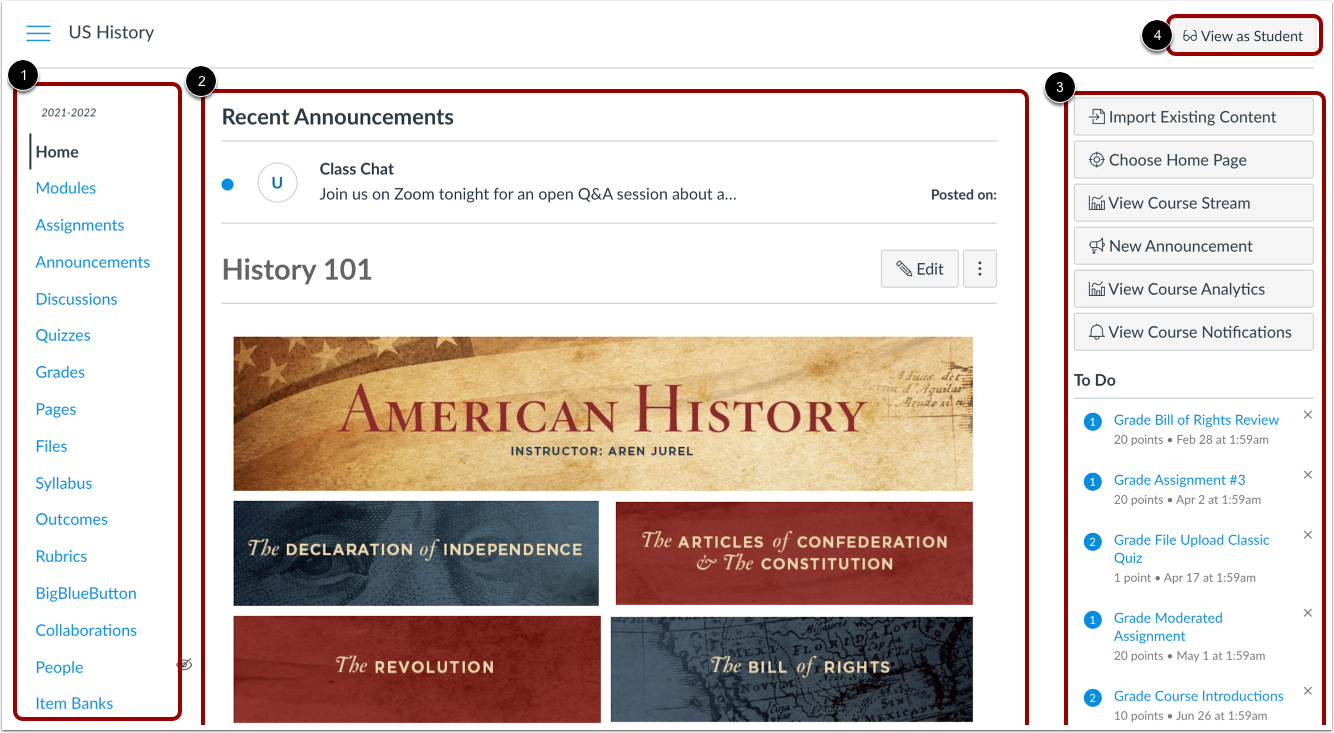
The Course Home Page involves Course Navigation [1], the content area [2], and the sidebar [3].
To view the course home page as a student, click the View as Student button [4].
Notes:
- If you view Canvas with a smaller screen, any sidebar content will align with the bottom of the page.
- If the course navigation link for the page is disabled and hidden from students, the View as Student button does not display.
View Course Navigation
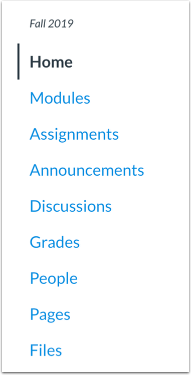
The Course Home Page is viewed from the Course Navigation Home link.
Course Navigation includes links that help you and your students get to specific locations in the course. As an instructor, you can customize what links are shown in your course. Learn more about the Course Navigation menu.
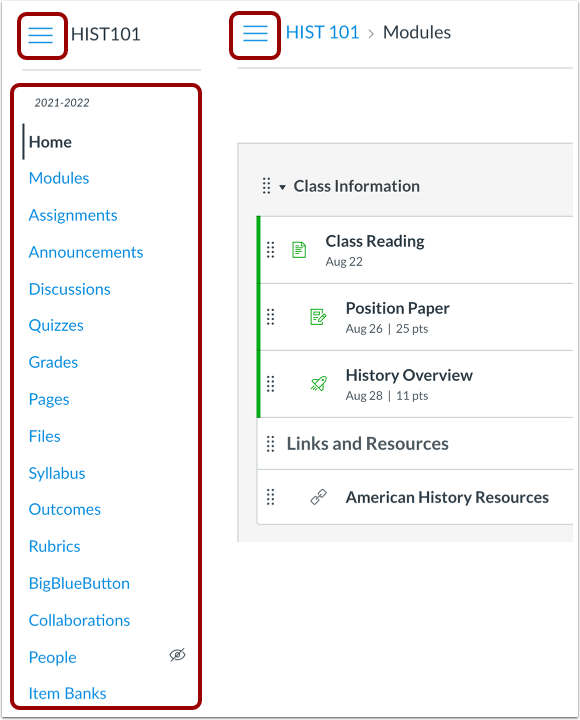
To expand or collapse the Course Navigation Menu, click the Menu icon. When you choose to expand or collapse the Global Navigation menu, your preference is applied to all of your courses.
View Content Area
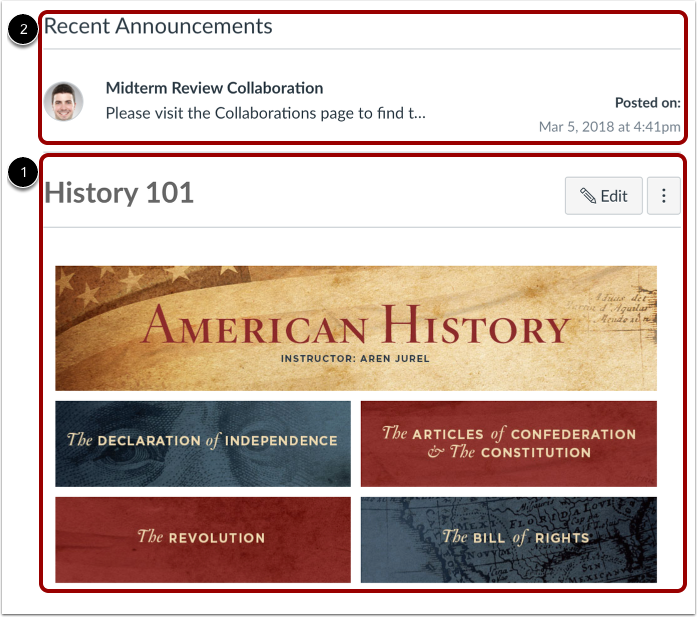
Home Page content (and all Canvas content) is displayed in the content area.
The content can be a page, the syllabus, discussions, announcements, quizzes, or imported content as set by your Course Home Page layout [1]. Your Home Page can also be set to display recent announcements at the top of the page [2]. The content can also show the Course Activity Stream.
The Home Page content also defines what sections display in the sidebar.
View Breadcrumbs
Breadcrumbs appear above the course content area.
As you view course content from your Home Page, the breadcrumbs leave a trail to show where you are inside the course. You can follow these links backward to visit prior course content.
Note: If you have created a nickname for a course, the breadcrumbs display the nickname to identify the course. Otherwise, the breadcrumbs display the course code.
The sidebar functions the same as the Dashboard sidebar but only shows content for the specific course and includes additional options.
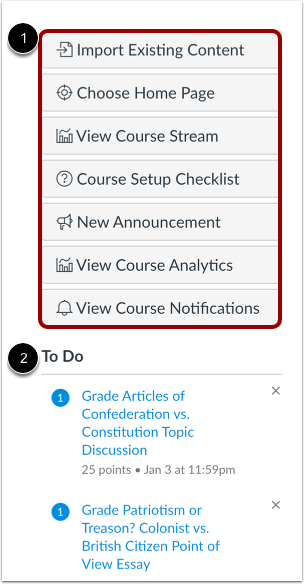
The top of the sidebar [1] contains course tools for managing your course.
The bottom of the sidebar [2] includes the To Do list, in addition to other sections depending on the layout you set for the Course Home Page.
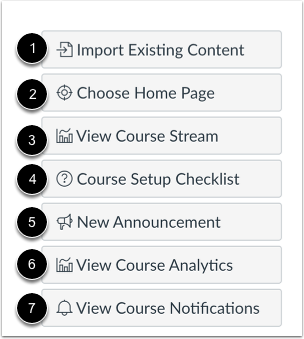
In the course tools section of the sidebar, you can manage your Course Home Page in addition to viewing other helpful buttons for your course:
Notes:
- If you cannot view the View Course Stream button, the Home Page is the Course Activity Stream.
- If you cannot view the Course Setup Checklist button, your institution has enabled the Canvas course setup tutorial instead.
- Viewing course analytics requires permission by your Canvas admin.
- The View Course Analytics button displays as New Analytics if the New Course and User Analytics feature option is enabled for the course. To enable new analytics, learn about managing features for a course.
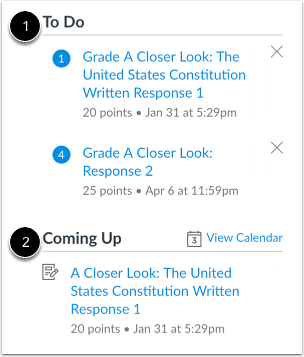
The sidebar always shows the To Do section [1], which shows all items that require grading in Canvas, regardless of due date. Each item in the To Do list displays the assignment name, the number of points, and the due date for the assignment. Some assignments may display multiple due dates. Items remain in this section for four weeks. However, assignments that are not graded or do not require an online submission only display until the due date.
The sidebar can also include a variety of other sections [2], depending on the layout of your Course Home Page. Additional sidebar options include Coming Up or the Assignment list, Calendar and Assignment Groups, and Recent Feedback.
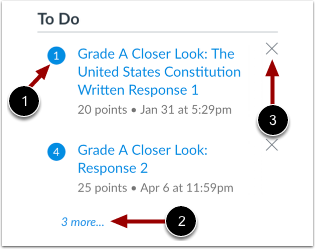
Each section item indicates how many items need to be graded [1].
If a section contains more items than are listed, a link will appear under the list that you can use to view additional items [2].
If there are more than 100 items in the To Do section, you must remove items before you can view any new items. To remove a To Do item, click the remove icon [3].
Note: When an item is removed, the item can only be restored to the To Do section if a new submission is received for that assignment, or if an existing submission for the assignment still requires grading.