00:07: How do I use the Quizzes Index Page?
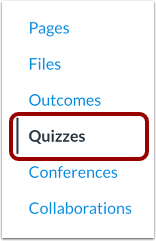
00:10: In Course Navigation, click Quizzes to open the Quizzes page.
00:14: The Quizzes Index page displays global settings
00:17: at the top, followed by grouped quiz types. Individual quizzes
00:21: are listed within each quiz type.
00:24: In the global settings, you can search for quizzes, add new quizzes, and manage
00:29: course quiz options using the Options menu.
00:32: From the options menu you can manage course.
00:35: Question bank.if new quizzes is enabled and you've previously saved your quizen
00:39: choice. You can reset it using the reset quizen Choice option
00:43: in the same menu.
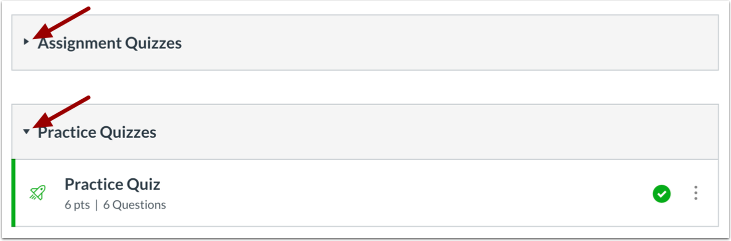
00:45: Quiz groups can be expanded or collapsed by clicking the arrow next to the group
00:49: name.
00:51: New Quizzes assessments display the New Quizzes icon, while Classic
00:55: Quizzes show the Classic Quiz icon.
00:57: Both types of quizzes can be used in the same course.
01:01: For help with New Quizzes features,
01:03: see the New Quizzes chapter in the Instructor Guide.
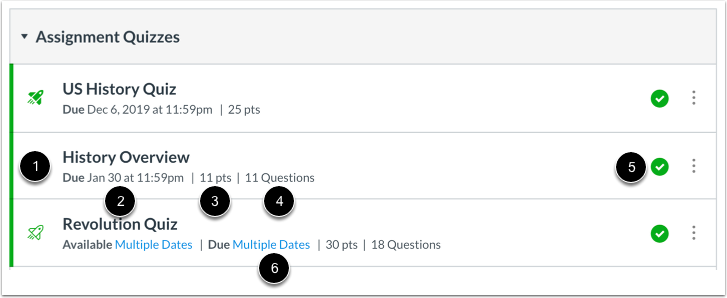
01:07: Each quiz displays details such as the quiz name, due date, total
01:12: points, number of questions, and whether it’s published or unpublished. If
01:17: you’ve set varied due dates for different sections, multiple dates will appear.
01:21: Also note that due dates are optional for quizzes.
01:25: You can also set availability dates for quizzes. Availability
01:29: dates limit when a quiz can be accessed by students.
01:33: To manage an individual quiz, open the Options menu next to it. From
01:37: there, you can edit the quiz, open it in SpeedGrader, delete it, migrate
01:42: it to New Quizzes, send it to another instructor, or copy it to another course.
01:46: Note that the migrate option is only available
01:49: if the New Quizzes feature is enabled in your course.
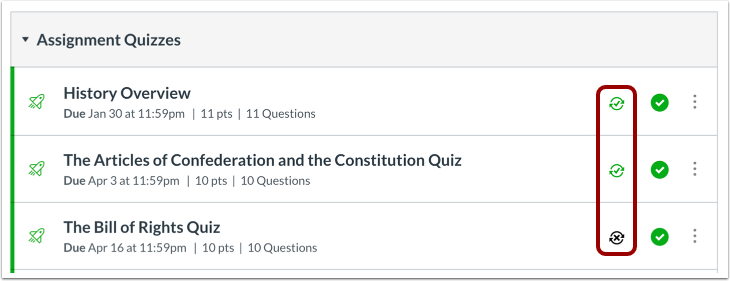
01:53: If your institution uses a student information system as as integration,
01:58: you can tell, if a quiz is set up to sync with the sis, you can enable
02:02: or disable the sink directly by clicking the Sync icon next to the
02:06: quiz. Also note that some institutions may require quiz
02:10: names or due dates before syncing.
02:12: If you see an error message, it will indicate what needs to be fixed before,
02:16: syncing is allowed.
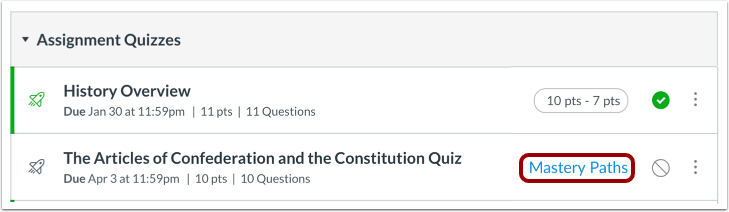
02:18: If your course uses Mastery paths.
02:20: You can see, which items and modules are part of conditional, content or Mastery
02:25: paths.
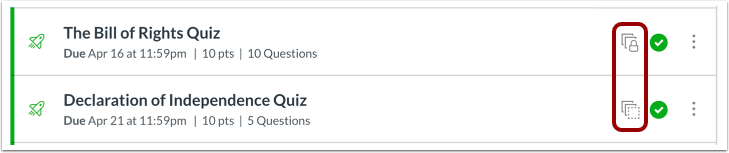
02:26: If you see Blueprint icons, it means your course is linked to a Blueprint
02:31: Course — a course managed as a template by an admin, designer, or
02:35: instructor.If your course is associated with a Blueprint, you’ll only be able to modify
02:40: unlocked content.
02:42: To see how the Quizzes Index page looks to students, click View as Student.
02:47: Also note that if the Quizzes page is hidden in course navigation, the View
02:51: as Student button won’t appear.
02:54: This guide covered how to use the Quizzes Index Page.