00:07: How do I view all groups in a course as an instructor?
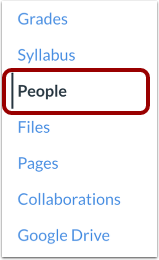
00:11: In Course Navigation, click the People link.
00:15: If at least one group has been created in the course, the People page defaults
00:19: to the Everyone tab, which displays all users in your course.
00:23: Otherwise, the page asks you to add a group set using
00:27: the Add Group Set button. You can add a group set at any time.
00:32: Once you create a group set in the course, the group set displays as a linked tab
00:36: for easy access to the group set information. You can click any tab to
00:40: view a group set for a user group. You can also click the Options menu
00:44: and select the View User Groups link. The page will open the first
00:48: group set in the course.
00:51: When you view a group set, the outlined tab shows the group set you are viewing.
00:55: Click any tab to view another group set
00:59: As part of creating a group, set groups are also created manually
01:03: automatically or by importing a CSV file.
01:07: By default all groups are collapsed in the page.
01:09: You can expand each group and see which students are assigned to each group
01:13: in the group set, if any by clicking the arrow next to the group name, Once
01:19: students are participating in a group, you can open the group options menu
01:23: and view content and activity within a group.
01:27: To manage the details of the group set, click the Options menu.
01:31: To edit the group set, click the Edit link.
01:35: To clone the group set, click the Clone Group Set link. Cloning a group
01:39: set will copy the entire group set, including all groups, group leaders, and memberships.
01:43: You can also create a new name to differentiate the cloned group set.
01:48: If you do not change the name, the group name will remain the same but identified
01:52: as a clone. If you want to modify a group but the group includes student
01:56: submissions, you should clone the group
01:58: instead of modifying the group memberships. Modifying the group may
02:02: have unintended consequences for student grades.
02:06: To delete the group set, click the Delete link. Deleting a group set
02:10: also deletes all the groups within the group set.
02:14: This guide covered how to view all groups in a course as an instructor.