If you want to leave simple feedback for your students, you can leave a text comment directly from the Gradebook.
Open Gradebook
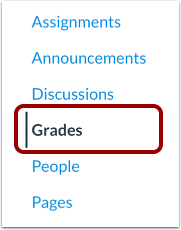
In Course Navigation, click the Grades link.
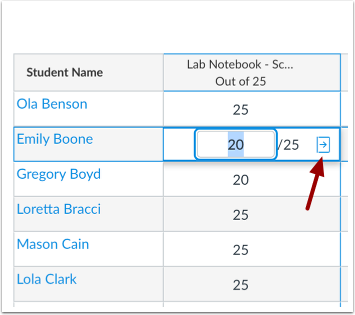
Locate the student name and assignment where you want to leave a comment. Click the Gradebook cell and click the Grade Detail Tray icon.
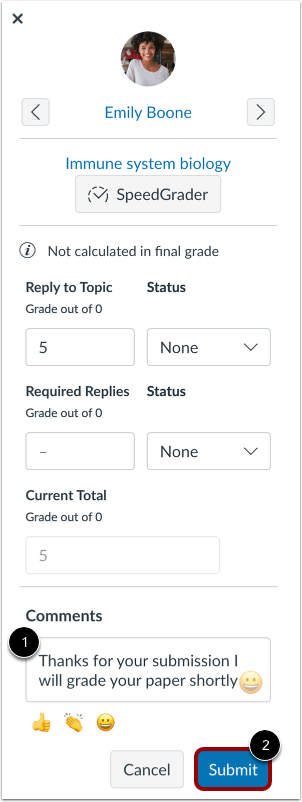
Type your comment in the Comments field [1] and click the Submit button [2].
Add Emoji
If enabled by your institution, you can add emojis to submission comments.
To select an emoji, click the emoji menu [1].
To use a recently used emoji, click the emoji from the recently used menu [2].
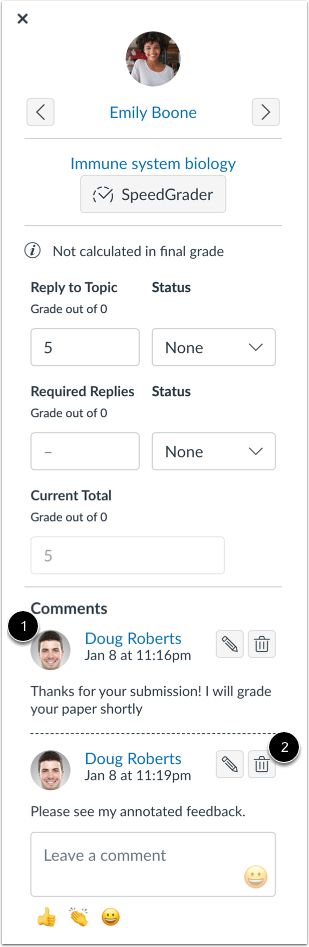
Comments will be listed in chronological order with the oldest comments appearing at the top and the newer comments appearing near the bottom [1].
To delete your comment, click the Delete icon [2].
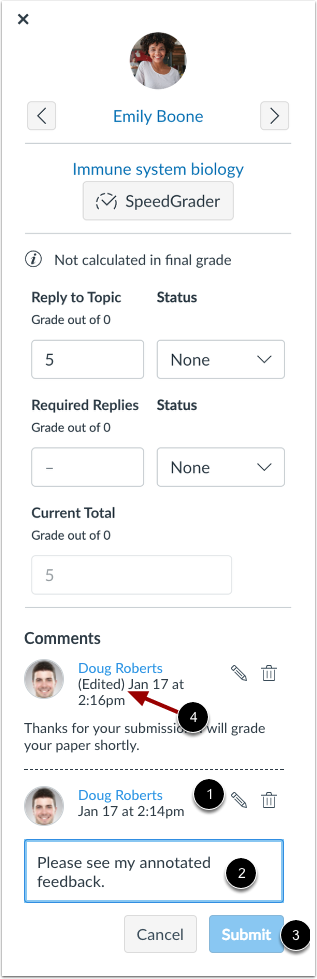
To edit your comment, click the Edit icon [1] and make your edits in the comment box [2]. When you have finished editing your comment, click the Submit button [3]. The time stamp of the edited comment will indicate the comment has been edited [4].
Note: Edits to group assignment comments only apply to the student where the edits are made. Additional edits must be made in the Grade Detail tray for each student.