Open SpeedGrader
On the assignment, click the SpeedGrader button.
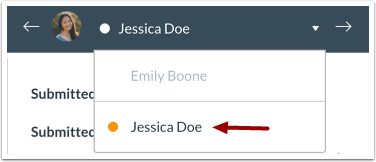
Select Submission
Select the student whose submission you would like to view.
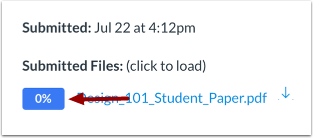
View Submission
View the submission in the SpeedGrader submission pane [1].
If the submission is a supported DocViewer preview type, you can use the DocViewer annotation tools [2] to add comments to the student's submission.
View Similarity Score
The SpeedGrader sidebar displays the student's similarity score. To view the full originality report, click the Originality Score icon.
Grade Submission
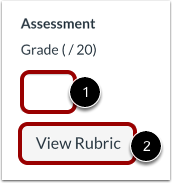
To grade the submission, enter a grade in the Grade field [1].
If you added a rubric to the assignment, you can view the rubric by clicking the View Rubric button [2].