00:07: How do I edit or delete a module?
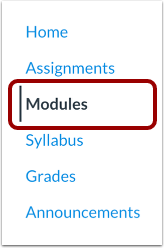
00:10: In Course Navigation, click the Modules link.
00:14: Locate the name of the module and click the Options icon.
00:17: Select the Edit link.
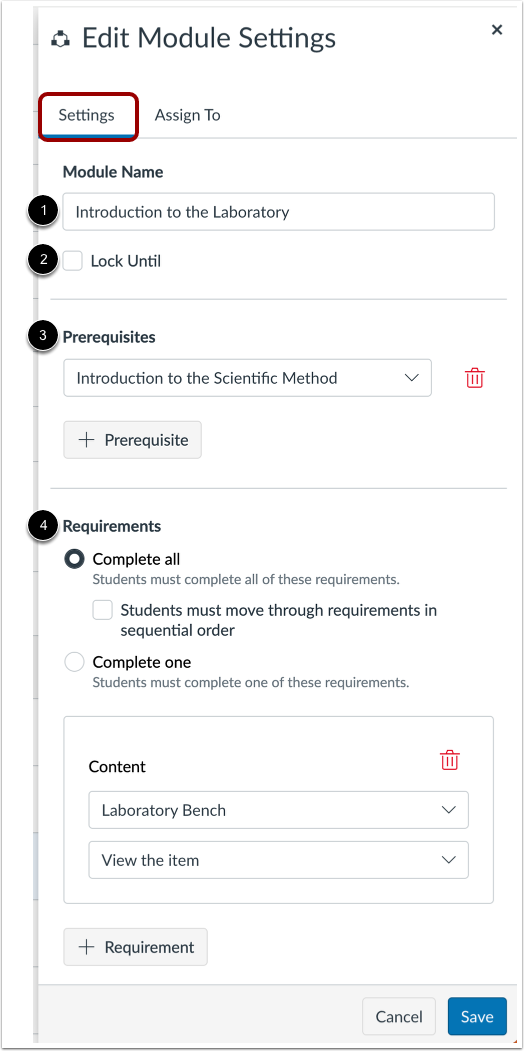
00:20: In the Settings tab, edit the module settings you want to change.
00:23: You can rename the module, lock the module, add prerequisites,
00:27: or add requirements.
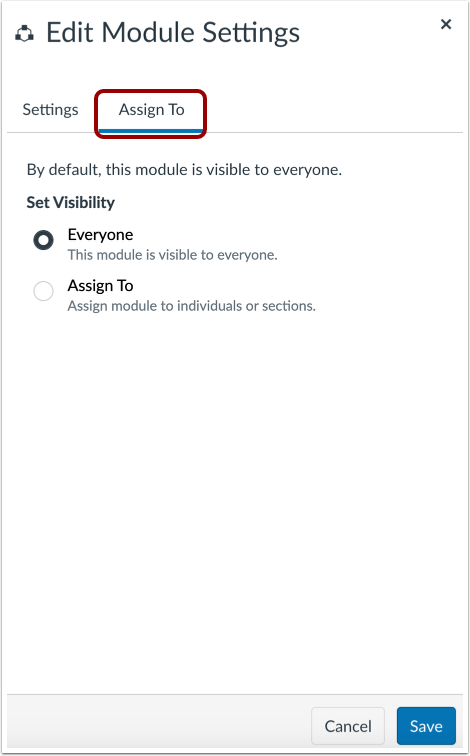
00:30: To edit module assignment details, click the Assign To tab. You
00:34: can assign a module to everyone, individual students, or sections.
00:40: When you are ready to save your Module changes, click the Save button.
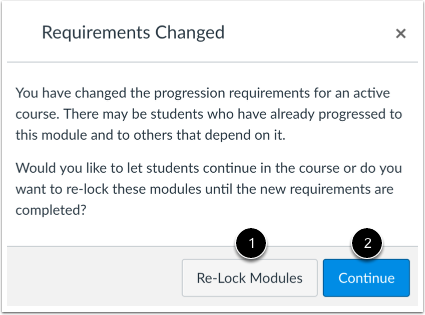
00:45: If you change module requirements, that students have already fulfilled.
00:48: Can this will ask if you want to let students progress through the course or relock,
00:53: the modules and require students to complete the requirements again,
00:57: To re-lock the modules, click the Re-Lock Modules button.
01:02: To allow students to continue without any changes, click the Continue
01:06: button.
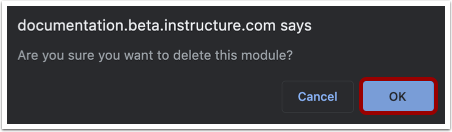
01:07: To delete a module from the Modules index page, click the Options icon. Then
01:12: click the Delete link.
01:14: Click the OK button.
01:16: This guide covered how to edit or delete a module.