00:07: How do I manage settings for a quiz in New Quizzes?
00:11: To manage settings for a quiz, find the quiz
00:13: you want to open. To open the Build page,
00:16: click the Options icon and then click the Build link.
00:20: To create a new quiz, click the Add Quiz button.
00:24: Click the Settings tab.
00:27: If students have already submitted the quiz, a warning message will appear on
00:31: the Delivery Settings page.
00:33: To shuffle the order questions are displayed to students, click the Shuffle Questions
00:38: button. If this setting is turned off, questions will display in the
00:42: order you designate in the quiz.
00:44: To shuffle the order answers are displayed to students for multiple choice,
00:48: multiple answer, and matching quiz questions, click the Shuffle Answers
00:52: button. If this setting is turned off, answers will display in the order
00:56: you designate in the quiz questions.
00:59: To display one question at a time to students, click the One Question
01:03: at A Time button. To allow students to backtrack to previous questions
01:08: in a quiz, click the Allow Backtracking checkbox. Allow Backtracking
01:12: is enabled by default.
01:14: To require students to enter an access code to take a quiz,
01:17: click the Require a student access code button. Then enter the access
01:22: code in the Password field.
01:24: To view a masked access code, click the Show access code checkbox.
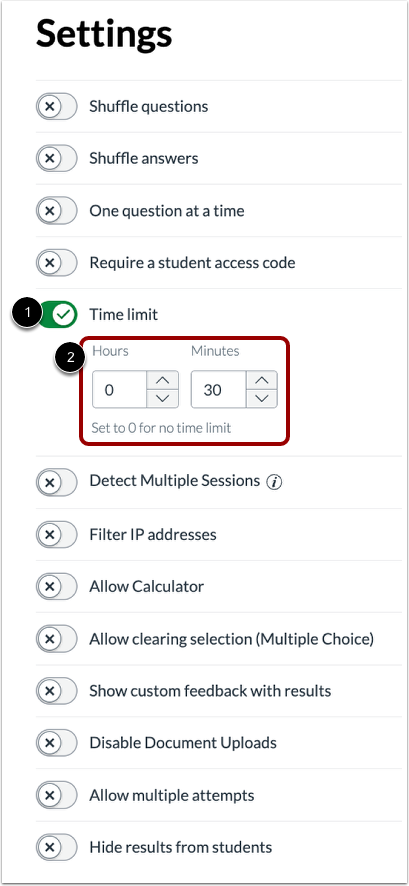
01:30: To set a time limit for a quiz, click the Time Limit button.
01:33: Then enter the time limit using the Hours and Minutes fields.
01:38: To monitor if students access the quiz from multiple devices or browsers,
01:42: click the Detect Multiple Sessions toggle on. When this
01:46: setting is enabled, students receive a notification if they attempt to continue
01:50: a quiz in a different session from where they started.
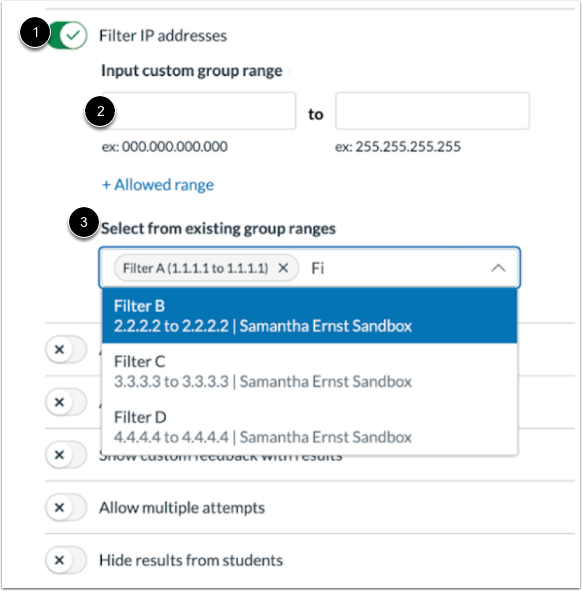
01:53: To filter IP addresses for the quiz, click the Filter IP Addresses
01:58: button. Then, instructors can filter IP address by entering custom
02:02: group ranges or select from existing named group ranges.
02:07: To enable an on-screen calculator for the entire quiz,
02:10: click the Allow Calculator button. Select either the Basic
02:14: or Scientific calculator option. The Basic calculator only
02:19: displays numbers and basic mathematical functions such as addition,
02:23: subtraction, multiplication, division. The Scientific calculator
02:27: displays more options for advanced calculations.
02:32: To allow students to clear a multiple choice answer,
02:34: click the Allow clearing selection (Multiple Choice) button.
02:38: If this setting is turned on, students can clear their answer to a multiple choice
02:42: question after they've made a selection and leave the question unanswered.
02:47: To show custom feedback with results, click the Show custom feedback with results
02:51: button
02:53: To add feedback, use the Rich Content Editor to create customized
02:57: feedback
02:58: To preview the custom feedback, click the Preview Feedback button.
03:03: When the Disable Document Uploads quiz setting is enabled, students will
03:08: not be able to use the Insert Media and Insert Document options in the Rich
03:12: Content Editor.
03:14: To allow multiple attempts for a quiz. Click the allow multiple attempts button to
03:18: assign which score to keep for student grades.
03:20: Select the option in the score to keep drop-down menu, you can choose to keep the
03:24: highest score, average, score, latest score, or first score.
03:29: By default, students will be allowed unlimited attempts
03:32: when the Allow multiple attempts option is enabled. To set a
03:36: limited number of attempts, select the Limited option. Then select the number
03:40: of attempts you want to allow.
03:43: To set a waiting period between attempts, click the Require time between attempts
03:47: checkbox. Then select the days, hours, and minutes to require
03:51: students to wait before they can begin a new attempt.
03:55: To allow students to build on their last attempt by letting them reattempt
03:59: incorrectly answered questions, click the Enable build on last attempt
04:03: checkbox.
04:05: To restrict students from viewing quiz results, click the Hide results from students
04:09: button.
04:11: This guide covered how to manage settings for a quiz in New Quizzes.