The Learning Mastery Gradebook Individual View allows instructors to assess one student and one outcome at a time. Fully accessible to screen readers, this Gradebook view allows instructors to sort by section and outcome and contains all the same settings that are available in the Learning Mastery Gradebook Default View (the view that shows all students in a course).
If you are not familiar with the settings and other options in the Learning Mastery Gradebook, click the feature links throughout this lesson to learn more about how the feature works in Default View.
Like all Gradebook tabs, Individual View is persistent. Therefore, once you switch the Gradebook to Individual View, the Gradebook will always display in Individual View until it is switched back to Default View.
Open Gradebook
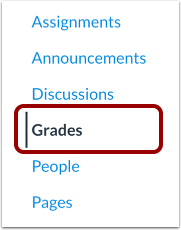
In Course Navigation, click the Grades link.
Switch to Individual Gradebook
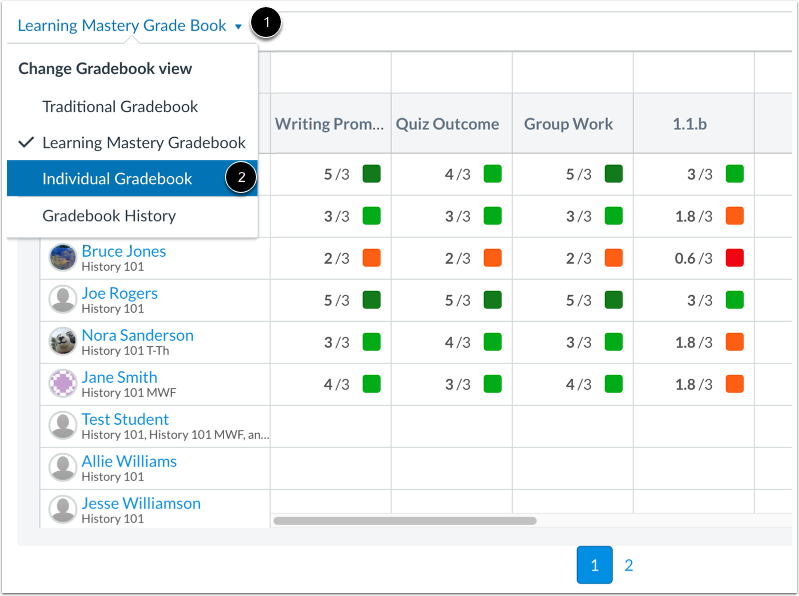
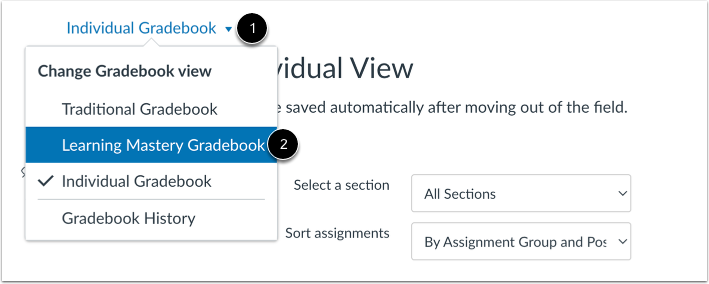
Click the Learning Mastery Gradebook menu [1] and then click the Individual Gradebook link [2].
Select a Section
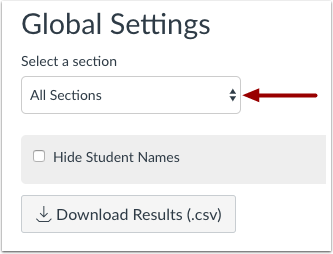
In the section drop-down menu, select the section you want to view.
Hide Student Names
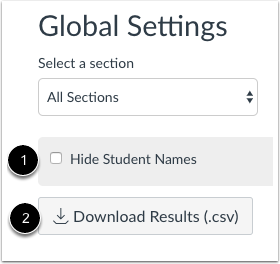
To hide student names in the Gradebook Individual View, select the Hide Student Names checkbox [1]. To download scores in a CSV file, click the Download Results button [2].
Select Student
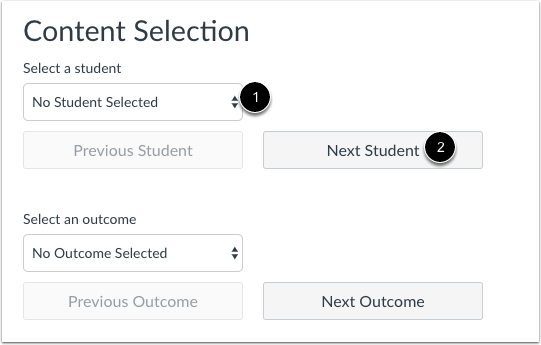
In the Student drop-down menu [1], select the name of the student whose information you want to view. If you want to view all students beginning with the first student in your course or section, click the Next Student button [2].
Remember, student names will be sorted by last name and displayed according to your section preference in the Global Settings drop-down menu.
Select Outcome
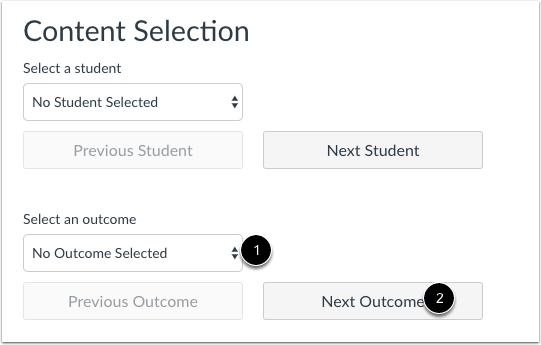
In the Assignment drop-down menu [1], select the outcome you want to view. If you want to view the first outcome in your course, click the Next Outcome button [2].
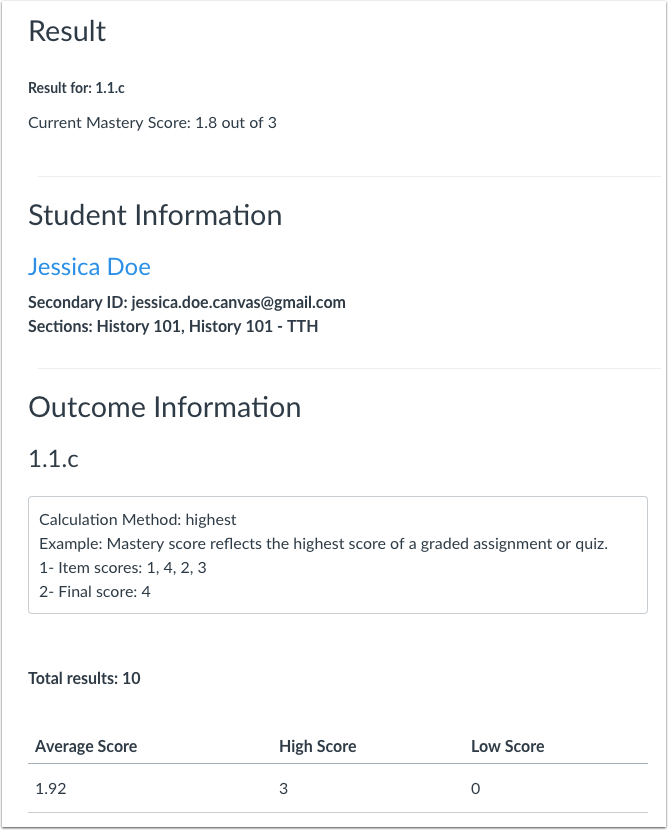
Once you select a student and an outcome, the Result, Student Information, and Outcome Information will display all corresponding content. Scroll down the page to view each of these sections. You can revisit the Gradebook settings at any time to hide and show settings.
View Next Student or Outcome
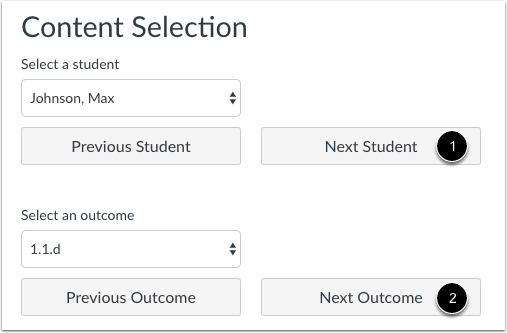
To view the next student, click the Next Student button [1].
To view the next outcome, click the Next Outcome button [2].
You can always select individual students and/or outcomes by clicking each respective drop-down menu.
Switch Gradebooks
To switch to the Default Learning Mastery Gradebook, click the Gradebook drop-down menu [1] and then click the Learning Mastery Gradebook link [2].