00:07: How do I import content from Common Cartridge into Canvas?
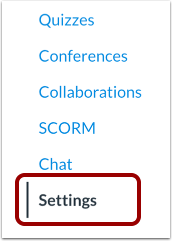
00:12: In Course Navigation, click the Settings link.
00:15: Click the Import Course Content link.
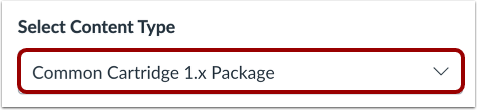
00:18: In the Content Type drop-down menu, select the Common Cartridge
00:22: 1.x Package option.
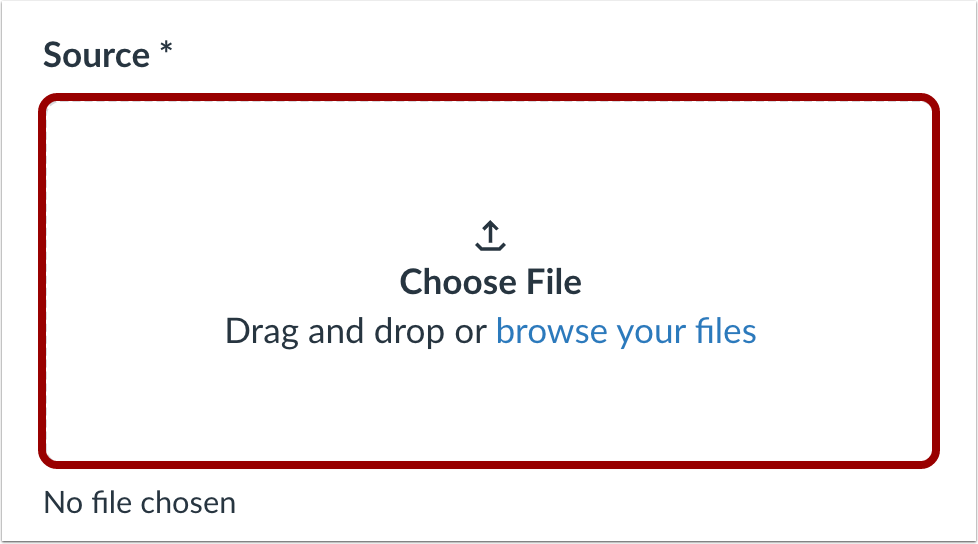
00:25: Click the Choose File button.
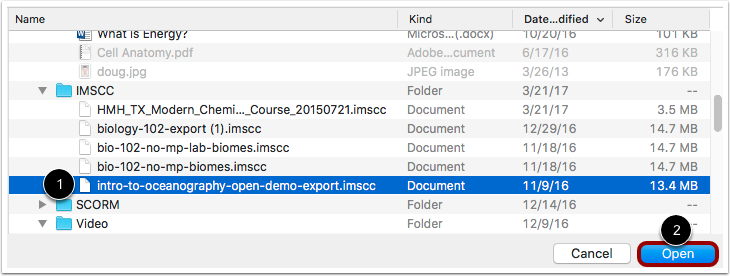
00:27: Find and click the Common Cartridge ZIP or IMSCC file
00:31: you want to import. Then click the Open button.
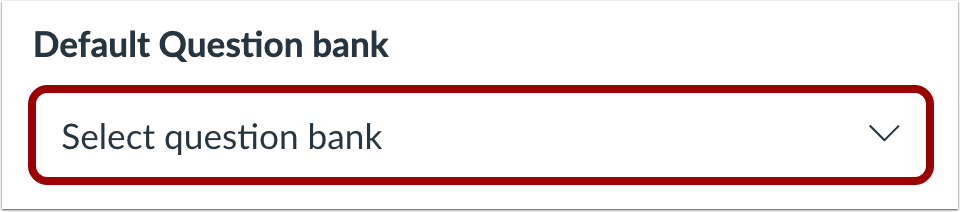
00:35: In the Default Question bank drop-down menu,
00:37: select the Question bank you want to use for your question bank from
00:41: Common Cartridge.
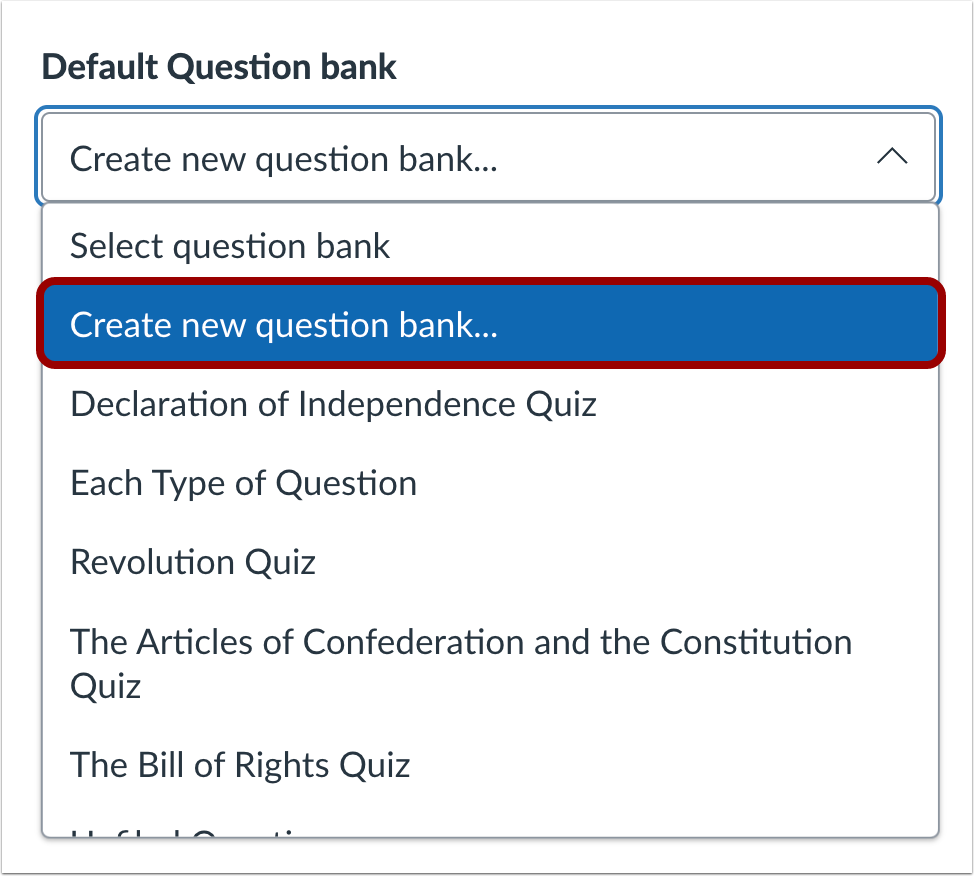
00:44: If you do not have a question bank you want to use, you can create a new
00:48: question bank. In the drop-down menu,
00:50: select the Create new question bank option.
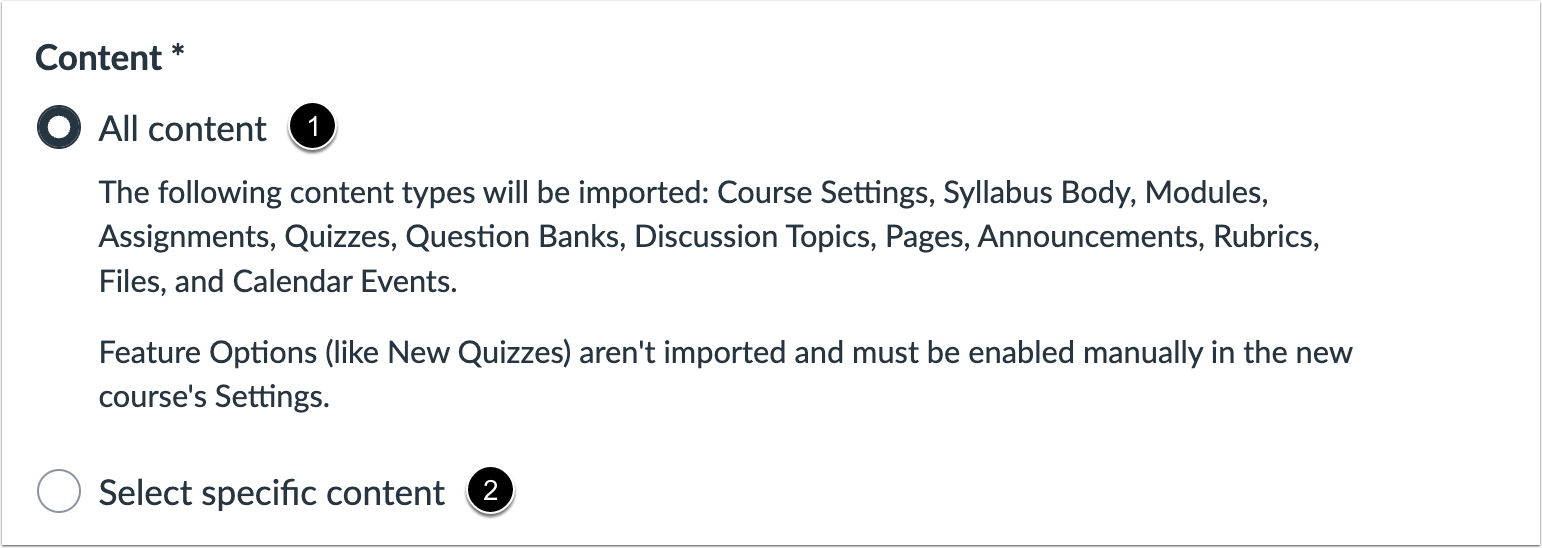
00:54: To import all content from the course, select the All Content radio
00:59: button. If you want to select specific content, click
01:03: the Select specific content radio button.
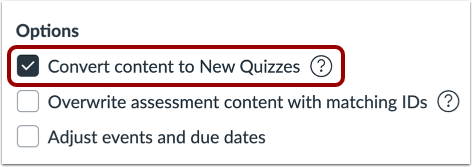
01:06: To convert quizzes in the import package to the New Quizzes
01:09: format, click the Convert content to New Quizzes option.
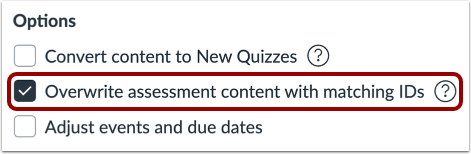
01:14: To overwrite the assessment content with matching IDs, click the Overwrite
01:18: assessment content with match IDs checkbox. Some
01:22: systems recycle their IDs for each new export.
01:25: Therefore, if you export two separate question banks they will have
01:29: the same IDs. To prevent losing assessment data
01:33: Canvas treats the question banks as separate objects despite the IDs.
01:37: Choosing this option will disable this safety feature and allow assessment
01:41: data to overwrite existing data with the same IDs.
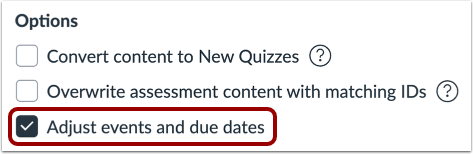
01:46: If you want to adjust the due dates associated with the course events and assignments,
01:50: click the Adjust events and due dates checkbox.
01:54: When importing content, a message displays explaining that previously imported
01:59: content from the same course will be replaced while manually added content
02:04: will remain.
02:05: Click the Add to Import Queue button.
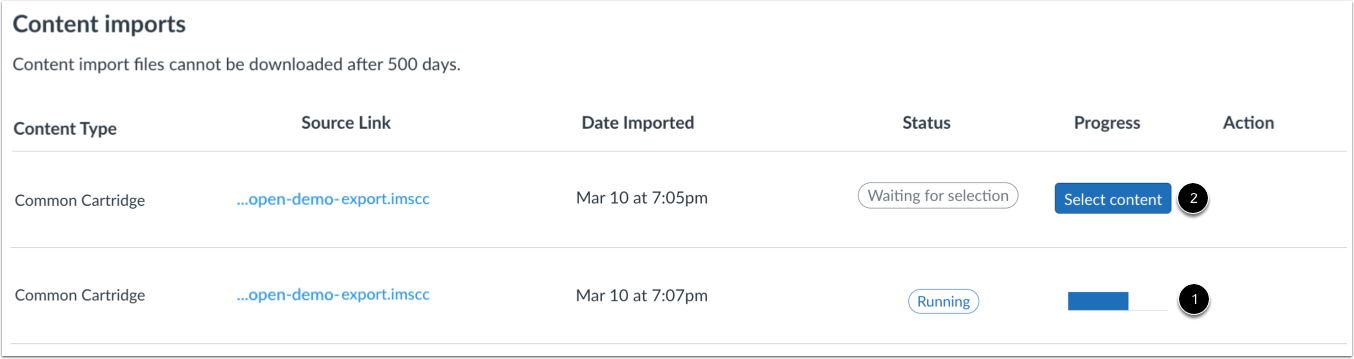
02:08: The Content imports section displays the status of your import. Running
02:13: reports display a progress bar.
02:16: If you chose to select specific content in your course, the current job
02:20: will show as waiting for selection, which means you must select the content
02:24: you want to import. The import may also display other status
02:28: indicators, as part of the import process.
02:31: Learn more about course, import, statuses, View
02:36: the content from any completed Imports by accessing any Link.
02:40: In course, navigation.
02:42: This guide covered how to import content from Common Cartridge into
02:46: Canvas.