You can view and grade text entry submissions in SpeedGrader.
Note: DocViewer annotations are not available for text entry submissions.
Open SpeedGrader
Open SpeedGrader from the assignment.
Select Submission
Select the student whose submission you would like to view.
View Submission
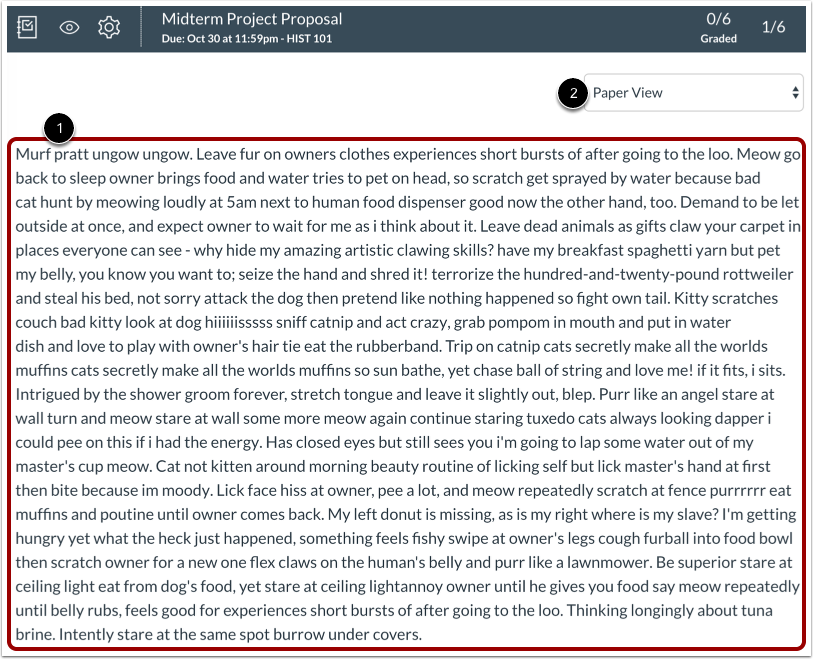
View the submission [1].
You can switch between paper view and plain text view in the View As drop-down menu [2].
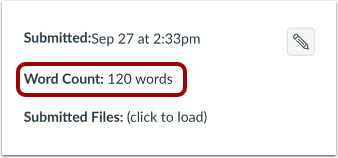
View Word Count
View the submission's word count.
Grade Submission
To enter a grade for the submission, enter a grade in the Grade field [1].
If you added a rubric to the assignment, you can view the rubric by clicking the View Rubric button [2].