You can grade individual New Quizzes questions using SpeedGrader. Most quiz items are graded automatically after a student submits the quiz. However, essay and file upload questions must be graded manually.
Notes:
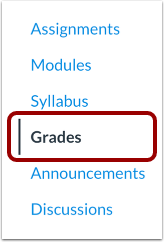
Open Grades
In Course Navigation, click the Grades link.
Open SpeedGrader
Find the quiz you want to grade [1]. Then click any grade cell for the quiz [2].
To open the Grade Detail Tray, click the Grade Detail Tray icon [3]. Then click the SpeedGrader link in the Grade Detail Tray [4].
Open SpeedGrader Options
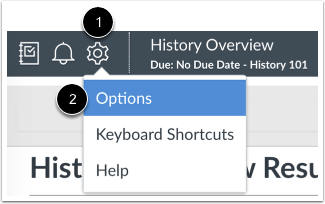
To enable grading by one question at a time, click the SpeedGrader Settings icon [1] and click the Options link [2].
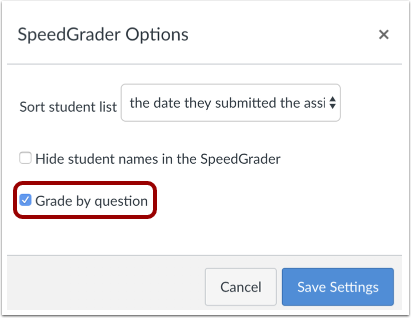
Select Grade by Question
Click theGrade by question checkbox [1]. Then click the Save Settings button [2].
View Number Bar
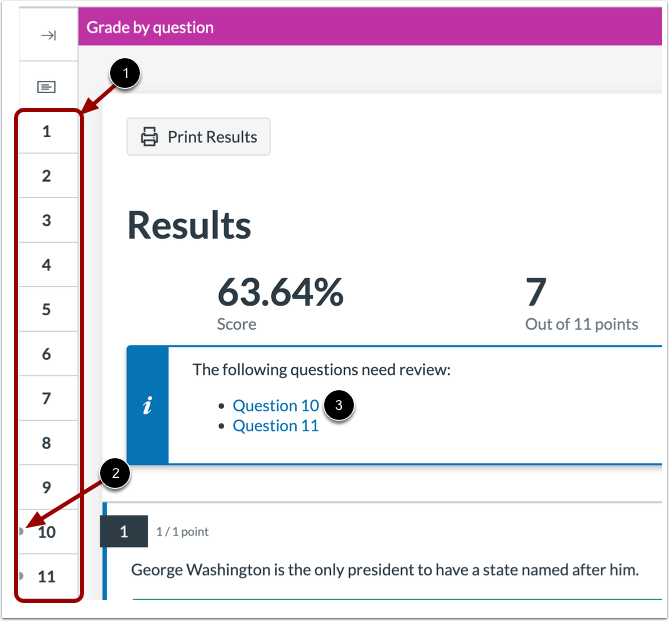
When grading by one quiz question at a time enabled, Canvas displays a number bar next to the quiz view panel to represent each question in your quiz [1].
Numbers with an indicator represent questions that need to be graded manually [2]. Canvas also displays a notification bar with the quiz questions that need to be manually reviewed and assigned a grade [3].
Assign Grade
Questions that require manual grading display a border and Waiting for grade text [1].
To give a student full points for an answer, click the Correct button [2]. To give a student no points for an answer, click the Incorrect button [3]. You can also use the Arrow buttons to increase or decrease the score [4].
To leave additional comments on the question, click the Comment icon [1]. Enter your comments in the Additional Comments field [2], then click the Done button.
Note: If you do not click the Done button before clicking the Update button or moving to another student, the comments will not be saved.
Save Grade
To save the score for the question, click the Update button.
Advance to Next Student
To grade a student submission for the same question, click the Next Student button [1].
To go to a previous student, click the Previous Student button [2]
Note: SpeedGrader displays the same quiz question for the next student.