You can add accommodations for a student in New Quizzes. Accommodation settings include adding or removing time for all quiz attempts and multiplying time limits by a set multiplier.
Course Accommodations apply to all quizzes in a course for a student and only one accommodation can be set per student. You can view it in the Accommodations column or the Moderate panel.
To add accommodations to a specific quiz or manage timer settings for a single attempt, you can moderate a student's quiz attempt. Moderating a quiz attempt will apply any moderation settings on top of any set accommodations.
Note: Quiz availability dates still apply when moderating a quiz. If the Until date passes before a student completes an extra attempt or extended-time quiz, any in-progress quizzes auto-submit and the quiz closes, even if the student's attempt has not expired.
Open Quizzes
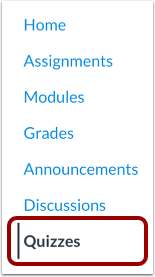
In Course Navigation, click the Quizzes link.
Note: You can also access quizzes from the Assignments page.
Open Build Page
To add student accommodations, locate any existing New Quiz [1]. Then click the Options icon [2] and click the Build link [3].
Moderate Quiz
In New Quizzes, click the Moderate tab.
Open Accommodation Settings
Click the student link [1] to edit accommodations for a student. Alternatively, you can use the Search field to find a specific student [2].
Select Time Adjustment
In the Course Accommodation menu, select the time adjustment option you want to give the student. You can give additional time or remove the time limit.
Give Additional Time
To add additional time, select the Give additional time option [1] in the time adjustments menu. Then use the Hours and Minutes fields [2] to add additional time.
Remove Time Limit
To remove the time limit, select the Remove time limit (unlimited) option in the time adjustments menu.
Add Time Limit Multiplier
To add a time limit multiplier, select the Time limit multiplier option [1] in the time adjustments menu. Then enter the multiplier in the Time limit multiplier field [2].
Enable Reduced Answer Choices for a Student
To moderate a student's quiz and reduce answer choices, click on the student’s name in the moderation list [1]. Click the Reduced Answer Choices toggle to enable it [2]. This removes one incorrect answer from all multiple-choice questions with four or more options. To apply the changes, click the Save button [3].
Note: To add accommodations to a specific quiz or manage timer settings for a single attempt, you can moderate a student's quiz attempt. Moderating a quiz attempt will apply any moderation settings on top of any set accommodations.
Save Accommodations
Click the Save button.
View Accommodations
View the student's accommodations in the Accommodations column. This column displays the cumulative effect of accommodations and moderation timer settings.