You can add feedback to items in Evaluation Portfolios to support student learning. As an instructor, you can mark items as Complete, Request Revision, or Not Complete. You can also leave comments on student work to provide guidance and insight.
If you have a student role, you can also have assigned portfolios as a learner. For more information, visit the guide: How do I view evidence feedback in Portfolios?
00:07: How do I add evidence feedback in Evaluation Portfolios?
00:11: In the User Navigation menu, click the Account link, then click the Portfolio link.
00:17: Select the desired Evaluation Portfolio.
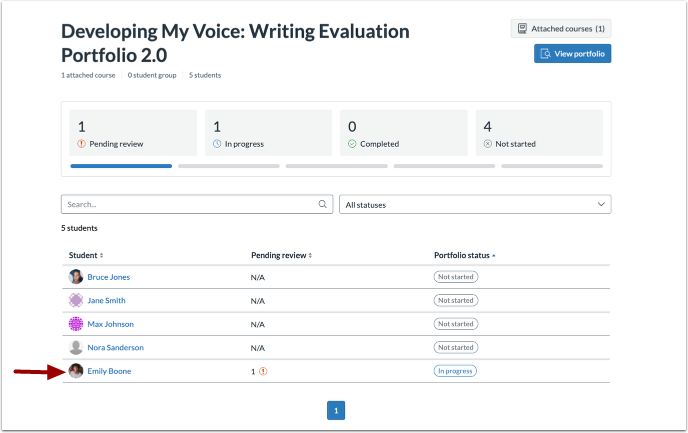
00:21: Click the student you wish to review.
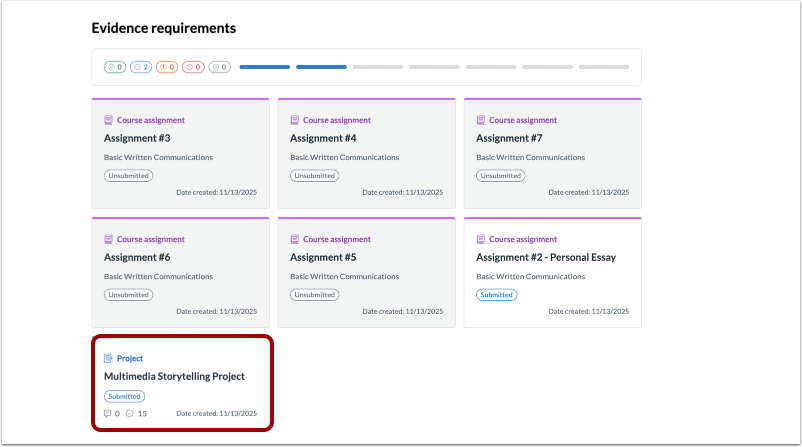
00:23: Click the item you want to review.
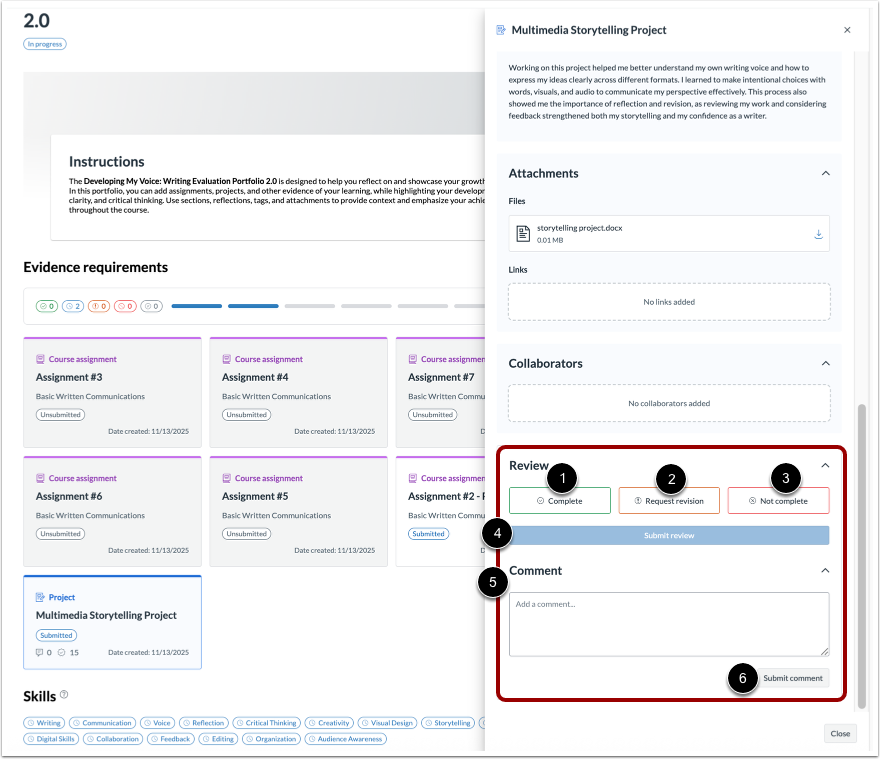
00:26: In the Review section, mark the item as Complete, Request revision, or Not complete, then click the Submit review button. You can also leave a comment and click the Submit comment button.
00:39: This guide covered how to add evidence feedback in Evaluation Portfolios.
Open Portfolio
In the User Navigation menu, click the Account link [1], then click the Portfolio link [2].
Select Portfolio
Select the desired Evaluation Portfolio.
Select Student
Click the student you wish to review.
Select Item to Review
Click the item you want to review.
Mark Items and Submit Feedback
In the Review section, mark the item as Complete [1], Request revision [2], or Not complete [3], then click the Submit review button [4]. You can also leave a comment [5] and click the Submit comment button [6].
Note: You can leave comments independently of marking evidence as complete or incomplete to provide ongoing feedback. When requesting a revision or marking evidence as not complete, you will always be prompted to include a comment before submitting.