The Course Home Page is associated with the Home link in Course Navigation and is the first page seen for each course. Each Course Home Page can have one of five different layouts depending on your preference.
Each Course Home Page layout also includes specific items in the sidebar, in addition to the To Do list.
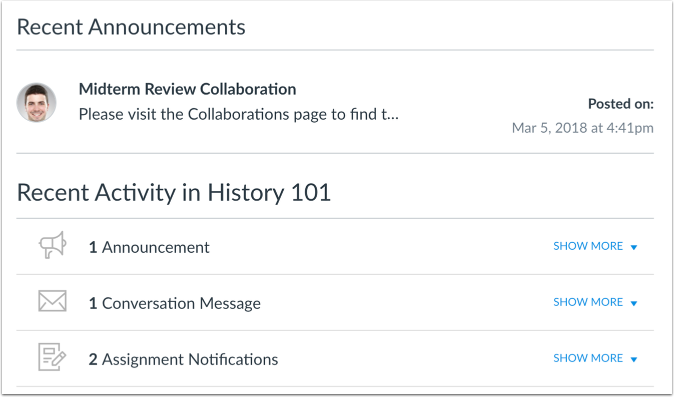
The Course Home Page defaults to the Modules page, but you can change the Course Home Page. Additionally, all Course Home Page layouts can display recent announcements at the top of the page. However, only text and links are displayed for each announcement.
00:07: What layout options are available in the course, homepage as an instructor.
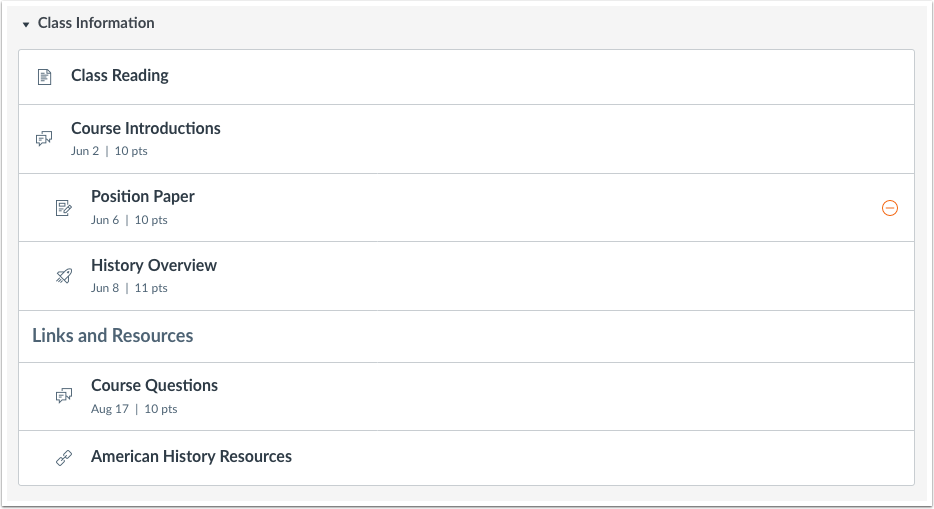
00:12: Course, modules. Organizes the course into modules or sections, modules,
00:16: helps outline the course, and shows the assignments or tasks required throughout the course.
00:22: You can add modules or module items from the modules page.
00:26: If your homepage is set to view course, modules, in addition to the to-do list,
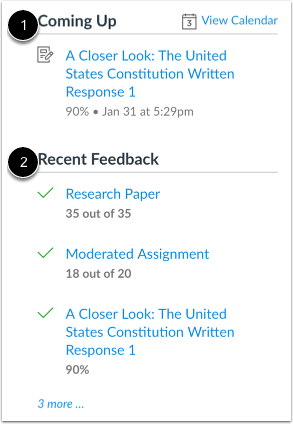
00:30: the sidebar displays the coming up section which shows the list of activities
00:34: coming up in the course schedule. Coming up items, reflect activity.
00:39: Within the next seven days, users can click the calendar link to access
00:43: the course calendar.
00:45: And the recent feedback section, which shows assignments with instructor feedback
00:49: during the last four weeks. This section shows to all user
00:53: roles but feedback is only displayed to students.
00:57: The course, activity stream, lets users, see the most recent activity and interactions
01:02: for this course. It is very similar to the recent activity stream
01:06: in the dashboard but only shows content for the specific course.
01:11: If your homepage is set to view course, modules, in addition to the to-do list,
01:15: the sidebar displays the coming up section which shows the list of activities
01:19: coming up in the course schedule. Coming up items, reflect activity.
01:24: Within the next seven days, users can click the calendar link to access
01:28: the course calendar.
01:30: And the recent feedback section, which shows assignments with instructor feedback
01:34: during the last four weeks. This section shows to all user
01:38: roles but feedback is only displayed to students.
01:42: The pages front page allows instructors to design.
01:45: The course homepage and include links images, or rich media.
01:50: Students will be able to interact with the content added to this page.
01:54: The front page is also indicated on the pages index page.
01:57: Students can also view pages in course navigation.
02:00: If the page is link is shown in the course, Additionally, all
02:05: course homepage layouts can show recent announcements at the top of the page.
02:10: If your homepage is set to view course, modules, in addition to the to-do list,
02:14: the sidebar displays the coming up section which shows the list of activities
02:18: coming up in the course schedule. Coming up items, reflect activity.
02:23: Within the next seven days, users can click the calendar link to access
02:27: the course calendar.
02:29: And the recent feedback section, which shows assignments with instructor feedback
02:33: during the last four weeks. This section shows to all user
02:37: roles but feedback is only displayed to students.
02:42: The assignment list shows the list of assignments for the course, with upcoming and recent
02:46: assignments at the top of the page. Users can click the link of the assignment
02:50: to view more details.
02:53: If your homepage is set to view the assignments list in addition to the to-do
02:57: list, the sidebar displays the upcoming assignments section, which shows
03:01: the list of assignments, coming up in the course schedule, Upcoming assignments
03:05: items reflect activity. Within the next seven days users can click
03:10: the calendar link to access the course calendar.
03:13: And the recent feedback section, which shows assignments with instructor feedback
03:17: during the last four weeks. This section shows to all user
03:21: roles but feedback is only displayed to students.
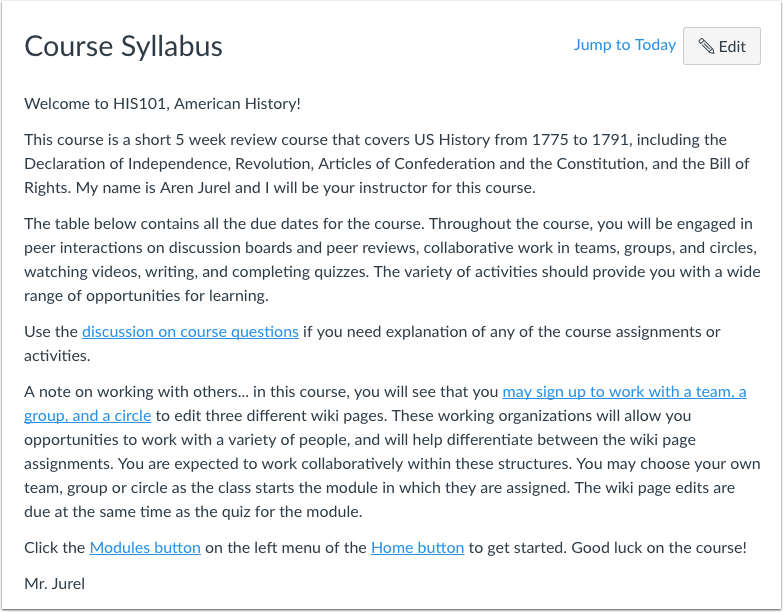
03:25: The syllabus may include a description. Of course, expectations are introduced.
03:29: The course with links images or other content.
03:33: The syllabus also automatically populates a calendar view of all assignments,
03:37: and course events as they are added or modified in the course.
03:41: The syllabus can also be viewed in course navigation.
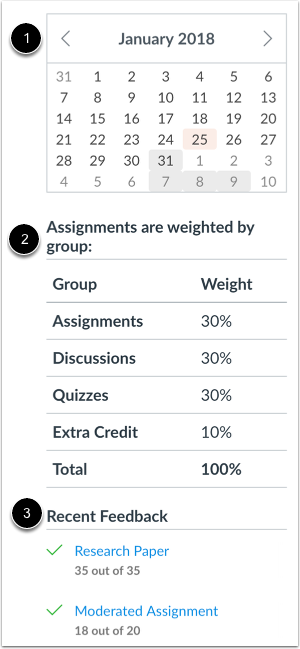
03:45: If your homepage is set to view the syllabus, in addition to the to-do list, the
03:49: sidebar displays a mini version of the course calendar.
03:54: Notice of any weighted course, assignments.
03:57: And the recent feedback section, which shows assignments with instructor feedback
04:01: during the last four weeks. This section shows to all user
04:05: roles but feedback is only displayed to students.
04:09: To view the course, homepage layout options.
04:11: As a student, click the view as student button.
04:16: This guide covered the layout options available in the course, homepage as an instructor.
View Course Modules
Course Modules organizes the course into modules, or sections. Modules helps outline the course and shows the assignments or tasks required throughout the course. You can add modules or module items from the Modules page.
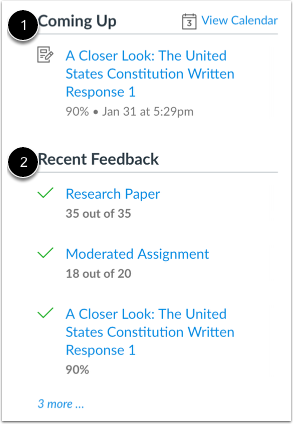
If your Home Page is set to view Course Modules, in addition to the To Do list, the sidebar displays:
- the Coming Up section [1], which shows the list of activities coming up in the course schedule. Coming Up items reflect activity within the next 7 days. Users can click the Calendar link to access the course calendar.
- the Recent Feedback section [2], which shows assignments with instructor feedback during the last four weeks (this section shows to all user roles but feedback is only displayed to students)
View Course Activity Stream
The Course Activity Stream lets users see the most recent activity and interactions for this course. It is very similar to the recent activity stream in the Dashboard but only shows content for the specific course.
If your Home Page is set to view Course Modules, in addition to the To Do list, the sidebar displays:
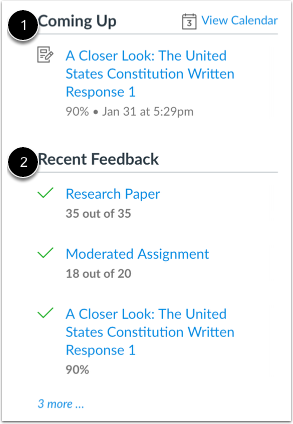
- the Coming Up section [1], which shows the list of activities coming up in the course schedule. Coming Up items reflect activity within the next 7 days. Users can click the Calendar link to access the course calendar.
- the Recent Feedback section [2], which shows assignments with instructor feedback during the last four weeks (this section shows to all user roles but feedback is only displayed to students)
View Pages Front Page
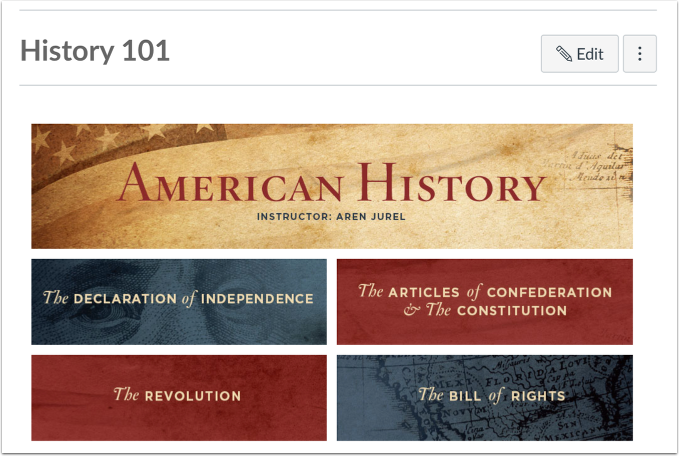
The Pages Front Page allows instructors to design the course home page and include links, images, or rich media. Students will be able to interact with the content added to this page.
The Front Page is also indicated on the Pages Index Page. Students can also view Pages in Course Navigation if the Pages link is shown in the course.
Additionally, all Course Home Page layouts can show recent announcements at the top of the page.
If your Home Page is set to view Course Modules, in addition to the To Do list, the sidebar displays:
- the Coming Up section [1], which shows the list of activities coming up in the course schedule. Coming Up items reflect activity within the next 7 days. Users can click the Calendar link to access the course calendar.
- the Recent Feedback section [2], which shows assignments with instructor feedback during the last four weeks (this section shows to all user roles but feedback is only displayed to students)
View Assignment List
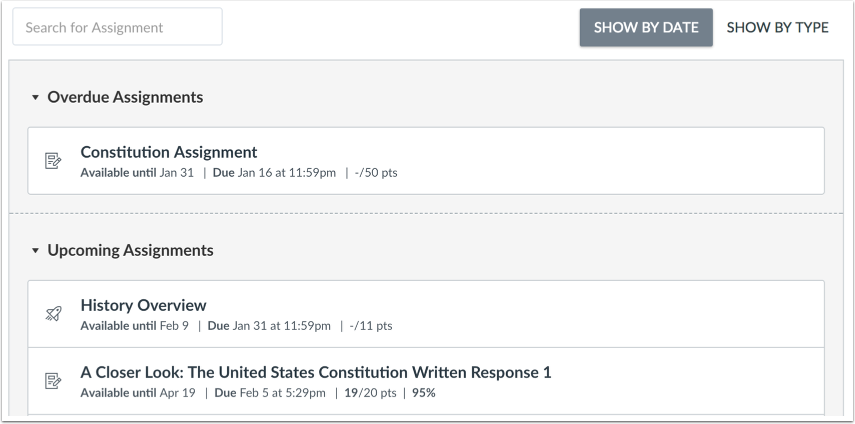
The Assignment List shows the list of assignments for the course with upcoming and recent assignments at the top of the page. Users can click the link of the assignment to view more details.
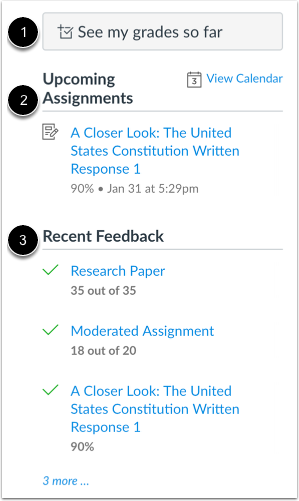
If your Home Page is set to view the Assignments List, in addition to the To Do list, the sidebar displays:
- a link to view grades in the course (students only) [1].
- the Upcoming Assignments section [2], which shows the list of assignments coming up in the course schedule. Upcoming Assignments items reflect activity within the next 7 days. Users can click the Calendar link to access the course calendar.
- the Recent Feedback section [3], which shows assignments with instructor feedback during the last four weeks (this section shows to all user roles but feedback is only displayed to students).
View Syllabus
The Syllabus may include a description of course expectations or introduce the course with links, images, or other content. The Syllabus also automatically populates a calendar view of all assignments and course events as they are added or modified in the course.
The Syllabus can also be viewed in Course Navigation.
If your Home Page is set to view the Syllabus, in addition to the To Do list, the sidebar displays:
- a mini version of the course calendar [1].
- notice of any weighted course assignments [2].
- the Recent Feedback section [3], which shows assignments with instructor feedback during the last four weeks (this section shows to all user roles but feedback is only displayed to students).
View Student View
To view the course home page layout options as a student, click the View as Student button.
Note: If the course navigation link for the page is disabled and hidden from students, the View as Student button does not display.