00:07: What options can I set in a quiz?
00:09: When you create a quiz, you have a variety of options to choose from within a
00:13: classic quiz. When the Disable Classic Quiz Creation feature
00:18: option is enabled, you cannot create new Classic Quizzes.
00:21: However, existing Classic Quizzes can continue to be edited,
00:25: imported, and migrated to New Quizzes. The options displayed
00:30: in this lesson are for Classic Quizzes. To set the options for a quiz
00:34: in New Quizzes, learn how to manage settings for a quiz in New Quizzes.
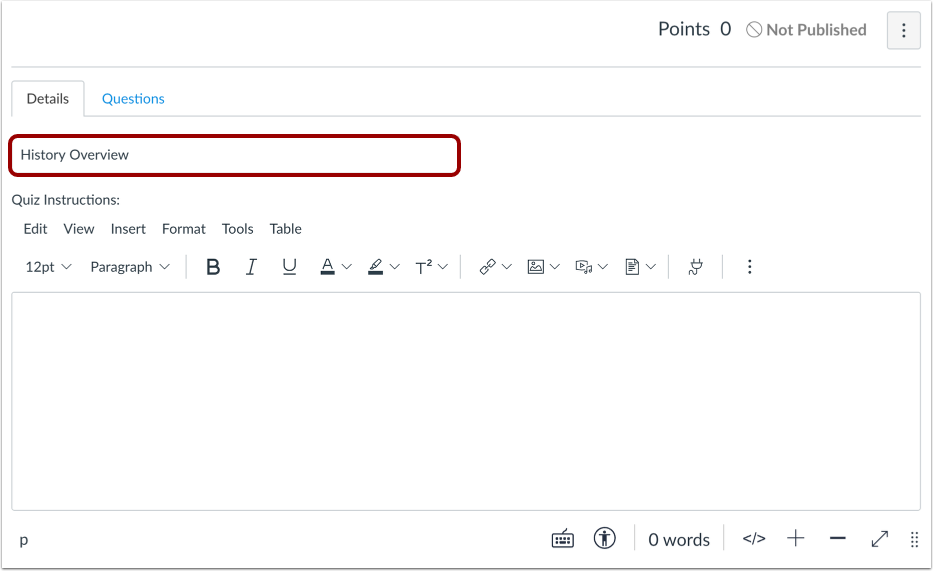
00:39: When creating a new quiz, Canvas defaults to the Details tab. In
00:43: the Unnamed Quiz field, you can add a name for your quiz.
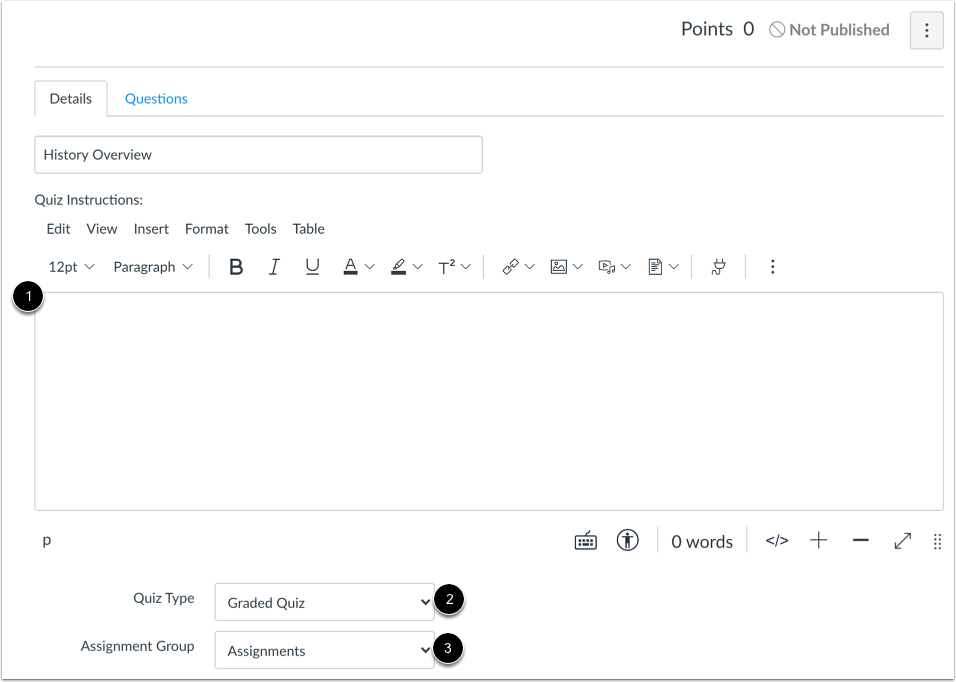
00:47: Add instructions using the Rich Content Editor.
00:51: Select the quiz type from the Quiz Type drop-down menu.
00:55: To categorize the quiz into the proper Assignment Group, select a group from the Assignment
00:59: Group drop-down menu.
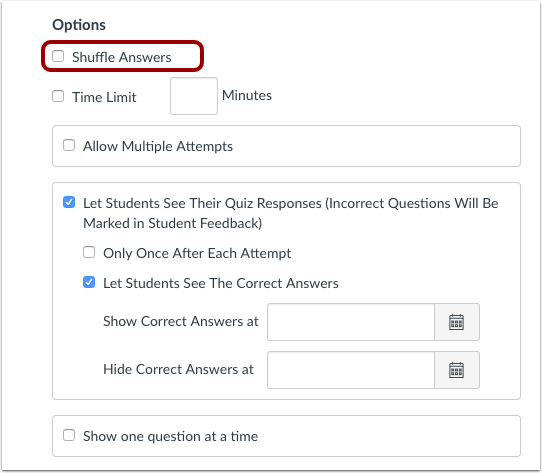
01:02: To shuffle or randomize answers, click the Shuffle Answers checkbox.
01:06: You can also shuffle questions by creating a question group.
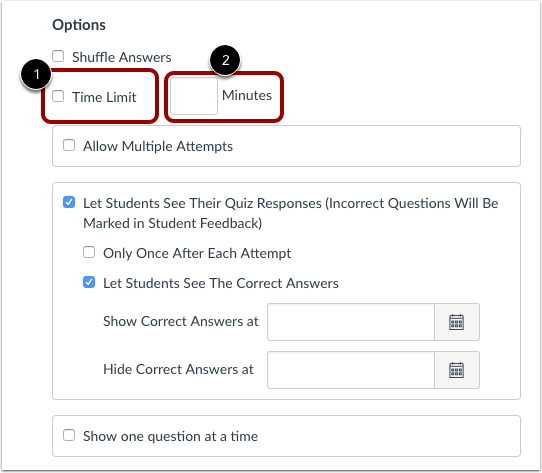
01:10: To set a time limit, click the time, limit check box.
01:13: Enter the number of minutes. Students have to complete the entire quiz.
01:18: Timed quizzes. Begin once a student Begins the exam and do not pause
01:23: if the student navigates away from the quiz. If no time limit is set students
01:27: have unlimited time to complete the quiz.
01:29: If a timed quiz is automatically submitted after a student loses
01:34: internet connectivity, the submission timestamp and time to complete.
01:38: The quiz may not align with the allotted time limit and or the availability dates.
01:43: If a student loses internet, connectivity, canvas extends, the time for 5
01:47: minutes saving, the answer entered before the timer runs out.
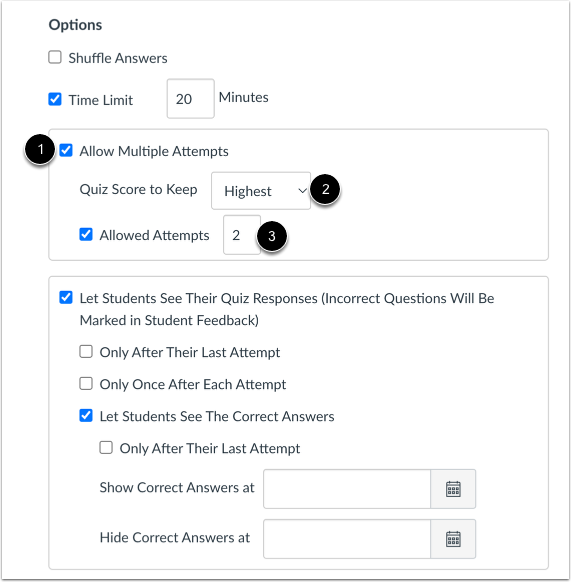
01:52: To allow students to take the quiz more than once click the allow multiple
01:56: attempts checkbox. By default canvas
02:00: keeps the highest score as the final score to keep a different score.
02:04: Click the quiz score to keep drop down menu.
02:07: You can choose whether to keep the highest score latest score or
02:11: the average score of all attempts. By default
02:15: students are allowed unlimited attempts and a Dash displays to
02:19: limit the number of attempts, enter a number in the allowed attempts field.
02:24: By default students can view their answers any automatic feedback generated
02:29: by the quiz for correct or incorrect answers, and which questions
02:33: they got wrong? Use the following options to control response visibility.
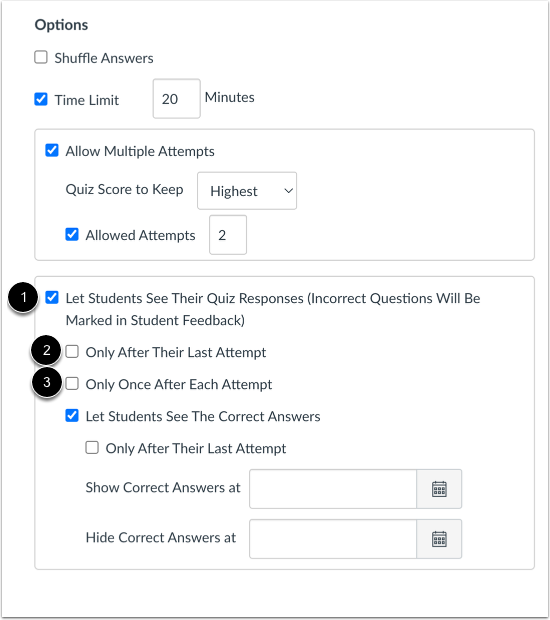
02:38: Let's students see their quiz responses checkbox allows students to see their quiz
02:42: responses deselect this option to prevent students from seeing their quiz
02:46: responses. Only after their last attempt allow students
02:50: to see their responses only after their last quiz attempt.
02:53: This option is only available if you allow at least one attempt for the quiz.
02:59: Only once after each attempt, students can view their responses.
03:03: Immediately, after they have completed the quiz results, include both their responses
03:07: and the correct answers students will still see their quiz score upon submitting
03:11: a quiz. When this option is enabled because of this, this option may
03:15: not be appropriate for quizzes. That require manual grading such as essay questions,
03:19: where students may need to access the quiz results, multiple times to see an
03:23: updated quiz score. If you allow more than one attempt for
03:27: the quiz and students can only see responses after the last attempt, Please
03:31: be aware that, not all students. May complete all attempts and therefore may
03:35: never see their quiz responses, for instance, if a student has three attempts
03:40: but achieves their desired score in the second attempt, the student will most likely not
03:44: complete. The third and last attempt that means their quiz responses and
03:48: correct answers will not appear because the last attempt was not completed to
03:52: allow these students to see their responses. You would have to manually change the quiz settings
03:57: at a later time.
03:59: By default students can see correct answers after completing a quiz a
04:03: green correct tab displays on every correct.
04:06: Answer throughout the entire quiz. Use the following options to control correct
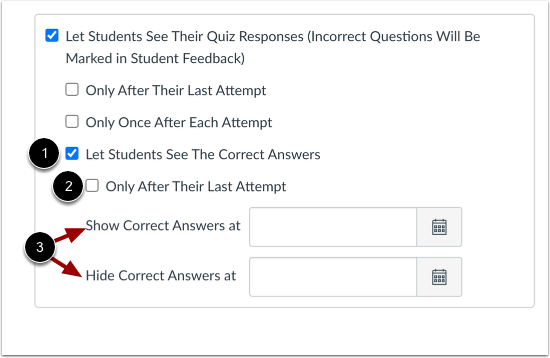
04:10: answer visibility. Let students see the correct answers.
04:14: Allow students to view the correct answers.
04:17: After completing the quiz, Only after their last attempt
04:21: allow students to see their correct responses only after their last
04:25: quiz attempt. This option is only available if you allow at least one
04:29: attempt for the quiz. To control when and for
04:33: how long students can see, the correct answer, you can use the show, correct answers
04:38: at and hide correct answers at fields to show answers.
04:42: Immediately after quizzes, submitted leave the show and hide Fields, blank,
04:48: To create a date range to display the answers, set a start date in the show
04:52: field and an ending date in the Hyde field.
04:55: To always show answers after a specific date, set a date in the show
04:59: field. To hide answers after a specific date,
05:03: set a date in the hide field.
05:07: You can use these options to decide how students move through the questions.
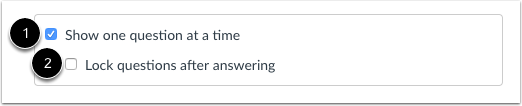
05:10: If you turn on Show one question at a time, students will only see
05:14: one question before moving to the next. And if you enable Lock questions
05:18: after answering, they won’t be able to go back
05:21: once they’ve submitted an answer.
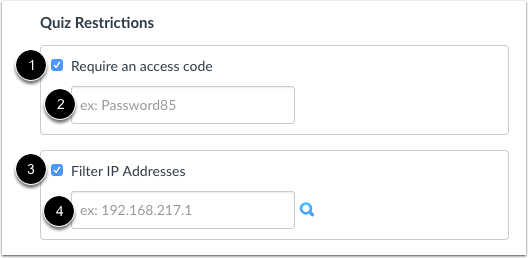
05:23: By default students can take a quiz from anywhere, but if you want to limit where
05:27: or how they access it, you can use a few restriction options.
05:32: If you require an access code, students will need to enter that code before they
05:36: can start the quiz, you can type the code in the access code field.
05:41: If you filter IP addresses, you can make sure students take the quiz, only from
05:45: a specific location like a computer lab.
05:47: Just enter the allowed IP address in the IP address field.
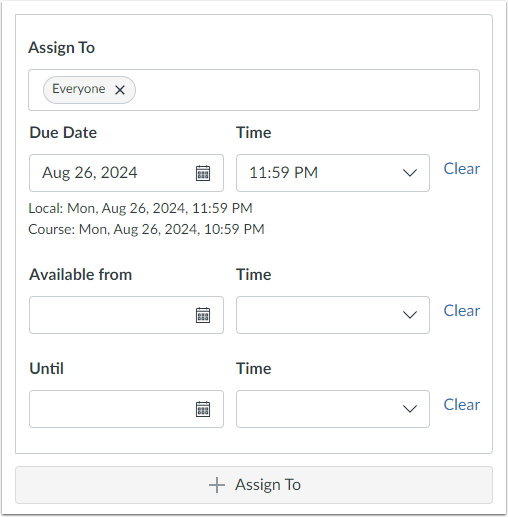
05:52: In the assigned to field you can choose who the quizzes for you can assign
05:56: it to everyone in the course specific students or entire sections.
06:00: You can also set a due date and availability dates here,
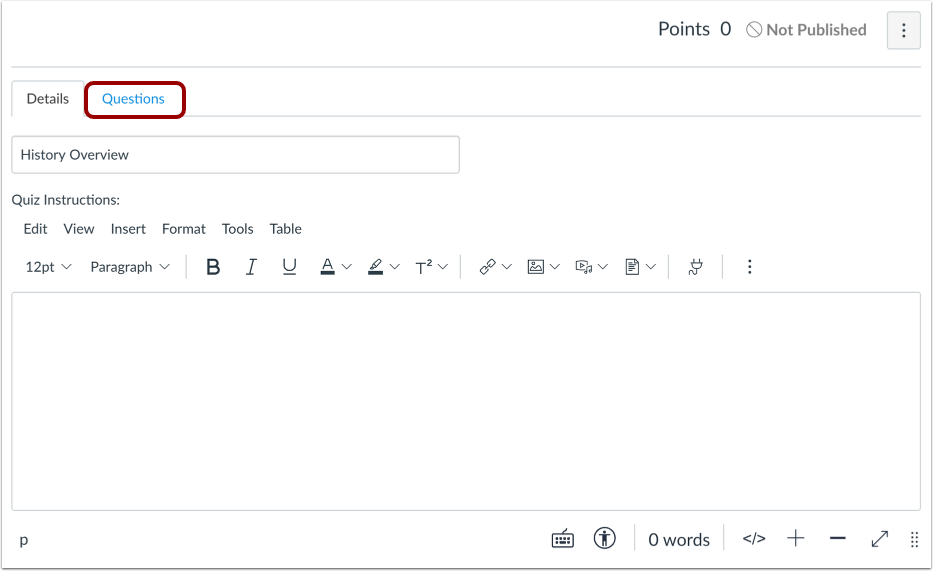
06:05: After you’ve set up your quiz settings, select the Questions tab to start adding
06:09: your quiz questions and assigning points. You can create individual questions,
06:13: pull questions from a question bank, group questions together, or
06:18: even include question bank items inside a question group.
06:22: Click Save to keep your progress on the quiz.
06:25: If your quiz is still a work in progress, don’t publish it yet. But once
06:30: you’re ready for students to access it, click Save and Publish to make it available.
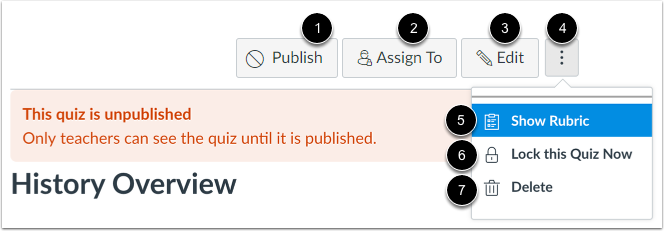
06:35: After saving your quiz, you'll have a few options for what to do next.
06:40: To make the quiz visible to students click publish.
06:44: To check or adjust who the quiz is assigned to select assign to
06:49: If you need to make changes, click edit.
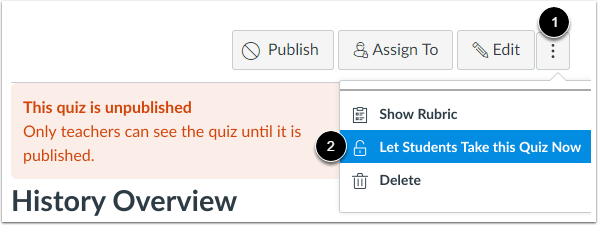
06:53: You can also open the options menu for a few more actions.
06:56: You can show a rubric to help evaluate answers like essays lock
07:00: the quiz, so students can't access it even after it's published or delete
07:04: the quiz entirely. And here's an important.
07:08: Reminder, if you don't want students to see the quiz yet, just keep it unpublished.
07:12: Only instructors can view unpublished quizzes.
07:16: To unlock a quiz, open the Options menu and select Let Students
07:20: Take This Quiz Now.
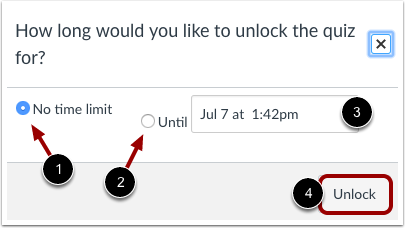
07:22: To keep a quiz unlocked with no time limit select, no time
07:26: limit. If you wanted to stay open only until a certain date and time choose
07:31: until then use the calendar icon to pick when it
07:35: should close. When you're finished. Click unlock.
07:39: After you publish a quiz, a few more options become available.
07:44: In the Options menu, you can preview the quiz, check results to see
07:48: who has or hasn’t taken it, and message students based on their quiz
07:52: activity. From the sidebar, you can view quiz statistics,
07:56: moderate the quiz to give students extra time or attempts, and
08:00: grade it in SpeedGrader. You can also choose to hide grades
08:04: from students using posting policies in the gradebook.
08:08: This guide showed you what options you can set in a classicquiz.