If you accidentally publish a quiz that needs to be corrected, you can use quiz regrade to edit existing quiz questions and recalculate student grades.
Quiz regrade only works with specific quiz question types and applies only to students who have already taken the quiz. Adding or removing a question does not trigger the quiz regrade feature.
Changing the point value for a quiz question also does not trigger a quiz regrade. The total points possible for the quiz display the updated value. However, individual question point values shown in the student's submission remain unchanged, and the student's grade does not update in the Gradebook.
If you edit your quiz in any of these ways, moderate the quizand allow the student to retake it.
Once the quiz regrade completes, you receive an email notification when the regrade finishes.
Regrade Question Types
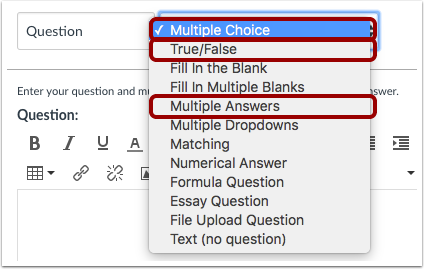
Currently, quiz regrade is available for Multiple Choice, True/False, and Multiple Answers question types.
Regrade Restrictions
Quiz regrade does not apply to questionslinkedto a question bank since questions may be used in more than one quiz.
Adding or deleting answers from a question with submissions disables the option to regrade that question.
Regrade Options
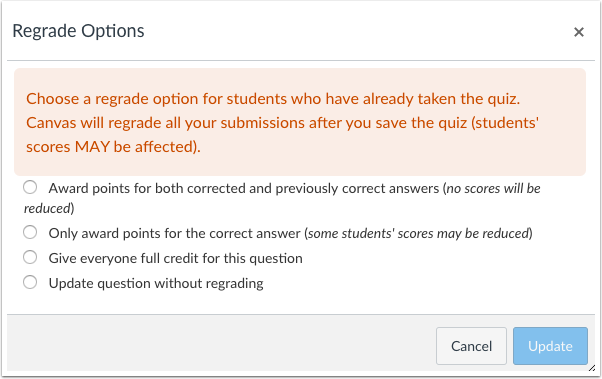
When you change the correct answer in a quiz question, Canvas presents up to four quiz regrade options, depending on the question type.
Award Points for Both Answers
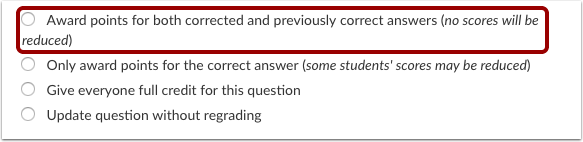
Using quiz analytics or student feedback, you may find that students found a question too confusing, or you realized that the question could have been listed with multiple answers when only one was selected. In cases like these, you can select the Award points for both corrected and previously correct answers option to avoid penalizing your students.
Notes:
- If a question has been regraded multiple times, the Award points for both corrected and previously correct answers option only awards points for the corrected answer and the latest answer marked as correct.
- This option is not available for Multiple Answer questions.
Award Points for Correct Answer
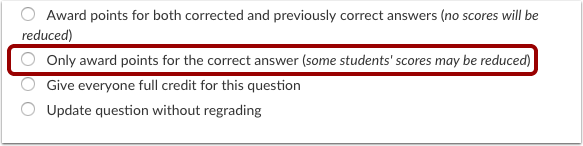
Occasionally an incorrect answer may get marked as the correct answer for a quiz. The Only award points for the corrected answer option allows you to correct the answer and give credit to those who selected the answer that should have been correct.
Give Everyone Full Credit
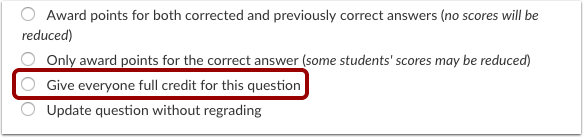
In some cases, you may choose to simply give everyone full credit for a question. Select the Give everyone full credit for this question option.
Update without Regrading
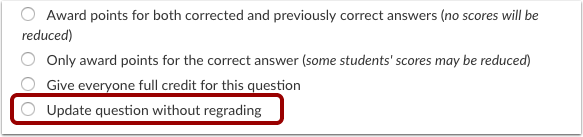
If you need to improve your question or answers for a future quiz, you can select the Update question without regrading option to update a question without regrading the students who have already taken the quiz.