00:07: How do I use the course Outcomes page in Improved Outcomes Management?
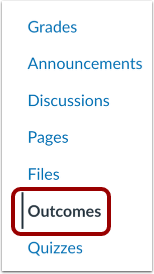
00:12: In Course Navigation, click the Outcomes link.
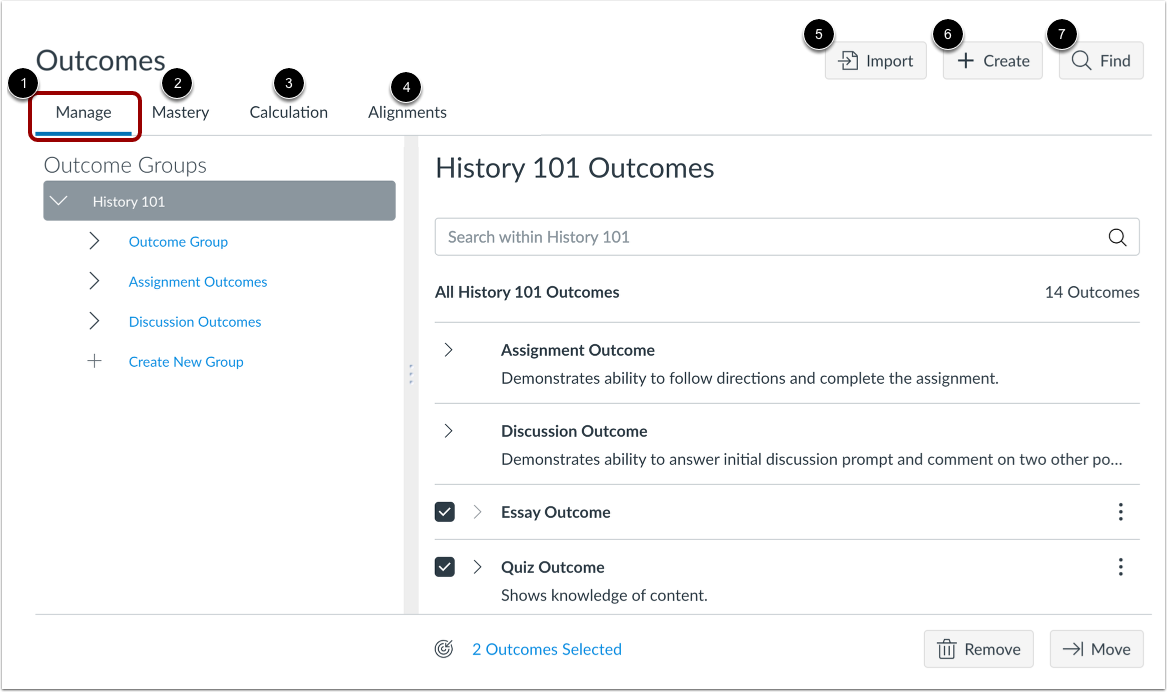
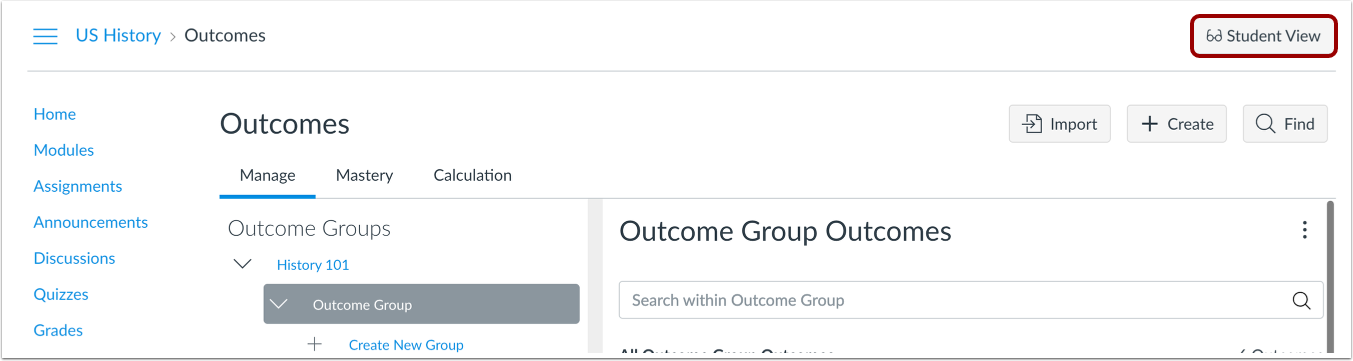
00:16: The Outcomes page opens to the Manage tab. From the Manage
00:20: tab, you can view and manage outcomes and outcome groups.
00:25: To view and manage outcome mastery scales in a course,
00:28: click the Mastery tab. To view and manage
00:32: outcome mastery calculations in a course, click the Calculation tab.
00:37: To view aligned items in a course, click the Alignments tab.
00:42: To import outcomes into your course, click the Import button.
00:47: To create a new outcome, click the Create button.
00:51: To find an outcome to add to your course, click the Find button.
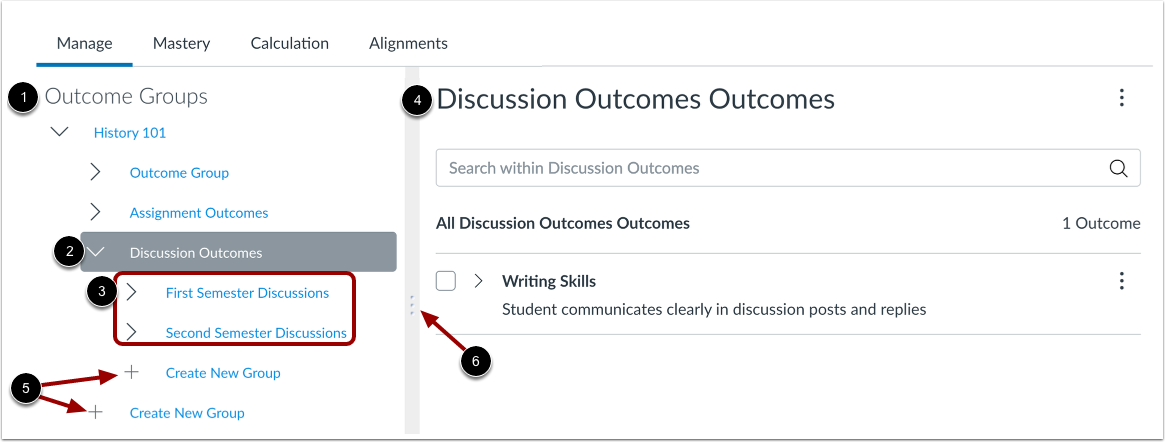
00:56: From the Outcome Groups window, you can view all the outcome groups in your course.
01:01: To view an outcome group, click the name of the group. Any outcome groups
01:05: nested within that group display below the primary group. Outcome
01:10: group details, including all outcomes that belong to the group, display in the Outcomes
01:14: window. To create a new outcome group,
01:17: click a Create New Group link. Outcome groups can be created
01:21: at the course level or within another outcome group.
01:25: You can adjust the size of the Outcome Groups and Outcomes windows by clicking
01:29: and dragging the divider bar.
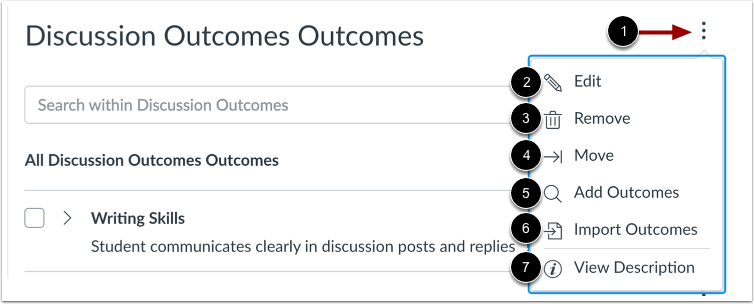
01:32: To view the Settings menu for an outcome group,
01:34: click the Settings icon. To edit an outcome
01:39: group, click the Edit link. To remove an outcome
01:43: from your course, click the Remove link. To move an outcome
01:47: group, click the Move link. To add outcomes, click
01:51: the Add Outcomes link. To import outcomes, click
01:55: the Import Outcomes link. To view the description for
01:59: an outcome group, click the View Description link.
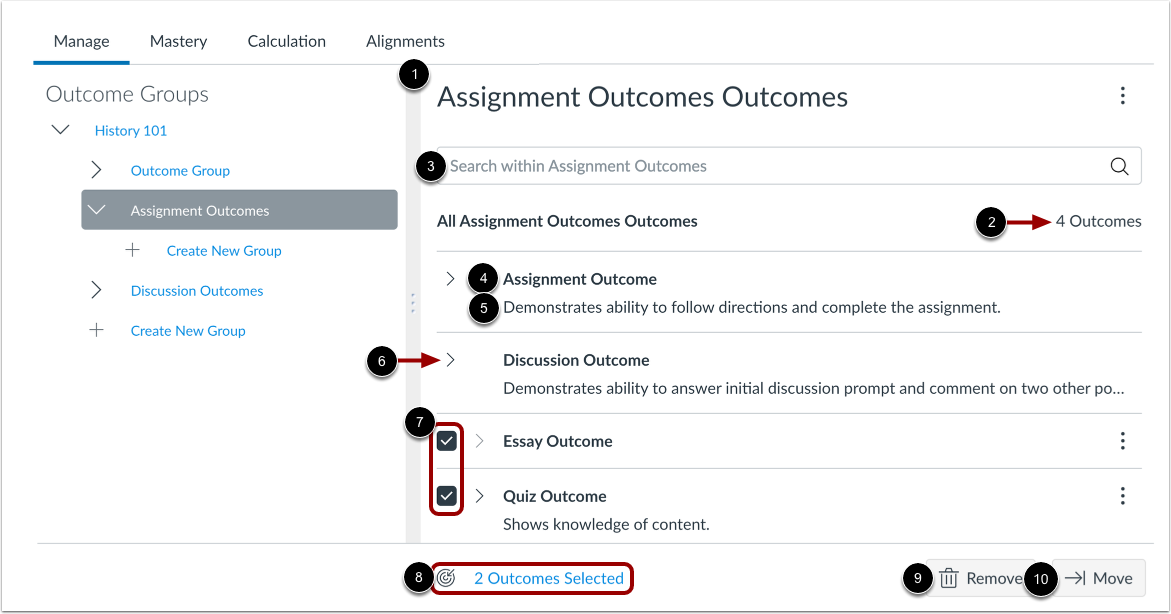
02:03: When you select an outcome group, all outcomes in that group display in
02:07: the Outcomes window. The window displays the number of outcomes in the group.
02:13: To search for an outcome, enter the outcome name in the Search field.
02:18: Each outcome displays its name and description. To view more description
02:22: text, click the Expand icon. To remove or move
02:26: multiple outcomes, click the checkboxes for the outcomes.
02:30: The Outcomes window displays the number of outcomes selected in
02:34: the Outcomes Selected link. To view the names of the outcomes selected, click
02:38: the Outcomes Selected link. To remove multiple outcomes
02:42: from the course, click the Remove button. To move multiple outcomes,
02:47: click the Move button.
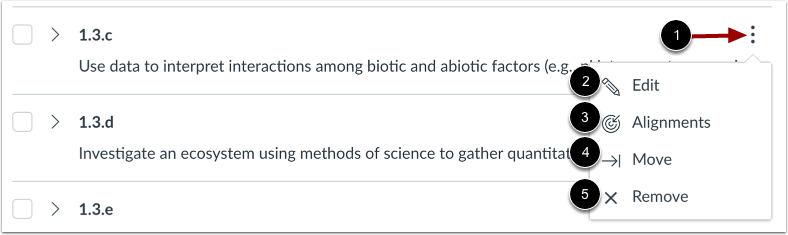
02:49: To view the Settings menu for an outcome,
02:51: click the Settings icon. To edit the outcome,
02:55: click the Edit link. To view the assignments aligned
02:59: to the outcome, click the Alignments link.
03:03: To move the outcome, click the Move link.
03:06: To remove the outcome from the course, click the Remove link.
03:11: To view the Outcomes page as a student,
03:13: click the Student View button. Note:
03:16: If the course navigation link for the page is disabled and hidden from students, the
03:21: Student View button does not display.
03:24: This guide covered how to use the course Outcomes page in Improved Outcomes
03:28: Management.