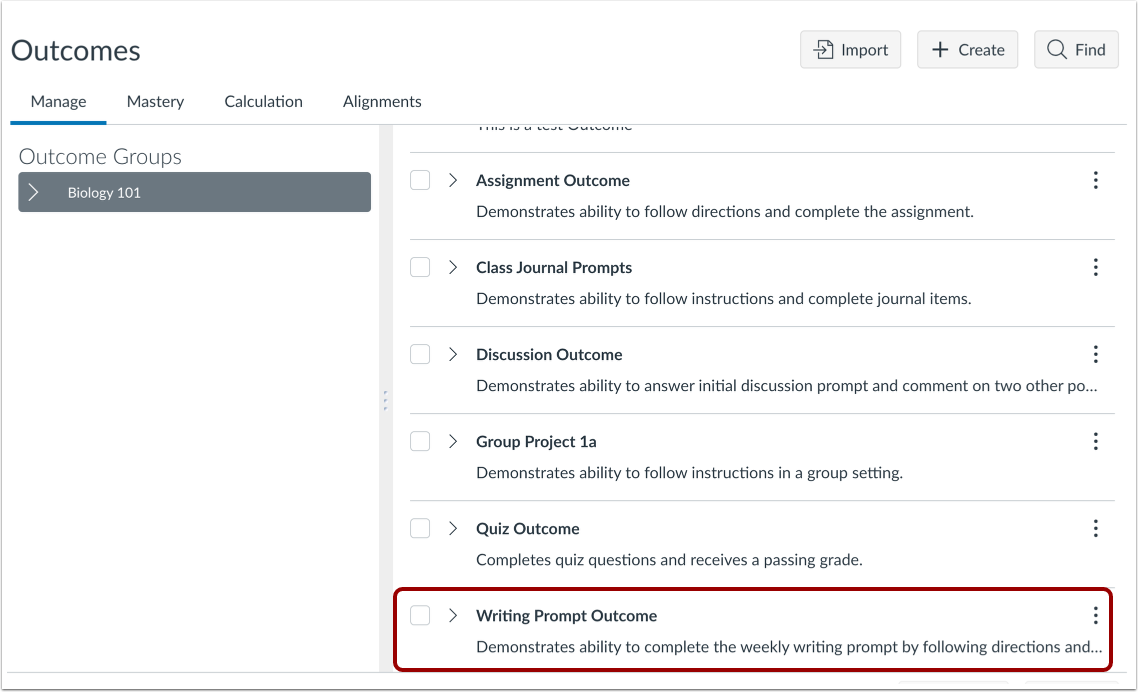
00:07: How do I create a course outcome in Improved Outcomes Management?
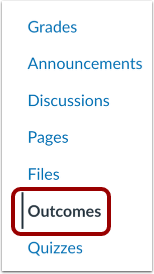
00:11: In Course Navigation, click the Outcomes link.
00:15: Click the Create button.
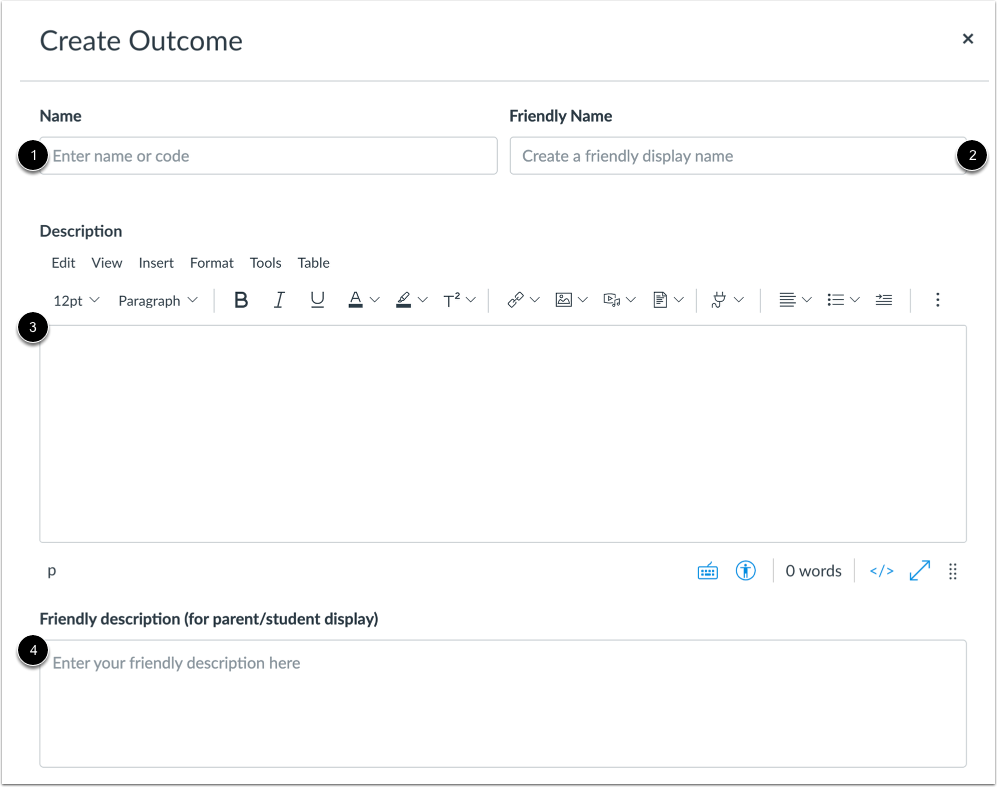
00:17: Enter a name for the outcome in the name field.
00:20: This is the official name of the outcome that will also appear in the learning
00:24: Mastery gradebook. If you allow students to view learning
00:28: Mastery scores, on the grades page, they will see the name of the outcome.
00:32: However, you may want to create a custom friendly name to
00:36: create a friendly name. For student view, enter a name in The Friendly name field,
00:42: Use the rich content Editor to enter a description in the description
00:46: field to create a friendly description for parent or student view and
00:50: to a description in the friendly description field.
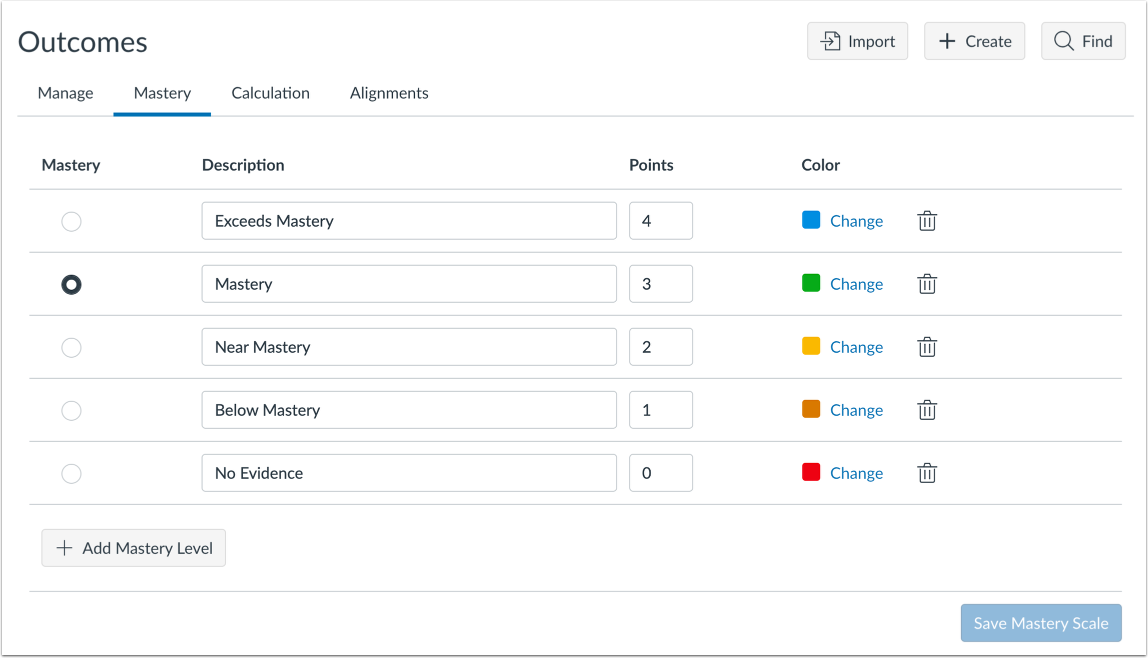
00:54: If you have the permission to edit mastery scales, you can make changes to the
00:58: default mastery scale in the Mastery tab.
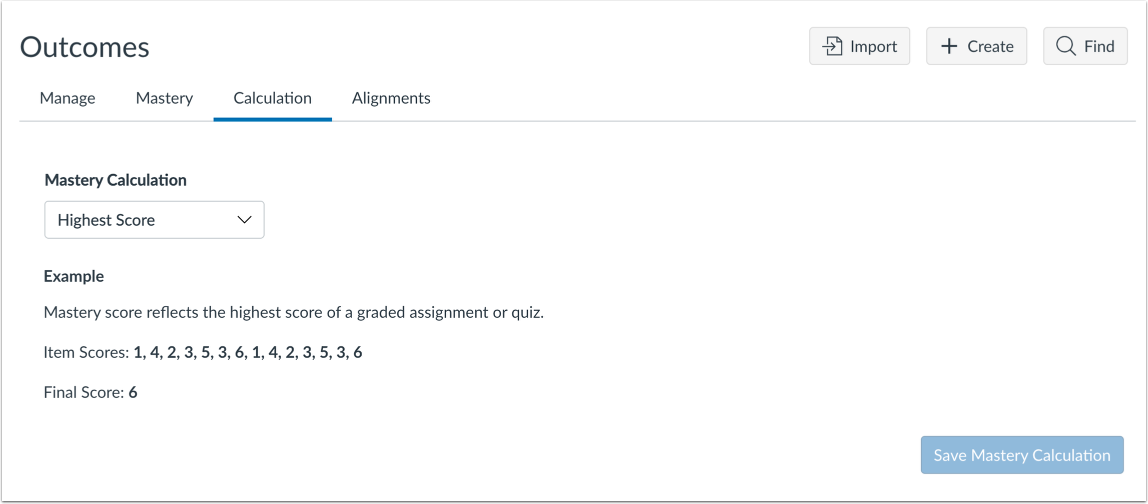
01:01: If you have the permission to edit outcome proficiency calculations, you can
01:06: make changes to calculation methods in the Calculation tab.
01:10: View the created outcome.
01:13: This guide covered how to create a course outcome in Improved Outcomes
01:17: Management.