Users can report replies from the Discussions page by default.
Users can report replies by clicking the Options icon for the reply and clicking the Report link. When a reply is reported by a user, the user must indicate why the reply is being reported (inappropriate, offensive and/or abusive, or other). Reporting a reply cannot be undone.
Notes:
- If a user was associated with a reported reply in an Anonymous discussion, the anonymity remains and won't be displayed even for instructors view.
- Currently, you cannot identify who reported a specific discussion reply.
- To be notified of the reported replies, adjust and set your Reported Reply notification.
00:07: How do I allow users to report a reply in a discussion as an instructor?
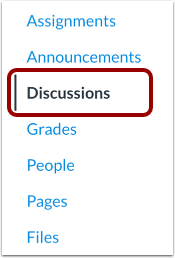
00:12: In Course Navigation, click the Discussions link.
00:16: Click the Settings icon.
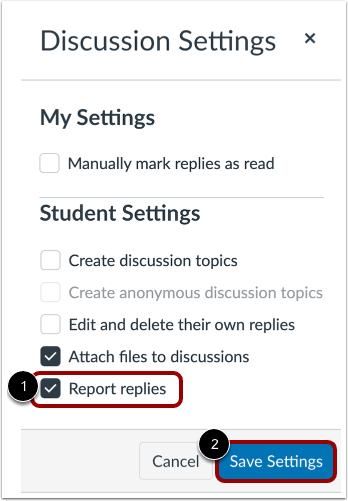
00:19: Click the Report replies checkbox.
00:22: To save discussion settings, click the Save Settings button.
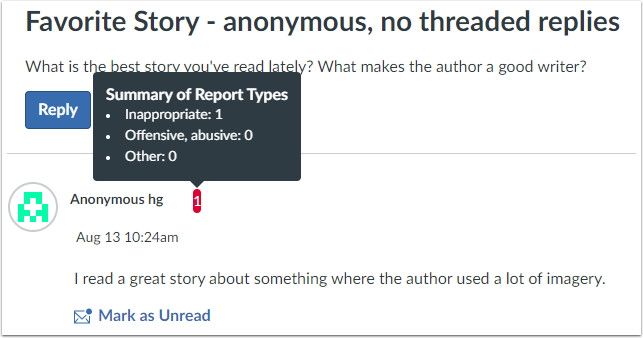
00:27: Once a reply is reported a red notification displays, you can
00:31: review the reported reply and take appropriate actions such as editing the
00:35: reply or leaving it as is
00:38: This guide covered how to allow users to report a reply in a discussion
00:42: as an instructor.
Open Discussions
In Course Navigation, click the Discussions link.
Open Settings
Click the Settings icon.
Edit Discussion Settings
Ensure the Report replies checkbox is selected [1].
To save discussion settings, click the Save Settings button [2].
View Reported Reply
Once a reply is reported, a red notification displays. You can review the reported reply and take appropriate actions such as editing the reply, deleting the reply, or leaving it as is.