00:07: How do I mark an assignment or calendar event with an important date in Canvas
00:11: for Elementary as an instructor?
00:14: From the subject's Modules tab, click the title of the assignment,
00:18: graded discussion, or quiz you'd like to mark with an important date.
00:22: Click the Edit button.
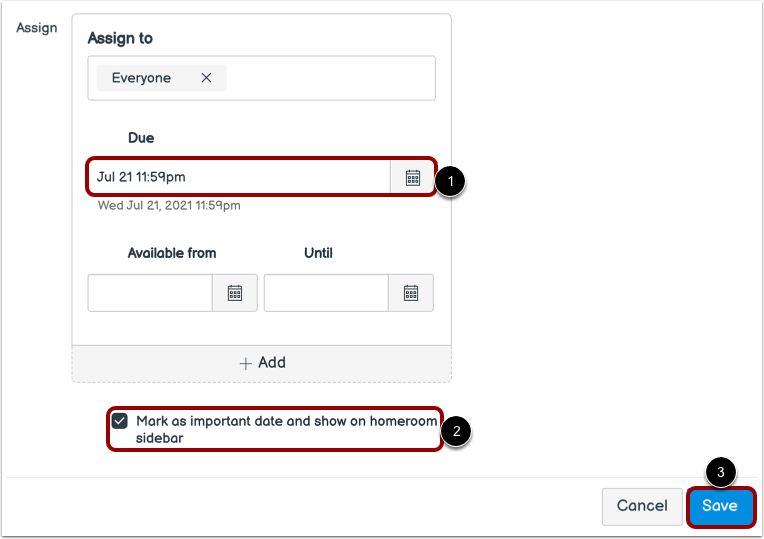
00:24: Add a due date.
00:26: To Mark the due date as an important date and display the item in the homeroom
00:31: sidebar, click the mark as important date and show on Home Room Side Bar,
00:35: check box.
00:37: To save your changes, click the Save button.
00:40: You can mark a calendar event with an important date.
00:44: To open the Calendar, click the Calendar icon in Global Navigation.
00:50: In the Calendar sidebar, select the Canvas for Elementary course calendar
00:54: in which you'd like to mark an event with an important date.
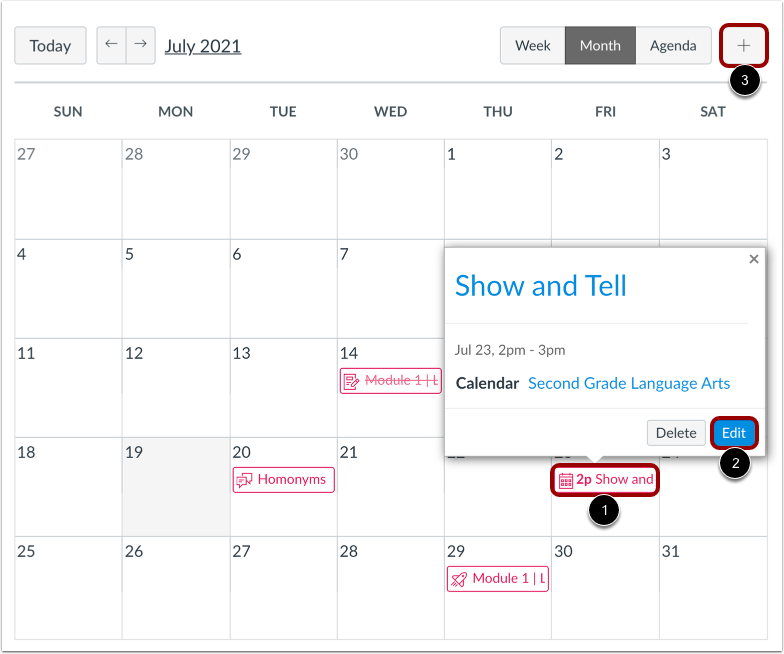
00:57: To mark an existing calendar event, assignment, or graded discussion with an
01:02: important date, click the calendar item.
01:05: Then click the Edit button.
01:07: Alternatively, you can add a new event by clicking
01:10: the Create New Event button.
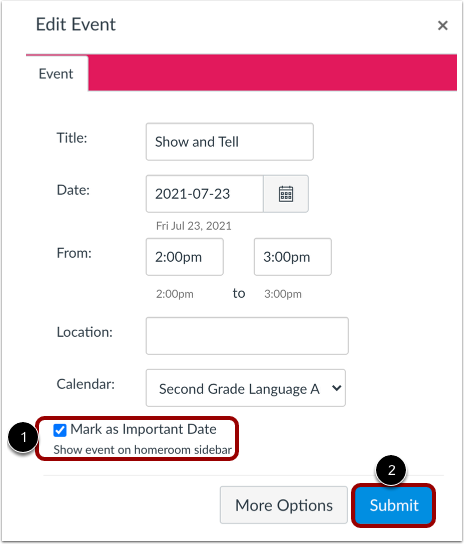
01:13: To mark the event date as an important date and show the event in the Homeroom sidebar,
01:17: click the Mark as Important Date checkbox.
01:21: To save your changes, click the Submit button.
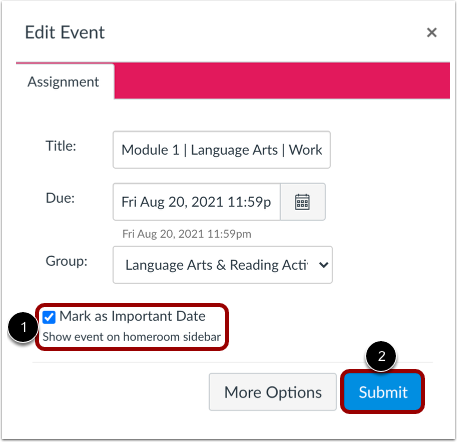
01:25: To mark an assignment or graded discussion as an important date and show the
01:29: event in the Homeroom sidebar, click the Mark as Important Date checkbox.
01:34: To save your changes, click the Submit button.
01:38: Important date items display in date order in the Homeroom sidebar.
01:43: This guide covered how to mark an assignment or calendar event with an important
01:47: date in Canvas for Elementary