Open SpeedGrader
Open SpeedGrader from the assignment.
Select Submission
Select the student whose submission you would like to view.
View Submission
View the submission.
Annotate Submission
Use the options in the DocViewer toolbar to leave comments directly on the student's submission.
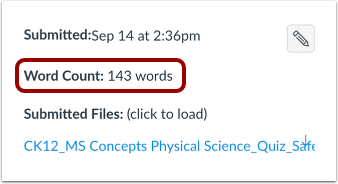
View Word Count
View the submission's word count.
Note: Word count is only supported for PDF, RTF, TXT, and DOCX files.
Grade Submission
To grade the submission, enter a grade in the Grade field [1].
If you added a rubric to the assignment, you can view the rubric by clicking the View Rubric button [2].