You can see graded or ungraded survey results after one or more users have taken the survey. You can also view survey results in the Moderate tab for New Quizzes.
Notes:
- Graded surveys display in the Gradebook and SpeedGrader, while ungraded surveys do not.
- The Item Analysis report is not available for surveys.
- You can filter survey statistics using the first 10 sections of your course.
Open Quizzes
In Course Navigation, click the Quizzes link.
Open Survey
Click the Survey name.
Show Student Survey Results
To view individual submissions, click the Options icon [1] and select the Show Student Survey Results link [2].
Select Student Survey Result
Under the Students who have taken the survey heading, click the name of a student [1]. You can also see a list of students who have not taken the survey [2]. The Warning icon [3] indicates a submission that needs review.
Open Survey Statistics
In the sidebar, you can view all the responses to the Survey by clicking the Survey Statistics link.
Note: To view responses to essay questions, view individual submissions or download the Student Analysis CSV.
View and Filter Statistics
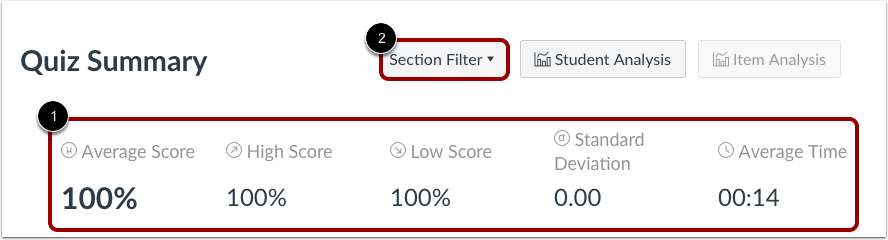
View the Survey statistics [1]. The summary displays all score percentages. The summary also shows the quiz average score, high score, low score, standard deviation (how far the values are spread across the entire score range), and average time of completion.
To filter Survey statistics, click the Section Filter button [2] and choose the section that you would like to view. Note that you can only view the first 10 sections of your course. To access additional Survey results, generate a Student Analysis report.
View Student Analysis Report
Like quiz statistics, you can also download Survey results by clicking the Student Analysis button.
Note: By default, the submitted time in the Student Analysis report is shown in UTC, not your set time zone.