The Learning Mastery Gradebook helps instructors and admins assess the outcome standards being used in Canvas courses. This gradebook helps institutions measure student learning for accreditation and better assess the needs of their students.
The default view in the Learning Mastery Gradebook is to view all students at the same time, but you can also view students individually using Learning Mastery Gradebook Individual View.
Note: The Learning Mastery Gradebook is currently a course opt-in feature. To enable this gradebook, visit the Feature Options tab in Course Settings.
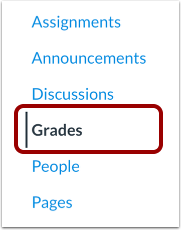
Open Grades
In Course Navigation, click the Grades link.
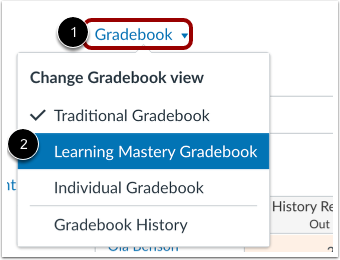
Open Learning Mastery Gradebook
Click the Gradebook menu [1], then click the Learning Mastery Gradebook link [2].
View Learning Mastery Gradebook
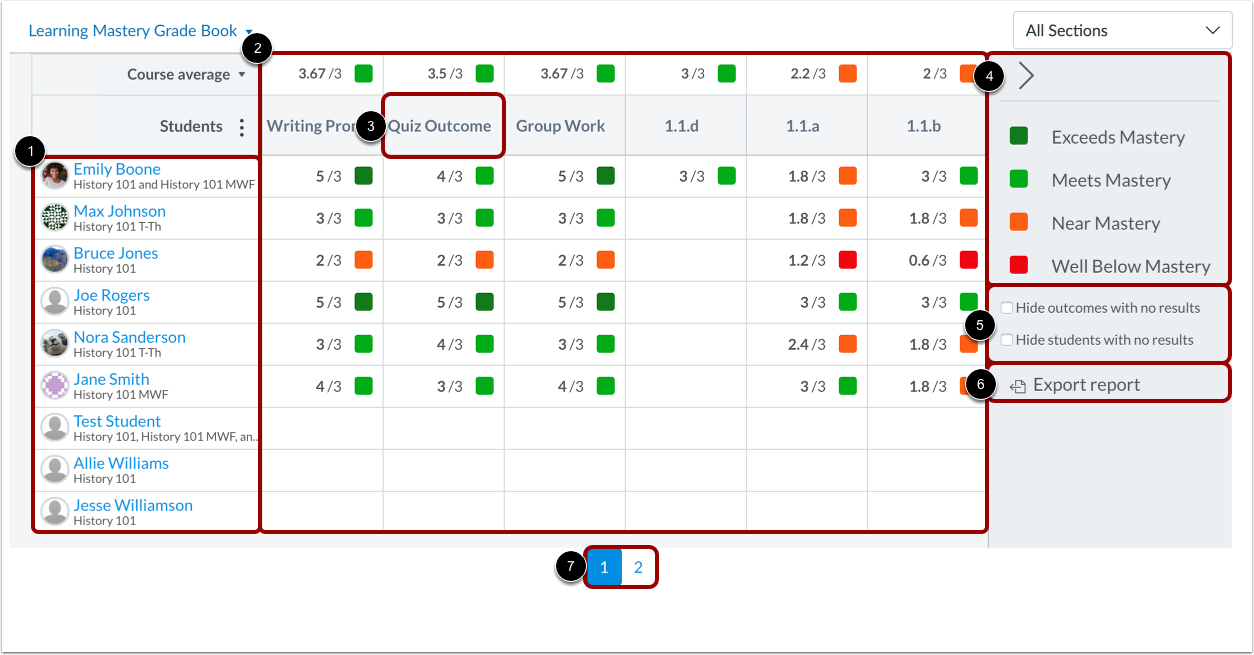
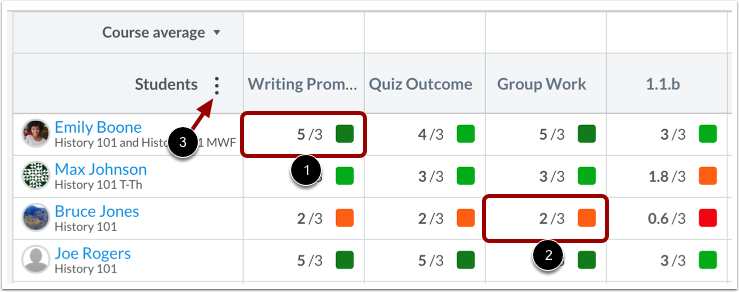
The Learning Mastery Gradebook is organized like the assignments gradebook with the student names and sections on the left [1]. Similar to the assignments gradebook, you can click a student's name to link to their Grades page. Each column consists of a course outcome and the outcome grade for each student [2]. Also like the assignments gradebook, the columns can be sorted, resized, and reordered. Click an outcome column heading to sort the outcome by student name [3].
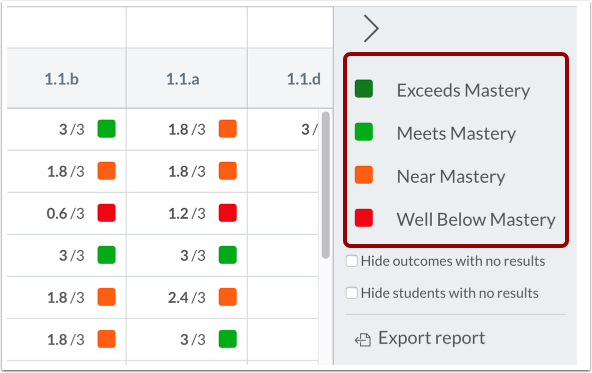
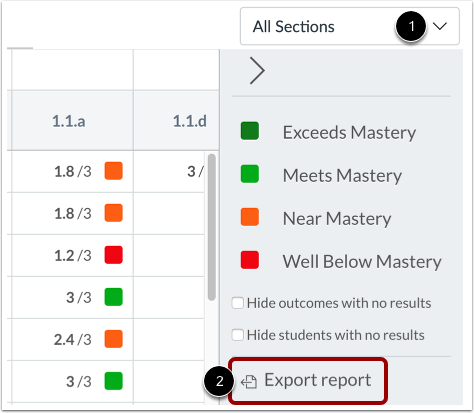
The Learning Mastery Gradebook also contains a sidebar that shows the outcome levels for the course [4]. The sidebar can be minimized and expanded by toggling the gray arrow icon at the top of the sidebar. You can filter outcomes or students that have no outcome results [5]. You can also export a report of student outcomes [6].
The Learning Mastery Gradebook displays 20 students per page. Use the numbered page navigation buttons to view additional students on other pages [7].
Note: The Hide outcomes and Hide students filters persist for the course while using the same web browser.
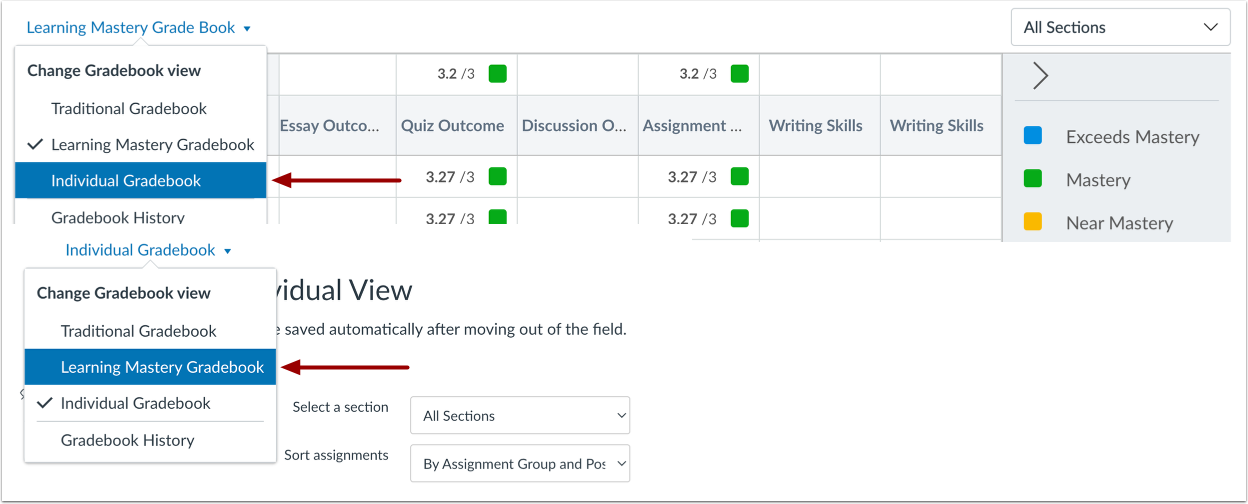
Switch to Individual Gradebook
The Gradebook has two views. The Learning Mastery Gradebook allows you to see all students and outcomes at the same time. The Individual Gradebook allows instructors to assess one student and one outcome at a time and is fully accessible for screen readers. Both views retain the same Gradebook settings. You can switch Gradebook views at any time.
Learn more about the Learning Mastery Gradebook Individual View.
View Student Scores
Individual student scores within each outcome are based on outcome values. The first number indicates the score the student earned. The second number indicates the mastery threshold, which is the minimum the students need to achieve mastery for the outcome. For instance, if a student earns a score of 5/3, the student has earned 2 points above the base mastery threshold of 3 points [1]. If a student achieves a score of 2/3, the student has not achieved enough points to reach the mastery threshold [2].
Note: To view scores of inactive or concluded enrollments or unassessed student scores, click the Options icon in the Students column [3].
View Outcome Details
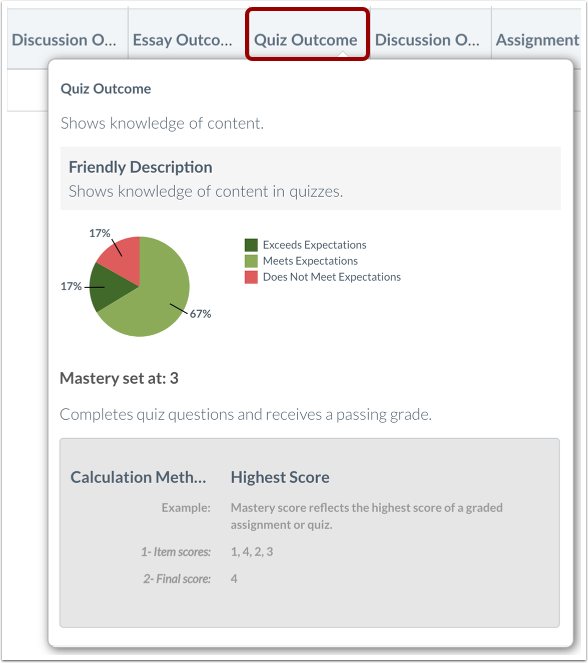
Hover over the outcome title to view a breakdown of a specific outcome. The circle graph shows how the individual student scores were divided into the outcomes criterion ratings.
View Course Mastery Levels
Scores are color-coded to show outcomes and the level attained by each student: exceeds mastery (dark green) meets mastery (light green), near mastery (yellow), and well below mastery (red). Toggle the boxes in the sidebar to filter scores for a specific level.
Score levels are calculated based on half of the outcome mastery threshold. For example, if the mastery threshold is 3 points, half of 3 is 1.5. Scores between 1.6 and 2.9 are counted near mastery, while scores less than 1.5 are considered remedial. Therefore, a student score of 2/3 would be above 1.5 and count as near mastery.
View Course Statistics
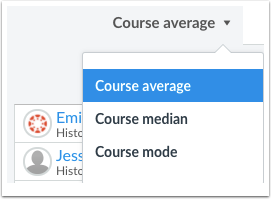
Outcome statistics for the entire course or a course section can be viewed according to course average, course median, or course mode. Select the preferred statistic from the drop-down menu next to the score indicator for each outcome.
The course average is calculated by adding all the earned scores then dividing the total of the mastery scores. The course mode is calculated by finding the score that occurs most often. The course median is calculated by sorting the scores in ascending order, then finding the middle score. These course statistics also display color-coded level results based on the outcome results.
Note: If an outcome is aligned to multiple items, the gradebook statistics will always generate from the student’s highest outcome score within that course.
Export Report
Click the All Sections drop-down menu to view by section [1]. Click the Export report link to download a CSV file of the Learning Mastery Gradebook [2].
View Report
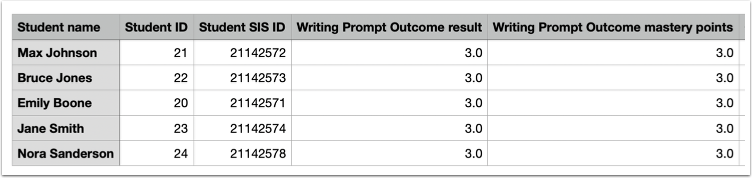
The student learning outcomes report will include the following columns in the CSV file:
- Student Name
- Student ID
- Student SIS ID
- [Outcome] result
- [Outcome] mastery points
Note: All learning outcomes in the Learning Mastery Gradebook will be included in the report.
Student View
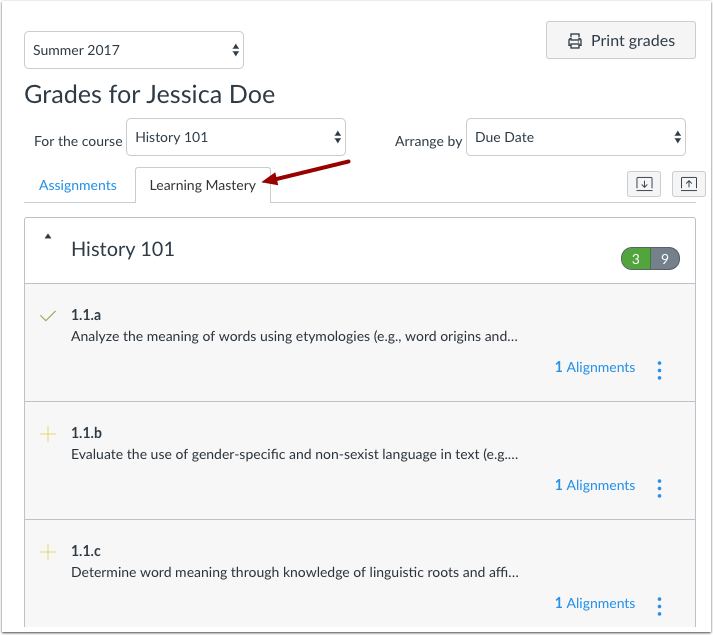
On the Student Grades page, you can choose to let each student see his or her outcome scores by clicking the Learning Mastery tab. Students can view the outcomes and expand them to view individual outcome items.
To show students their outcome scores, visit Course Settings and open the Feature Options tab. Then enable the Student Learning Mastery Gradebook feature option.
Note: Outcome names are the same as in the Learning Mastery Gradebook unless you create a custom name for the student view. Learn to create custom Outcome names.