00:00: How do I copy a Canvas course into a new course shell?
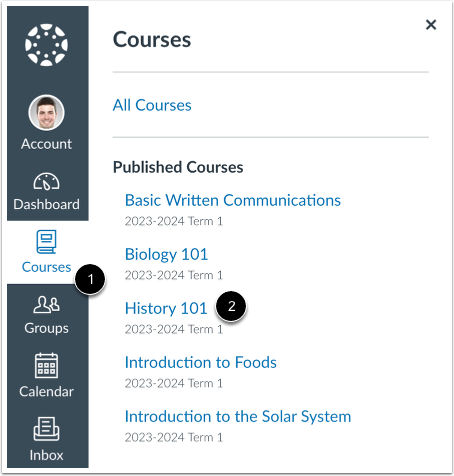
00:04: In Global Navigation, click the Courses link, then click the name of the
00:08: course.
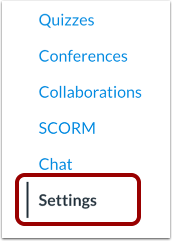
00:10: In Course Navigation, click the Settings link.
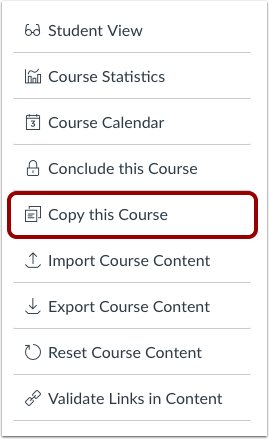
00:13: Click the Copy this Course link.
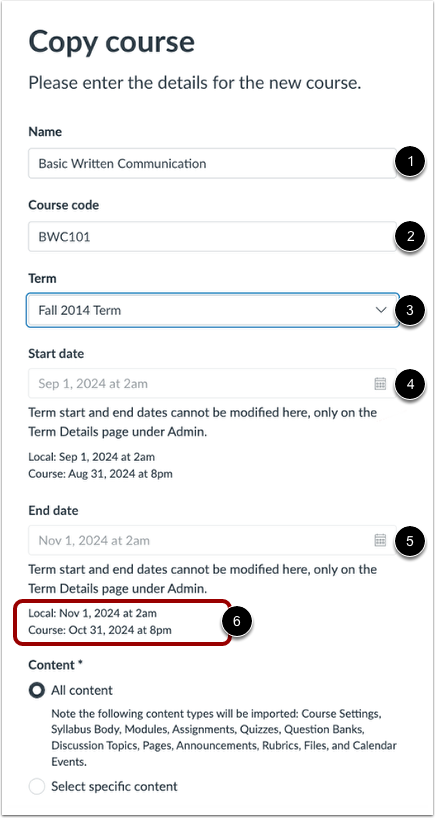
00:16: Enter the name and course code for the new course, the name displays
00:20: on the course homepage. And in conversations the course code displays
00:24: at the top of the course navigation menu and in the course card in the dashboard
00:29: course, code is also referred to as the reference code
00:33: or short name.
00:35: Select a Term. When a term is selected, the Start date and End date
00:39: fields automatically default to the dates of the selected term. To modify
00:43: the term dates, contact your institution's admin.
00:47: If an instructor is time zone, differs from the courses time zone, both the local
00:51: time zone and the course, time zone display.
00:55: To import all content from the course, select the All Content radio button.
00:59: If you want to select specific content, click the Select specific
01:03: content radio button
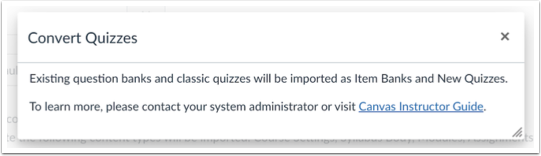
01:06: If allowed by your institution, you can bulk migrate existing quizzes into
01:10: New Quizzes by clicking the Convert content to New Quizzes checkbox.
01:15: If your institution enables the quiz migration feature, question banks
01:20: linked via a question group in Classic Quizzes will migrate to New Quizzes.
01:23: If the quiz migration feature is not enabled by your institution, questions
01:28: from question banks must be individually added before migrating to New Quizzes.
01:33: After the copy or import is complete, all Question Banks converted to Item
01:38: Banks appear on the Item Banks page of the new course, filtered under This
01:42: Course. The Convert content to New Quizzes
01:45: checkbox Tooltip text is updated.
01:48: If you want to adjust the due dates associated with the course events and assignments,
01:52: click the Adjust events and due dates checkbox.
01:56: You can copy settings from a blueprint
01:59: course into another blueprint course. Copying blueprint settings
02:03: applies the same lock preferences to objects as the original blueprint course.
02:07: To copy settings from a blueprint
02:09: course, click the Import Blueprint Course settings checkbox.
02:14: Click the Create Course button.
02:17: The Content imports section displays the status of your import. Running
02:22: reports display a progress bar indicating the time remaining to complete
02:26: the import.
02:28: If you chose to select specific content in your course, the current
02:32: job will show as Waiting for Select, which means you must select the content
02:36: you want to import. The import may also display other
02:40: status indicators as part of the import process.
02:45: View the content from any completed imports by accessing any link
02:49: in Course Navigation.
02:51: This guide covered how to copy a Canvas course into a new course
02:56: shell.