If enabled by your institution, the Apply Score to Ungraded feature option allows you to apply scores to all ungraded submissions and artifacts from assignment groups and Total column menus.
Notes:
- In moderated assignments, the Apply Score to Ungraded only works after grades are released to the gradebook.
Open Grades
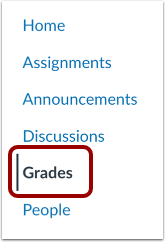
In Course Navigation, click the Grades link.
Open Apply Score to Ungraded
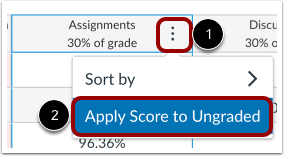
Hover over the Assignment group column header and click the Options icon [1].
To apply a score to ungraded submissions and artifacts, click the Apply Score to Ungraded link [2].
Add Apply Score to Ungraded
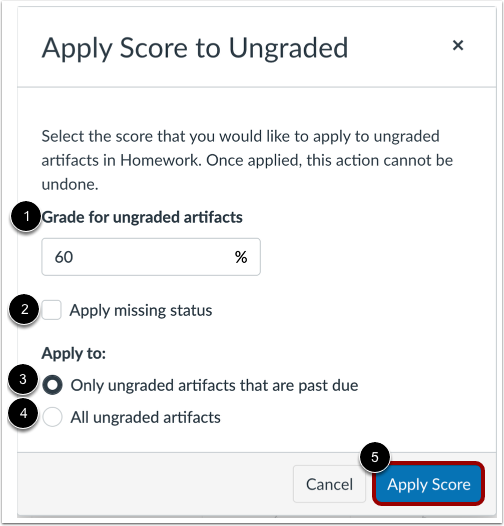
To apply a certain grade for ungraded submissions and artifacts, enter the grade percentage in the Grade for ungraded artifacts field [1]. If you would like to apply the missing status, click the Apply missing status checkbox [2].
You can choose to apply the grade to Only ungraded artifacts that are past due [3] or All ungraded artifacts [4].
Click the Apply Score button [5].
View Applied Scores
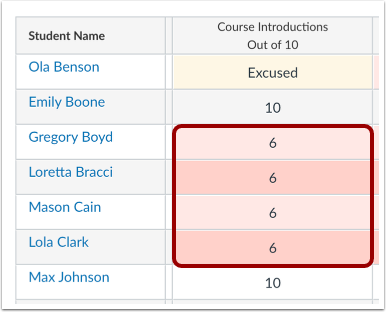
To view the applied grades, you must reload the page.