When creating a quiz, you can create a Categorization question in New Quizzes. Categorization questions require students to place answers in the correct categories while ignoring all distractors.
Automatic partial credit scoring is available for Categorization question types. Student scores are calculated based on the total number of correct decisions rather than all-or-nothing scoring. Correct decisions include placing correct items in the right category and leaving distractors uncategorized. Each decision is worth an equal portion of the total points.
You can also duplicate Categorization questions to create a new question.
View the video transcript
00:07: How do I create a Categorization question in New Quizzes?
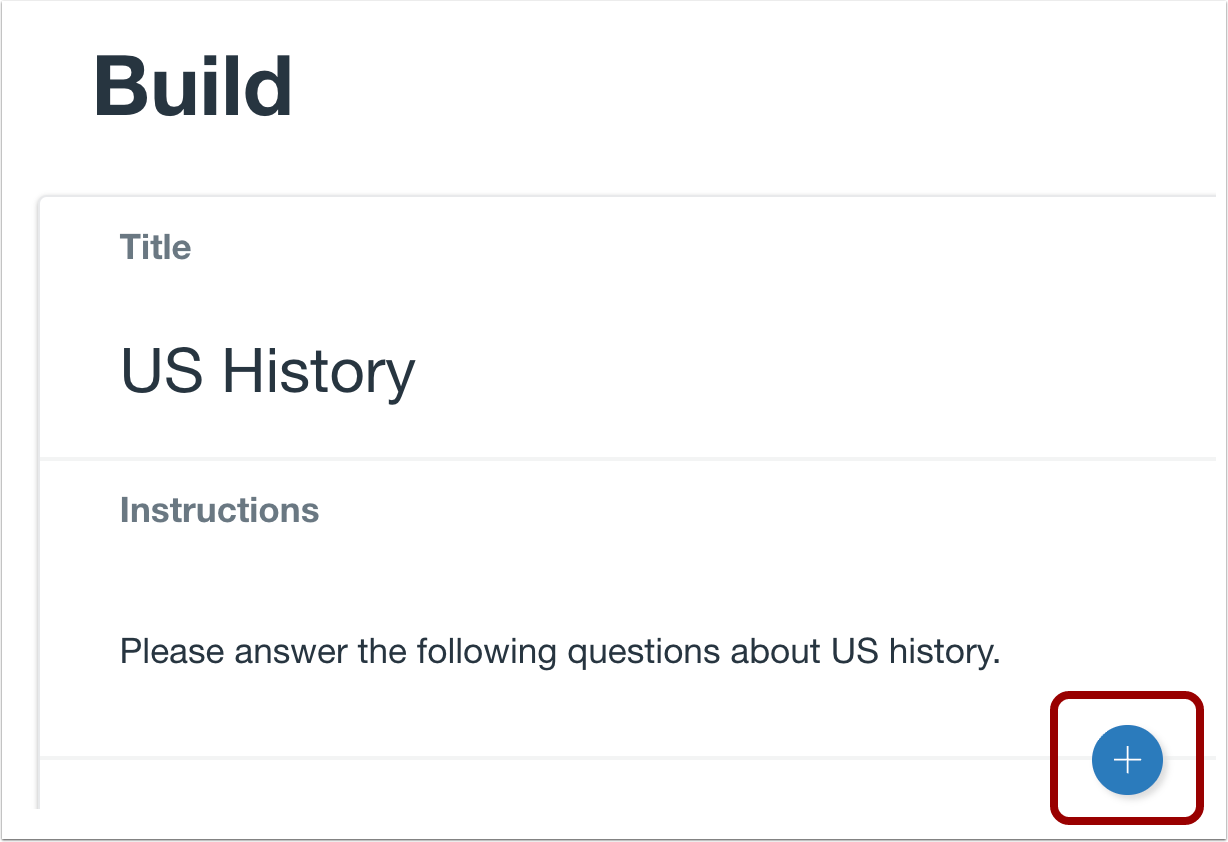
00:11: To create a question, click the Add button anywhere in the quiz.
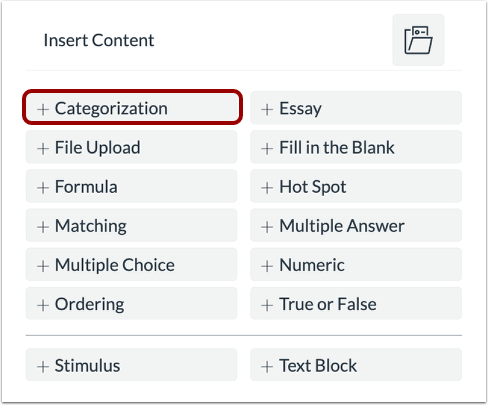
00:16: Click the Add Categorization button.
00:19: In the Question Title field, add a question title. Question titles
00:23: are optional and are not visible to students.
00:27: In the Question Stem field , add a question stem.
00:30: The question stem contains the question and, if necessary, additional
00:34: instructions and information. You can use the Rich Content Editor
00:38: or the HTML view to format and add content to your question
00:42: stem.
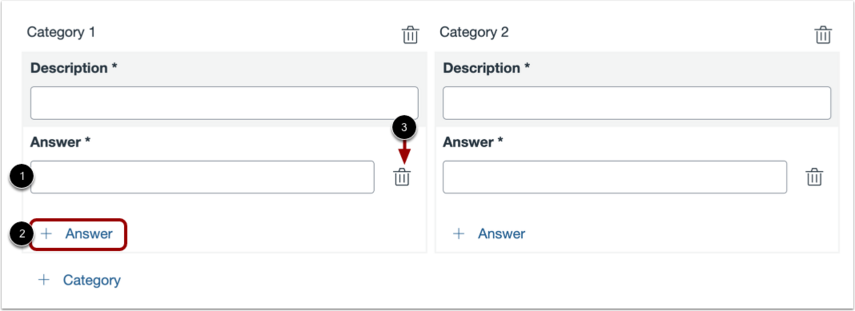
00:44: To name a category, type the name in a Category field.
00:47: Each category must have a unique name.
00:51: To add a new category, click the Add Category link.
00:55: To delete a category, click the Delete icon.
00:59: To add an answer for a category, type
01:02: the answer name in an Answer field below the category where it belongs.
01:07: To add a new answer, click the Add Answer link.
01:11: To delete an answer, click the Delete icon.
01:14: You can also add distractors to a question. Distractors will appear
01:19: with the answer choice but do not belong to any of the categories. To
01:23: add a distractor, click the Add Distractor link.
01:27: And type the distractor name in the Additional Distractor field.
01:32: To allow students to use an on-screen calculator for this question.
01:35: Click the show on screen calculator, checkbox?
01:39: If you select this option, you can enable a basic calculator or scientific
01:43: calculator. The basic calculator displays numbers and basic
01:48: math functions. Add subtract multiply divide, the
01:52: scientific calculator, displays more options for advanced calculations.
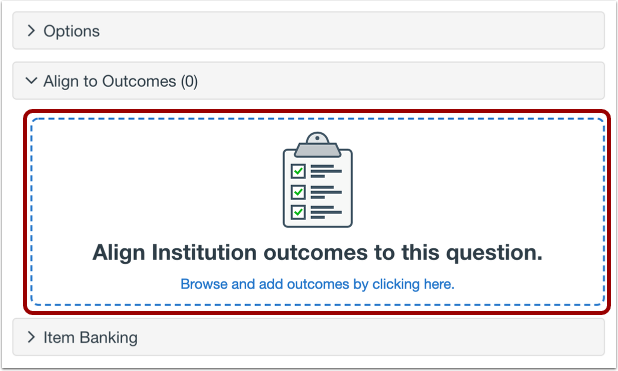
01:58: To align the question to an outcome, click anywhere in the Align to Outcomes
02:02: section.
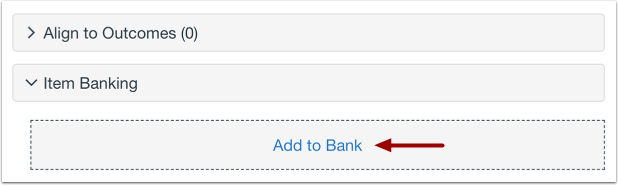
02:04: If you want to save a question to use in other quizzes, you can add it to an item
02:08: bank. To add the question to an item bank,
02:12: click the Add to Bank link.
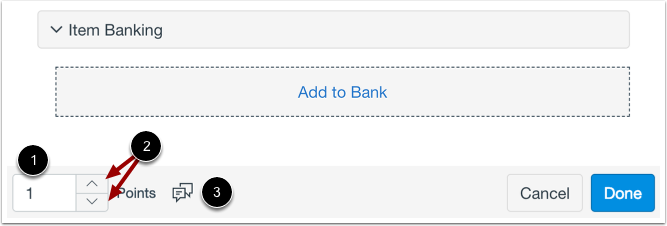
02:15: To customize the point value for the question, type the point value in the Points field
02:19: or use the arrows to increase or decrease the point value.
02:23: To leave feedback for students, click the Feedback icon.
02:27: To save the question, click the Done button.
02:31: This guide covered how to create a Categorization question in New Quizzes.
Add Question
To create a question, click the Add button anywhere in the quiz.
Add Categorization Question
Click the Add Categorization button.
Add Question Title and Stem
In the Question Title field [1], add a question title. Question titles are optional and are not visible to students.
In the Question Stem field [2], add a question stem. The question stem contains the question and, if necessary, additional instructions and information. You can use the Rich Content Editor or the HTML view to format and add content to your question stem.
Add Categories
To name a category, type the name in a Category field [1]. Each category must have a unique name. To add a new category, click the Add Category link [2].
To delete a category, click the Delete icon [3].
Add Answers
To add an answer for a category, type the answer name in an Answer field below the category where it belongs [1]. To add a new answer, click the Add Answer link [2].
To delete an answer, click the Delete icon [3].
Add Distractors
You can also add distractors to a question. Distractors will appear with the answer choice but do not belong to any of the categories. To add a distractor, click the Add Distractor link [1] and type the distractor name in the Additional Distractor field [2].
Set Options
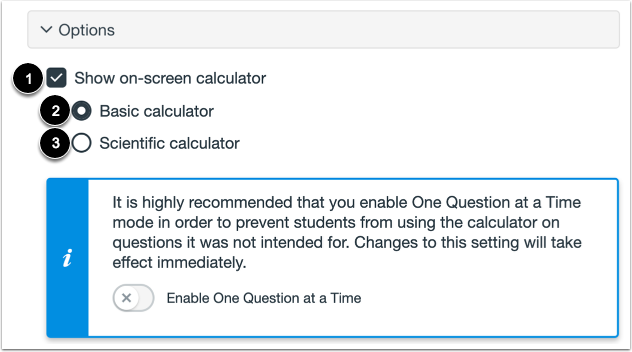
To allow students to use an on-screen calculator for this question, click the Show on-screen calculator checkbox [1].
If you select this option, you can enable a basic calculator [2] or a scientific calculator [3]. The basic calculator displays numbers and basic math functions (add, subtract, multiply, divide). The scientific calculator displays more options for advanced calculations.
Notes:
- The on-screen calculator option is intended to be used while displaying one question at a time. If the quiz does not display one question at a time, students may be able to use the calculator for all questions.
- If enabled at both the individual question level and in the Quiz Settings, the on-screen calculator will display within the question instead of at the top of the page.
Select Grading Option
You can select a grading option for the question.
To award points only for an exact match, click the Exact match option [3]. This option only awards points if all correct items are categorized correctly and all distractors are left uncategorized.
To award partial credit for the question, click the Partial credit option [2]. This option awards points for each correct decision: both placing correct items in the right category and leaving distractors uncategorized. Each decision is worth an equal portion of the total points.
To view the description of each grading option, click the Tooltip icon [3].
Align to Outcome
To align the question to an outcome, click anywhere in the Align to Outcomes section.
Add to Item Bank
If you want to save a question to use in other quizzes, you can add it to an item bank.
To add the question to an item bank, click the Add to Bank link.
Note: After a question has been added to an item bank, it can only be edited in the item bank. You can still set unique point values and options in the quiz for an item bank question.
Add Point Value and Feedback
To customize the point value for the question, type the point value in the Points field [1] or use the arrows to increase or decrease the point value [2].
To leave feedback for students, click the Feedback icon [3].
Save Question
To save the question, click the Done button.