As an instructor, you have the ability to edit or delete discussion replies within your course. This setting helps you moderate your course and remove any inappropriate or otherwise unwanted posts.
You can also choose to view or hide all deleted replies in a discussion. By default, deleted replies are hidden in a discussion.
00:07: How do I edit or delete student discussion replies in a course?
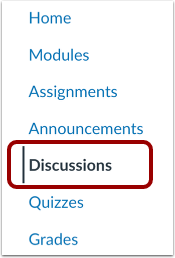
00:11: In Course Navigation, click the Discussions link.
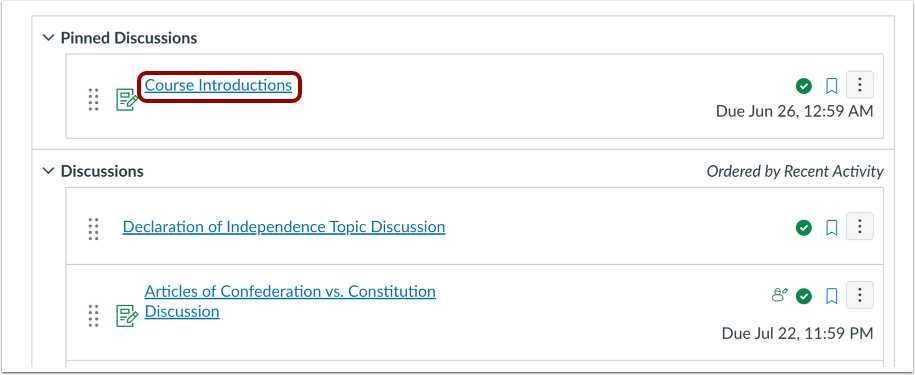
00:15: Click the name of a discussion.
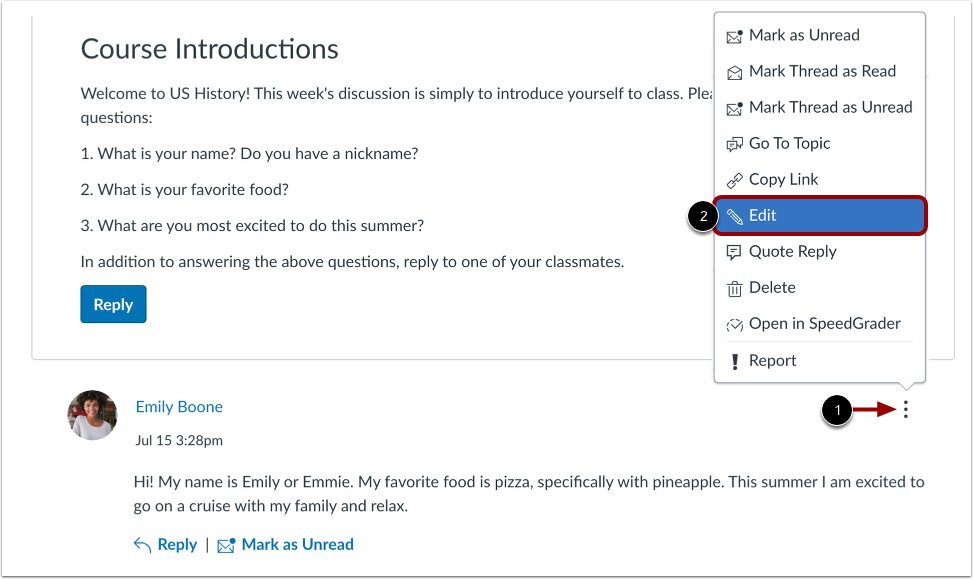
00:18: Locate the student reply you want to edit and click the Options menu. Then
00:22: select the Edit option.
00:37: This guide covered how to edit or delete student discussion replies in
00:41: a course.
Open Discussions
In Course Navigation, click the Discussions link.
Open Discussion
Click the name of a discussion.
Edit Discussion Reply
Locate the student reply you want to edit and click the Options menu [1]. Then select the Edit option [2].
Save Edits
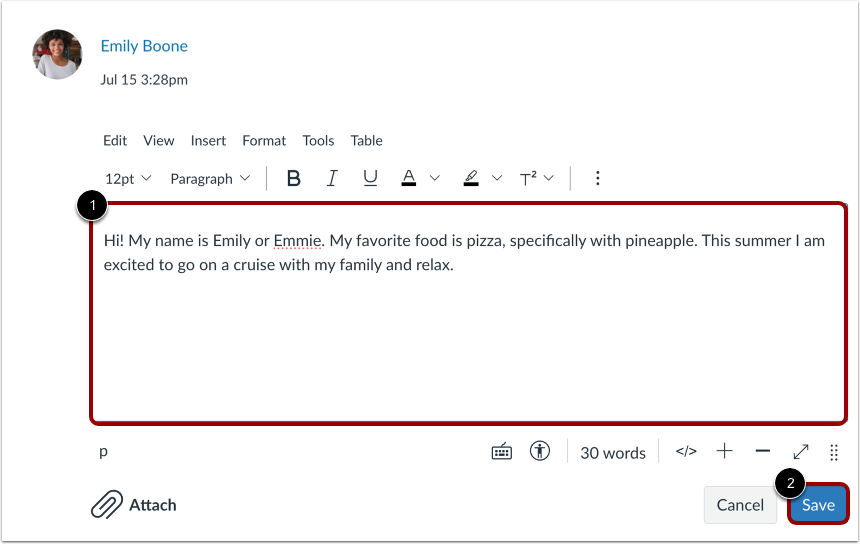
Edit the discussion reply in the Rich Content Editor [1]. To post your edits, click the Save button [2].
Verify Edit
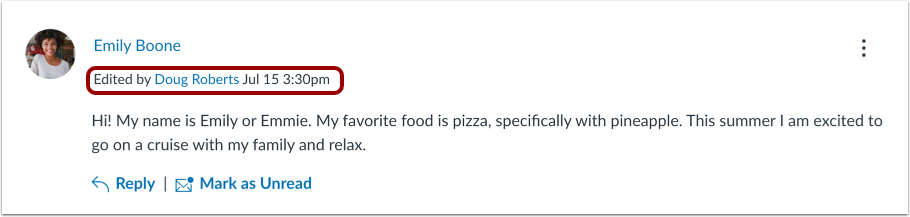
Canvas posts a note that indicates the post has been edited. The text includes your name, and the date and time the post was edited. This entry cannot be removed.
Delete Reply
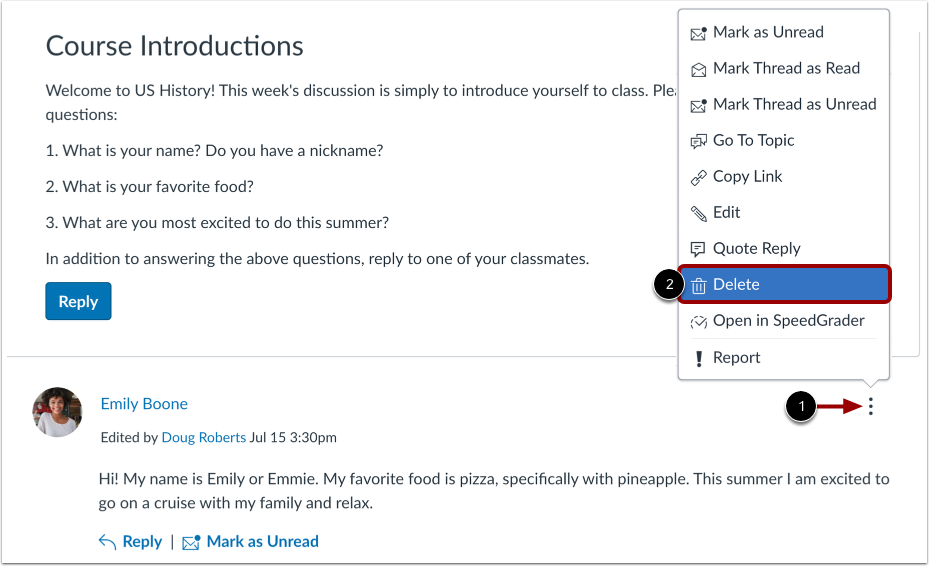
To delete a student reply, click the reply Options icon [1], then select the Delete link [2].
Confirm Delete
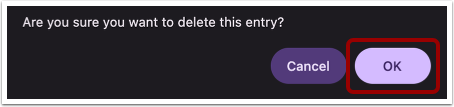
To delete the entry, click the OK button.
View Deleted Discussion Replies
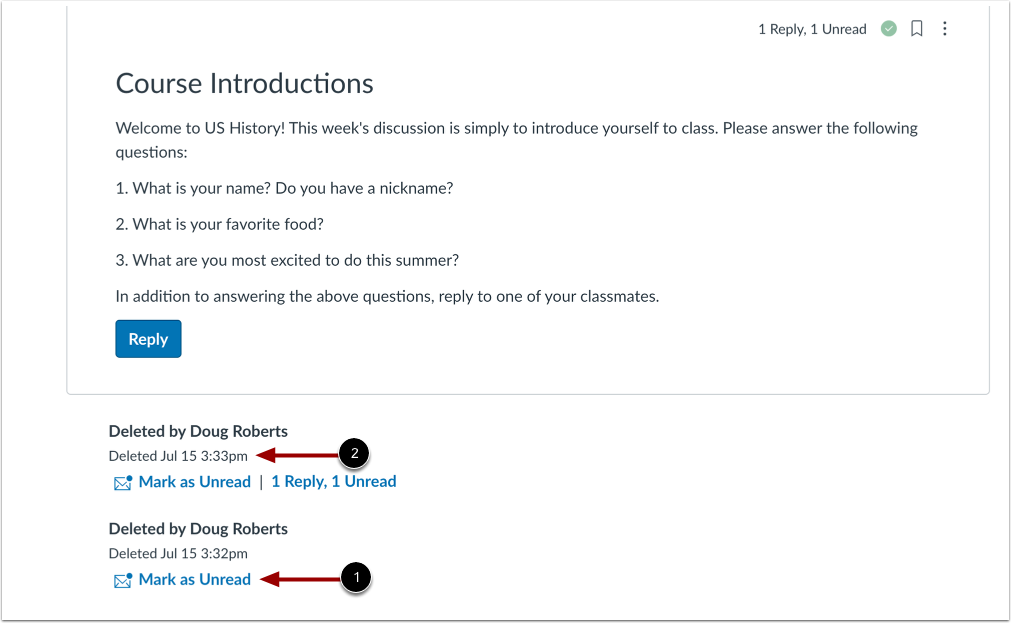
Deleted discussion replies display the name of the user who deleted the reply as well as the date and time the reply was deleted [1].
If a discussion reply with a threaded response is deleted, the Deleted notification always displays and is not hidden from view [2].