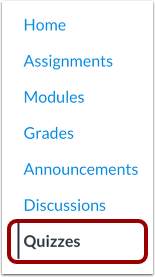
00:08: In Course Navigation, click the Quizzes link.
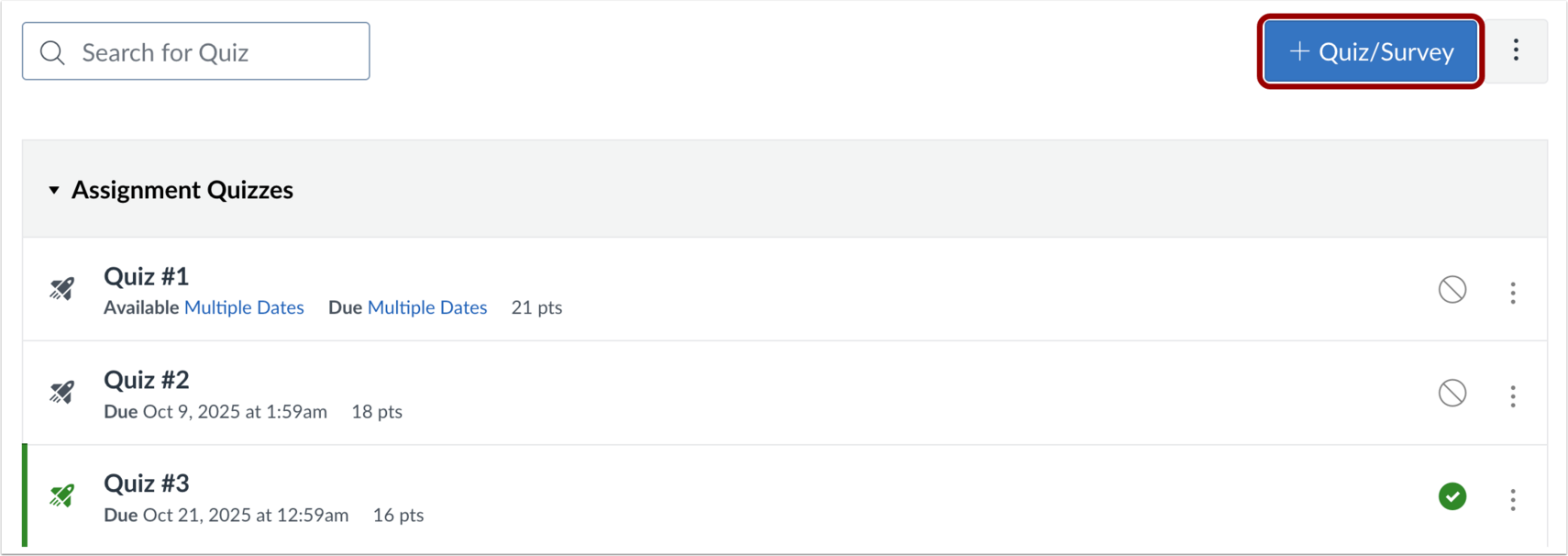
00:12: Click the Add Quiz/Survey button.
00:15: In the Choose a Quiz Engine screen, select the New Quizzes option. To
00:19: save your quiz engine selection for this course,
00:22: check the Remember my choice for this course checkbox. Then click
00:26: the Submit button.
00:28: In the Assignment Name field, enter the name of your quiz.
00:33: To enter quiz details, enter the total points possible, select the
00:37: assignment group, and choose how the grade is displayed to students.
00:41: To remove this quiz from final grade calculations, click the Do not count this assignment towards the final grade checkbox.
00:49: The points possible set on the assignment details page is the total points possible for the quiz.
00:54: Points set per question determine points earned for correct answers. Points earned for correct answers are totaled and divided by the sum of the total question points for the quiz. That percentage is then used to calculate the final score based on the total points set on the assignment details page. For example, if you set the total points on the assignment details page to 50 and create an quiz with 10 questions each worth 1 point, the quiz has a total of 10 points but is worth 50 points when
01:24: graded. If a student answers 9 questions correctly, their quiz score is 90% or 9 out of 10. However, their final score in the Gradebook will be 45 out of 50 or 90%. If your quiz is worth zero points, you can choose to not display the quiz in the Gradebook or student Grades page.
01:43: Anonymous grading hides student names from graders when they view assignment submissions
01:48: in SpeedGrader.
01:50: In the Assign area, you can assign the quiz to students, add due dates, and add
01:54: availability dates.
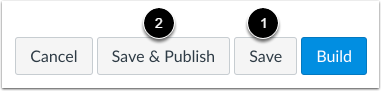
01:56: To save your quiz details, click the Save button. To save and
02:00: publish your quiz, click the Save & Publish button.
02:04: Clicking the Save or Save & Publish button returns you to the page where you opened
02:08: the quiz.
02:10: To open the New Quizzes build page and add questions and content to your
02:14: quiz, click the Build button.
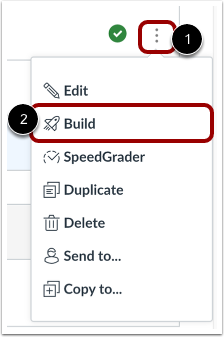
02:17: If you clicked the Save or Save and Publish button and returned to the page where you opened
02:21: the quiz, you can click the Options icon and then click the Build link.
02:26: In the Build page, you can edit the title and description of your quiz, view
02:30: your item banks, align the quiz to outcomes, preview the quiz from the student
02:34: view, and navigate the quiz. You can use the Rich
02:39: Content Editor to format and add content to your quiz instructions.
02:44: To add content to your quiz, click the Add button.
02:48: To insert content from an item bank, click the Item Bank button.
02:52: To create a new question. Click the button for the question.
02:55: Type, add stimulus, content or add text block content.
02:59: The following question types are available in new quizzes, categorization
03:03: essay file upload fill in the blank formula, hotspot
03:07: matching, multiple answer, multiple choice, numeric ordering and
03:11: true or false.
03:13: For each question, you can enter.
03:16: Question title used by creators to identify and organize questions.
03:22: Question stem. The question or problem statement seen by the test taker?
03:27: And answers.
03:30: You may also select options specific to the question. Align, the question to an outcome.
03:36: And add the question to an item bank.
03:40: In the Points field, adjust the point value for the question by entering a
03:44: number or clicking the arrow buttons.
03:47: To add general student feedback, click the Feedback icon.
03:51: To save the question, click the Done button
03:54: To delete a question, click the Delete icon.
03:57: The page will confirm you want to remove the item.
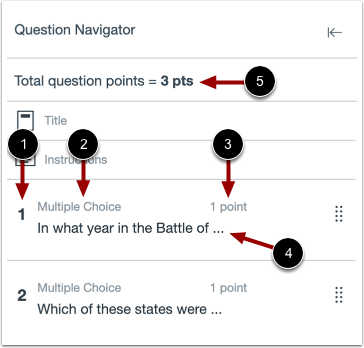
04:01: To open the Question Navigator and view your quiz, click the Expand icon.
04:06: In the Question Navigator, you can view each question number.
04:11: Question type.
04:13: Point total.
04:15: Question stem.
04:17: And total question points.
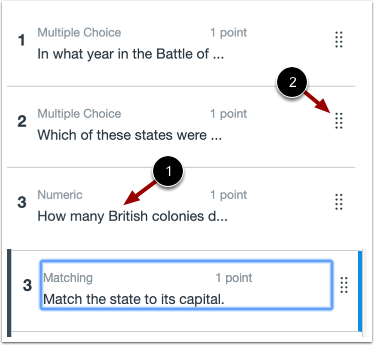
04:19: To view a question in the quiz, click the question stem.
04:23: You will be taken to the question within the quiz.
04:27: To manually reorder questions, click and hold the Move icon. Drag
04:31: the question to where you want it to display in the quiz.
04:35: To close your quiz and return to the Quizzes page,
04:37: click the Return button.
04:40: When creating or editing a New Quiz, you can view the Quiz Title, the Course Navigation, and the Preview button.