00:07: How do I publish or unpublish a page as an instructor?
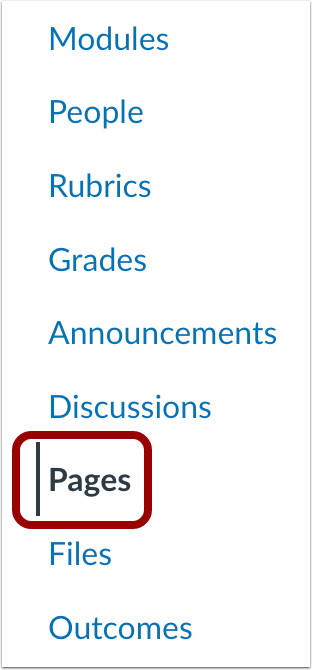
00:11: In Course Navigation, click the Pages link.
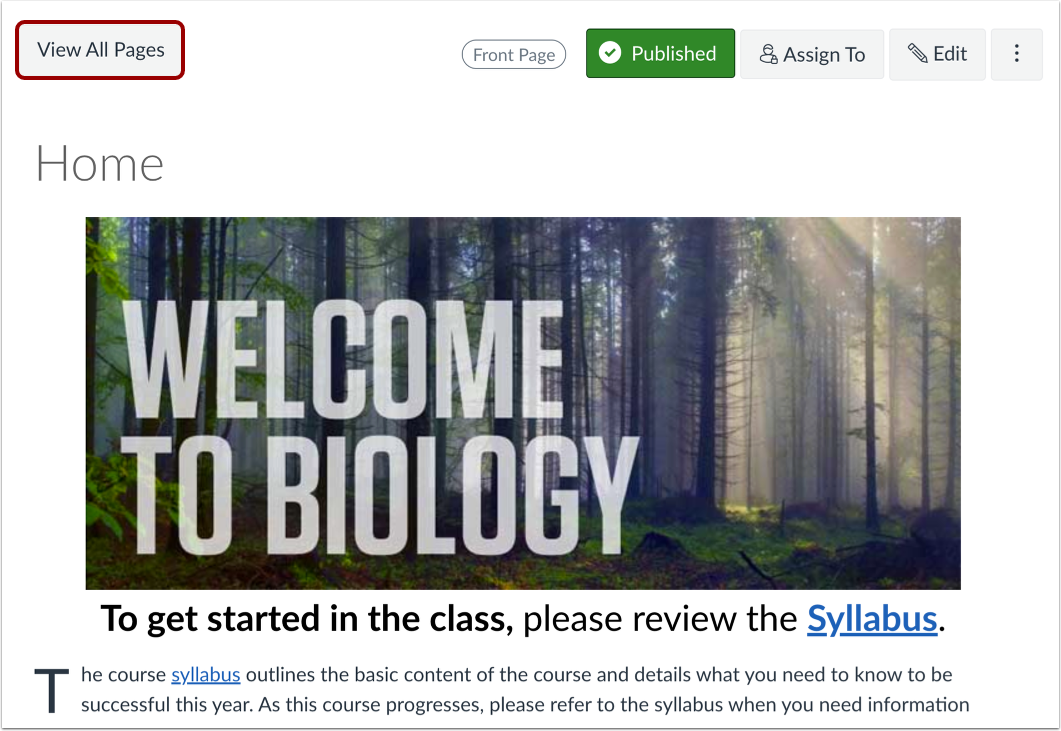
00:14: Pages is designed to open to the designated front page for the course. To
00:19: view a list of all pages, click the View All Pages button.
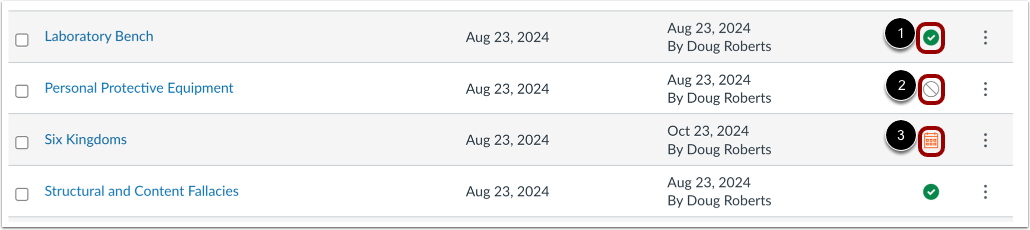
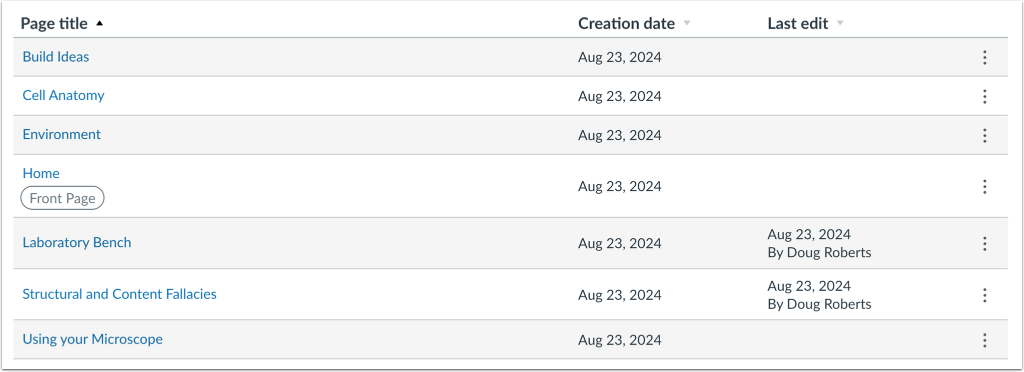
00:24: On the Pages Index page, you can view the status of each page.
00:29: Green icons indicate the page is published.
00:33: Gray icons indicate unpublished pages.
00:37: You can change the status of a page by toggling the published and unpublished icons.
00:42: If enabled by your institution, you can schedule a page to be published. Calendar
00:47: icons indicate scheduled pages.
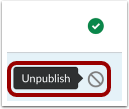
00:50: To publish a page, click the Unpublish icon.
00:53: The hover text will confirm you want to publish the page.
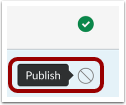
00:58: To unpublish a page, hover over the Publish icon.
01:01: The hover text will confirm you want to unpublish the page. Click
01:05: the icon to confirm.
01:07: If enabled by your institution, you can view when a page is scheduled to
01:11: publish by hovering over the calendar icon.
01:13: The hover text displays when the page is scheduled to be published. Click
01:18: the calendar icon to change the publication status.
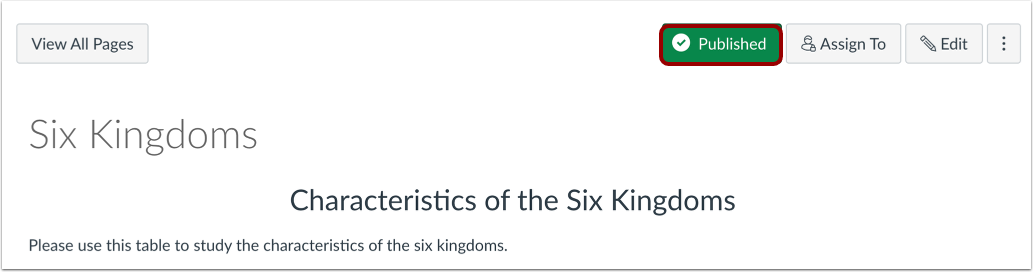
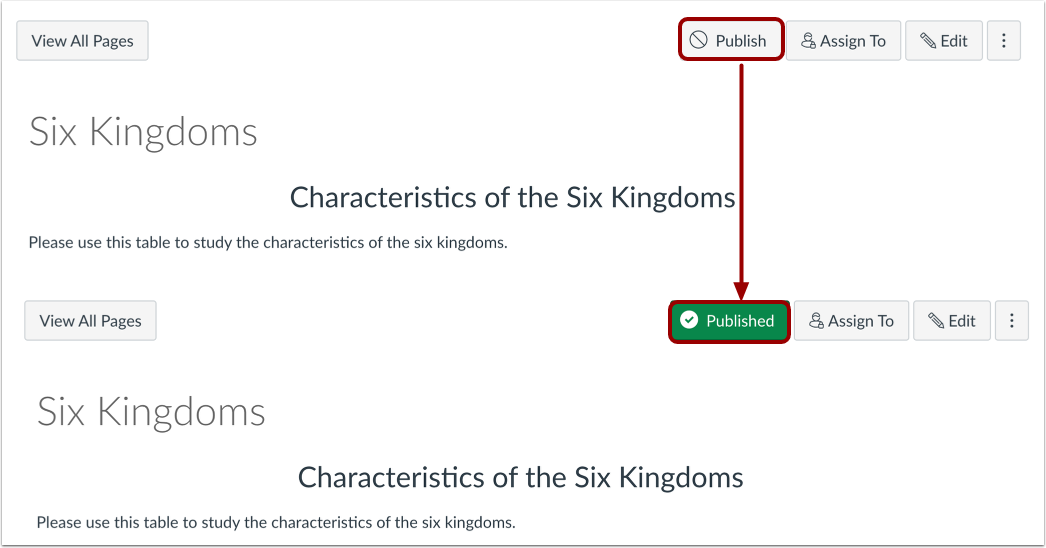
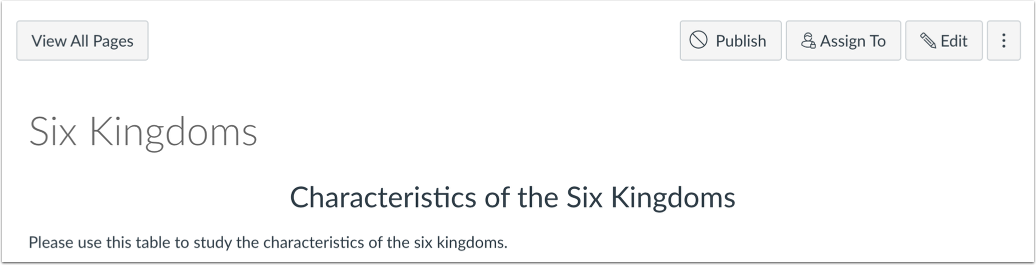
01:22: Within individual pages, the page status is shown next to the page options.
01:27: To publish a page, click the Publish button.
01:31: The button will change from gray to green. To unpublish a page,
01:35: hover over the Published button.
01:38: The hover text will confirm you want to unpublish the page, and the button will
01:42: change from green to gray. Click the button to confirm.
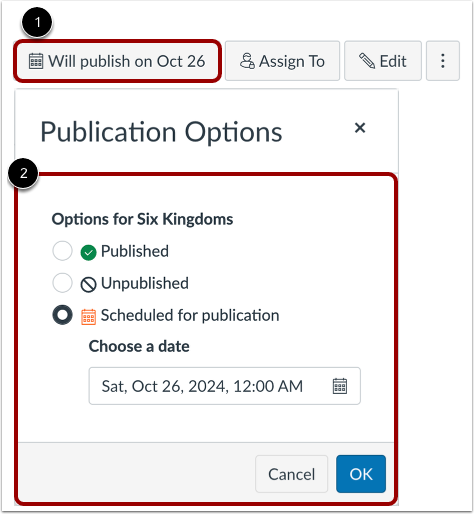
01:47: When your page is saved for scheduled publication, you can return to the page
01:51: and manage the publishing of it at any time by clicking the Will publish
01:55: on... button.
01:56: You can choose between publishing the page, unpublishing the page, or scheduling
02:01: the page for publication options and then click the OK button.
02:06: Students cannot see any of the actions involved with published status, such
02:10: as published and unpublished icons and setting icons. Students
02:15: can only see published pages, which are posted in blue text.
02:19: This guide covered how to publish or unpublish a page as an instructor.