As an instructor, you can use the Grading Assistance feature option to auto-generate suggested scores and feedback for written assignments based on the associated rubric. Students see that an evaluation is AI-Assisted when they view the evaluation on the Grades or Assignments page.
To use this feature, the Enhanced Rubrics and Performance and Usability Upgrades for SpeedGrader feature options must also be enabled.
Feature Limitations
- Grading Assistance does not detect or flag inappropriate, harmful, or sensitive content.
- The system has limited defenses against attempts to manipulate or bypass grading instructions.
- It does not verify the accuracy of factual claims.
- The legitimacy or credibility of cited sources is not evaluated.
- Formatting requirements (e.g., word count, structure, citation style) are not checked.
- Grades and feedback are based only on criteria explicitly stated in the rubric.
- Grading Assistance is not well-suited for objective, single-correct-answer assignments.
Best Practices
- Use clear, detailed rubrics. If a rubric is missing a Criteria title or description and/or a Rating title or description, Grading Assistance will not work.
- Apply Grading Assistance primarily to text-based, essay-style assignments.
- Avoid using it for quantitative or objective assignments.
Notes:
- This feature is designed to support teachers, not replace professional judgment. You must review and approve all AI-generated scores, feedback, and comments before submitting the assessment.
- To view the specific course-level feature options available in Canvas, visit the Canvas Feature Option Summary resource document.
- To manage course-level feature options, visit the guide: How do I manage feature options for a course?
View the video transcript
00:08: Open SpeedGrader from an assignment, quiz, or graded discussion.
00:13: Click the Auto-Evaluate button.
00:16: Ratings and comments are automatically applied to each criterion.
00:19: You can manually change the ratings or edit the comments.
00:24: To clear the current evaluation and begin a new one,
00:27: click the Reset button.
00:29: Once you have reviewed the scores, criteria selections, and comments, click the
00:34: Submit Assessment button.
00:37: This guide covered how to use the IgniteAI Grading Assistance for SpeedGrader.
Open SpeedGrader
Open SpeedGrader from an assignment, quiz, or graded discussion.
Auto-Evaluate Submission
Click the Auto-Evaluate button [1]. To view more details about Grading Assistance, click the Information icon [2].
View Error Message
If a rubric is missing a Criteria title or description, and/or a Rating title or description, an error message appears and Grading Assistance does not work.
Review Evaluation
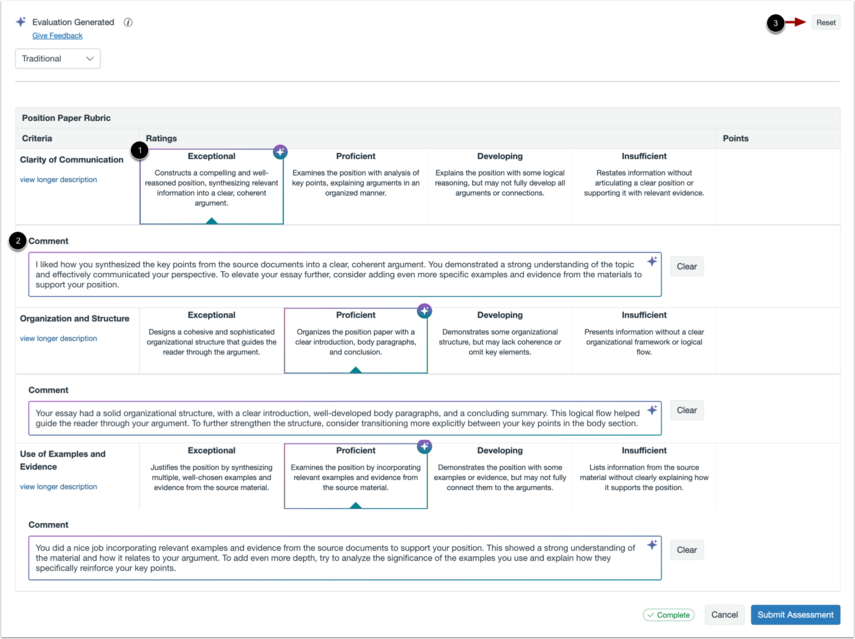
Ratings [1] and comments [2] are automatically applied to each criterion. You can manually change the ratings or edit the comments.
To clear the current evaluation and begin a new one, click the Reset button [3].
Note: Resetting the evaluation will replace all existing ratings and comments and cannot be undone.
Submit Assessment
Once you have reviewed the scores, criteria selections, and comments, click the Submit Assessment button.
Student View
Students see that an evaluation is AI-Assisted when they view the evaluation in the Grades or the indvidual assignment page.