The Course Import Tool makes it easy to extract course content, assignments, and quizzes from previous terms and quickly import them into existing courses. The same tool is used to import course materials from different Learning Management Systems. Some limitations apply to course imports.
Notes:
- Importing courses and course files count against course file quotas. However, copying existing Canvas courses and course files reference the original Canvas course file quota and do not count against course file quotas.
- If you import LTI content from a course, the external tool may need to be reconfigured in the course that receives the content in order for that content to be accessible.
View the video transcript
00:07: What is the course? Import tool.
00:10: In global navigation, click the courses link.
00:14: Then click the name of the course.
00:17: In course, navigation, click the settings link
00:21: Click the import course, content button.
00:24: The course, import tool allows you to do any of the following Import
00:28: all content or choose specific content to copy from another canvas course,
00:32: import a canvas course, export package or courses
00:36: that were previously exported from canvas.
00:38: Import a zip file of assignments files course
00:42: content Etc, into an existing folder.
00:45: Import an angel export zip format import, a Blackboard
00:49: 67 8/9 export, sip file, import,
00:53: a Blackboard Vista CE web.
00:56: Connecticut, 6 Plus course import, a common cartridge, 1.0
01:01: 1.1, 1.2 package, imported
01:05: desire to learn D2L, export zip, format
01:09: import a Moodle 1.925
01:18: When importing content, the tool allows you to import all content or
01:22: select specific content. This feature is useful for institutions
01:26: or instructors who only want to copy specific elements of a course such
01:30: as assignments or modules. The following behaviors currently apply
01:34: to Canvas copies or Imports. Draft State settings are retained,
01:38: in course, Imports. If an assignment is unpublished in a course,
01:43: when it was copied or exported, the assignment will also be unpublished in
01:47: the content import Mastery paths, conditional items are not retained
01:51: in course, Imports. And paths must be recreated.
01:54: After the import is completed copying content retains, any links
01:58: or files associated with the content such as in an assignment.
02:01: When selecting a assignments, only canvas Imports all assessment
02:06: items within the assignments, page, including any Associated quizzes
02:10: and discussions. Assignments will remain in their assignment groups if
02:14: an entire assignment group were all assignments.
02:16: Are imported sco? RM content is included, in course, copies
02:20: s c. O r m content should only be copied within accounts that
02:24: use the same key in secret configuration.
02:27: When manually copying a course, the user who copies, the course
02:31: will automatically be added to the course with an instructor role When selecting
02:35: specific content and only importing a new quiz.
02:38: With stimulus question, the images associated with the stimulus.
02:41: Question do not automatically important and need to be selected for import at the
02:45: same time.
02:48: The following behaviors also apply to Canvas copies or Imports.
02:52: Group sets do not copy as part of the import.
02:55: Any existing group sets, in a new course, will be linked to the group set with the same
02:59: name. However, if there are no groupsets with the same name in
03:03: the new course, the assignment will be linked to a new project group set importing
03:08: specific content from a canvas course.
03:10: Export package does not retain images and linked files in the content, such
03:15: as an assignment page or discussion.
03:17: When selecting individual assignments, assignments are placed
03:21: in an assignment group called imported assignments.
03:25: However a science can be moved into other assignment groups as necessary.
03:29: Enrollment related data which includes course users collaborations
03:34: conferences groups and sections and feature.
03:37: Options settings are not included in course, content Imports announcements
03:42: and discussions. Do not retain the name of the user who originally created the course
03:46: content. Additionally, students do not receive announcement
03:50: notifications for imported announcements.
03:52: However, a badge, indicating a new announcement displays on the
03:56: card View. And recent activity, dashboards assignments, with a manual
04:00: grade posting policy in Anonymous, assignments retain the manual, grade posting
04:04: policy in their Anonymous settings as part of the course, important calendar.
04:08: Item locations EG office hours slots with an assigned office
04:12: location are not included. In course Imports.
04:17: In addition, to recreating the structure and content of the course, the course,
04:21: import tool can adjust events and due dates to the new date ranges of the new term.
04:27: When importing content a message displays explaining that importing the same
04:31: course content or export package, more than once overrides any, existing content
04:35: in the course,
04:38: Once you have started an import, the current jobs menu, displays the job
04:42: status of any Imports and process as well as any prior import history.
04:48: This guide covered the course, import tool.
You can use the Course Import Tool to:
- Copy course content from term to term, including Announcements and Discussions. You can adjust the events and due dates to coordinate with your current term.
- Select specific content you want copied. You can select individual Assignments, Pages, Files, and anything else from previous courses you or your colleagues have taught. The Course Import Tool supports keyboard navigation when selecting content to import.
- Import course materials from different Learning Management Systems. The Course Import Tool does not import user content.
Note: Importing a course more than once may have unintended consequences. If you import content into a new course, edit the content in the new course, and later import the previous content again, the imported content will override the existing content.
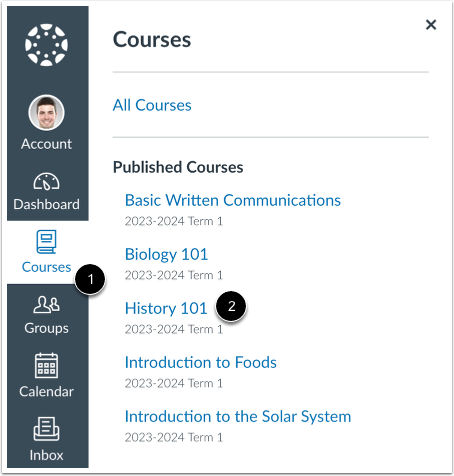
In Global Navigation, click the Courses link [1], then click the name of the course into which you want to import content [2].
Open Settings
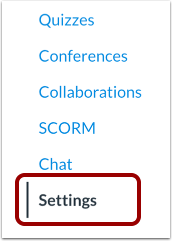
In Course Navigation, click the Settings link.
Click the Import Course Content button.
Note: You can also open the Course Import Tool from Course Navigation by clicking the Home link, then clicking the Import Existing Content button.
Choose Import Source
The Course Import Tool allows you to do any of the following:
Import Content
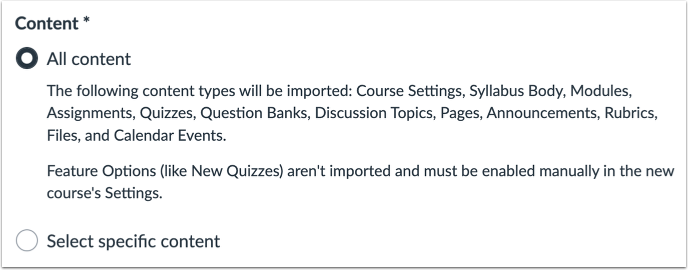
When importing content, the tool allows you to import all content or select specific content. This feature is useful for institutions or instructors who only want to copy specific elements of a course, such as assignments or modules.
The following behaviors currently apply to Canvas copies or imports:
- Draft State settings are retained in course imports. If an assignment is unpublished in a course when it was copied or exported, the assignment will also be unpublished in the content import.
- Mastery Paths conditional items are not retained in course imports, and paths must be re-created after the import is completed.
- Copying content retains any links or files associated with the content, such as in an assignment.
- When selecting assignments only, Canvas imports all assessment items within the Assignments page (including any associated quizzes and discussions). Assignments will remain in their assignment groups if an entire assignment group or all assignments are imported.
- SCORM content is included in course copies. SCORM content should only be copied within accounts that use the same key and secret configuration.
- When manually copying a course, the user who copies the course will automatically be added to the course with an instructor role.
- When selecting specific content and only importing a New Quiz with stimulus questions, the images associated with the stimulus question do not automatically import and need to be selected for import at the same time.
Import Limitations
The following behaviors also apply to Canvas copies or imports:
- Group sets do not copy as part of the import. Any existing group sets in the new course will be linked to the group set with the same name. However, if there are no group sets with the same name in the new course, the assignment will be linked to a new Project Groups set.
- Importing specific content from a Canvas course export package does not retain images and linked files in the content, such as in an assignment, page, or discussion.
- When selecting individual assignments, assignments are placed in an assignment group called Imported Assignments. However, assignments can be moved into other assignment groups as necessary.
- Enrollment-related data, which includes course users, collaborations, conferences, groups, and sections, and feature option settings are not included in course content imports.
- Announcements and Discussions do not retain the name of the user who originally created the course content. Additionally, students do not receive announcement notifications for imported announcements. However, a badge indicating a new announcement displays on the Card View and Recent Activity Dashboards.
- Assignments with a manual grade posting policy and anonymous assignments retain the manual grade posting policy and their anonymous settings as part of the course import.
- Calendar item locations (e.g., office hours slots with an assigned office location) are not included in course imports.
Note: To prevent 0s (zero grades) from being automatically entered into the Gradebook when importing content into a course with a late/missing policy set up, it is recommended that you temporarily disable your late/missing policy before importing the content. You can re-enable it once the import is complete.
Adjust Events and Due Dates
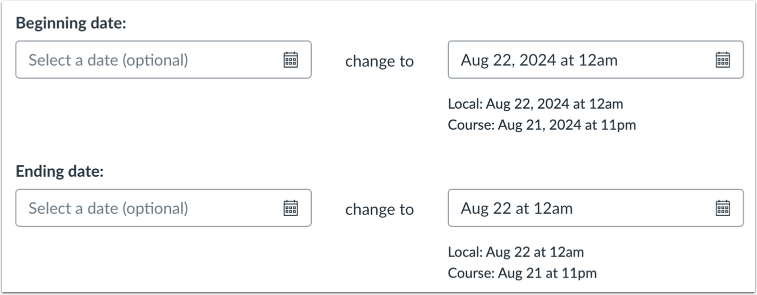
In addition to recreating the structure and content of the course, the Course Import Tool can adjust events and due dates to the new date ranges of the new term.
View Content Import Warning Message
When importing content, a message displays explaining that previously imported content from the same course will be replaced while manually added content will remain.
View Current and Prior Imports
The Content imports section displays the status of your import, as well as any prior import history. Running reports display a progress bar [1].
If you chose to select specific content in your course, the current job will show as Waiting for selection [2], which means you must select the content you want to import [3]. To view imported content, access it from the appropriate Course Navigation link.
The import may also display other status indicators as part of the import process.