As an instructor, you can add evidence requirements to an Evaluation Portfolio by including assignments, projects, activities, or professional experiences. You can also add skills that are specific to the evidence you create.
Notes:
- If you do not see the Portfolio link in User Navigation, your institution may not have enabled this feature.
- Portfolio uploads are subject to the following limits:
- Each user has a total upload limit of 1 GB
- Individual files cannot exceed 50 MB
- Portfolio content does not count toward a students regular Canvas storage quota
- For more information on the student view, visit the guide on how do I add evidence to a Portfolio as a student?
View the video transcript
00:07: How do I add evidence in an Evaluation portfolio as an instructor?
00:11: In the User Navigation menu, click the Account link, then click the Portfolio link.
00:18: Click the Create an evaluation portfolio button.
00:22: To add evidence requirement to a portfolio, click the Add requirement link.
00:27: You can either add an assignment from the course or create a new requirement.
00:32: To select an assignment to add as evidence, click the Add Assignment checkbox.
00:38: To view assignment details, click the Review icon.
00:42: You can find assignments by typing keywords in the Search field.
00:46: To filter assignments, select a course from the drop-down menu. Instructors can only choose assignments from courses assigned to the portfolio.
00:55: After selecting all assignments, click the Add button .
00:59: In a portfolio, assignment details open in a modal. To view the assignment in the course, click the Go to assignment button.
01:07: To create new evidence, select between a project, extracurricular activity, or professional experience. Then, click the Select button.
01:17: Add a title and an optional description .
01:21: Add skills separated by commas, then click the Add link.
01:25: Click the Create button.
01:28: This guide covered how to add evidence in an Evaluation portfolio as an instructor.
Open Portfolio
In the User Navigation menu, click the Account link [1], then click the Portfolio link [2].
Create Evaluation Portfolio
Click the Create evaluation portfolio button.
Add Requirement
To add an assignment as an evidence requirement, click the Add requirement link [1], then click the Add assignment from course link [2].
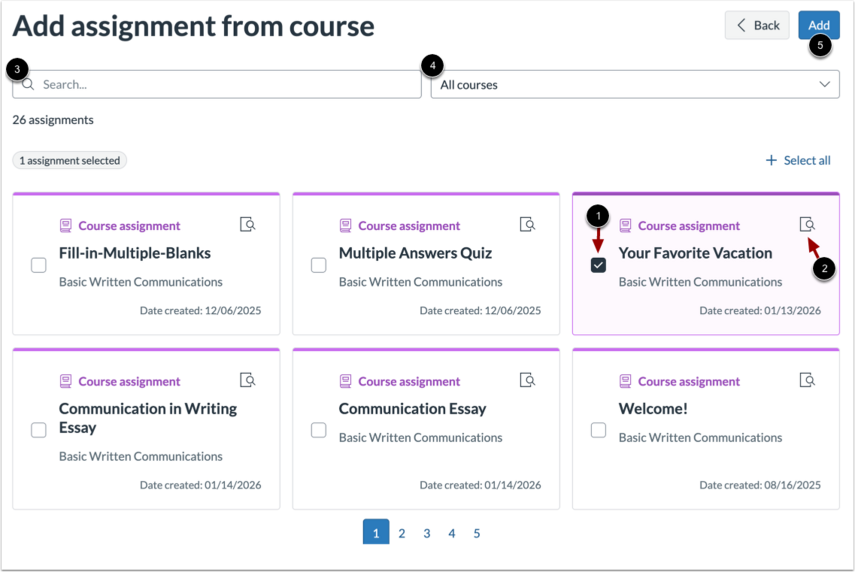
Add Assignment from Course
To select multiple assignments, click the checkbox [1].
To view assignment details, click the Review icon [2].
You can find assignments by typing keywords in the Search field [3].
To filter assignments, select a course from the drop-down menu [4]. Instructors can only choose assignments from courses assigned to the portfolio.
After selecting all assignments, click the Add button [5].
View Assignment Details
In the sidebar, you can view the evidence requirement details. To view the assignment in the course, click the View in Canvas icon.
Create New Requirement
To create a new requirement, click the Add requirement link [1], then click the Create new requirement link [2].
Select Requirement Type
In the Create requirement sidebar, a Requirement type drop-down menu displays.
To create a new requirement, select between a Project [1], Extracurricular activity [2], Professional experience [3], or Course assignment [4].
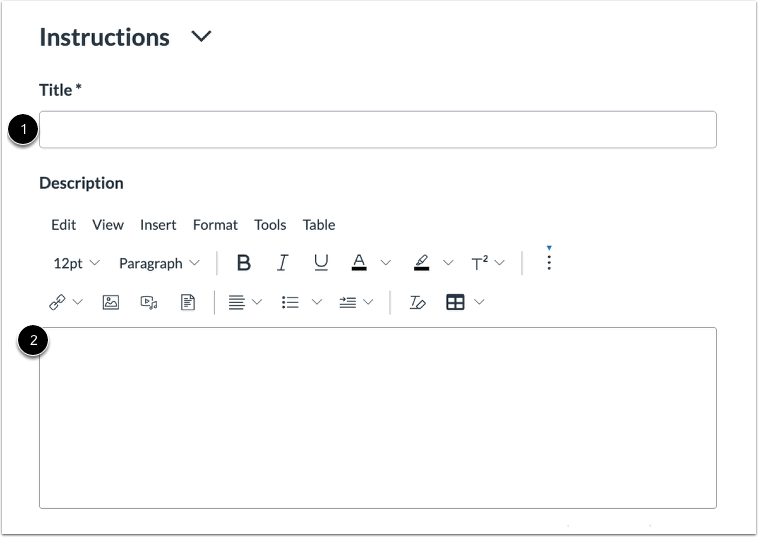
Add Details
Add a title [1] and an optional description [2].
Upload Image
To upload an image, click the image icon [1], then drag a file or Choose file to upload [2]. Once the file is added, click Save button [3] to complete the upload.
Note: Upload size is limited to 50 MB.
Upload Video
To upload a video, click the video icon [1], then drag a file or click the Choose file to upload link [2]. Once the file is added, click Save button [3] to complete the upload.
Notes:
- Upload size is limited to 50 MB. Uploaded videos are downloadable from portfolio.
- You can upload video files as standalone portfolio artifacts.
Embed External Content
To embed external HTML-based content in the Rich Content Editor, click the HTML icon.
Note: You can embed external content such as YouTube videos, Miro boards, Google Slides, and interactive prototypes directly into the editor.
Enter the embed code in the Pretty HTML Editor [1]. To switch views, click the Switch to raw HTML Editor button [2]. To return to the Rich Content Editor, click the HTML icon [3].
Note: The Pretty HTML Editoradds color highlighting, indentation, and line numbers to make your code easier to read. The Raw HTML Editor displays plain, unformatted code and preserves exactly what you enter.
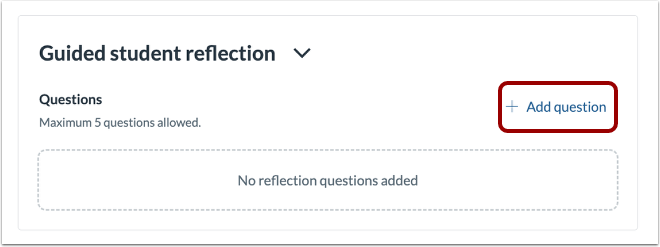
Add Custom Guided Question
Guided prompts are available allowing you to add customizable prompts to manually created requirements within Evaluation Portfolios.
To add custom guided questions to evidence, click the Add question link.
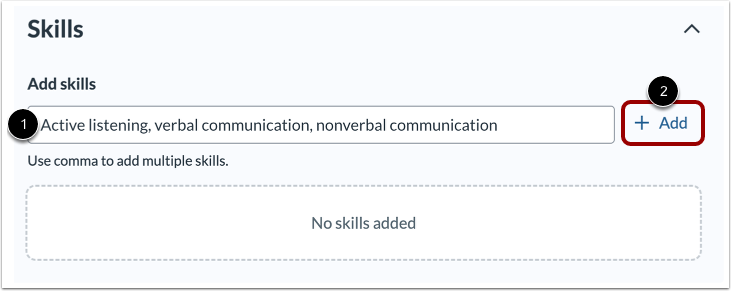
Add Skills
Add skills separated by commas [1], then click the Add link [2].
Save Evidence
Click the Create button.