You can manage placements for an external app in your account. Placements determine where an app can be seen and used in Canvas.
App placement categories include course navigation, account navigation, user navigation, homework submissions, Rich Content Editor button, migration selection, link selection (modules), assignment selection, and Top Navigation.
When managing app placements, placements can be set to active or inactive. Active placements display in the Canvas feature area listed in the App Placements menu. Inactive placements are removed from the Canvas feature area listed in the App Placements menu.
Notes:
- Managing external app placements in the App Configuration page in account settings only applies to LTI 1.1 tools.
- When enabled, the Allow LTI Placements Toggle feature option allows you to configure the display of an LTI 1.3 tool in various user interface locations.
- The Lucid Education Suite Global Navigation and User Navigation placements are disabled by default. To make Lucid available in these navigation areas, enable the placements for the tool in the External Apps page.
Open Account
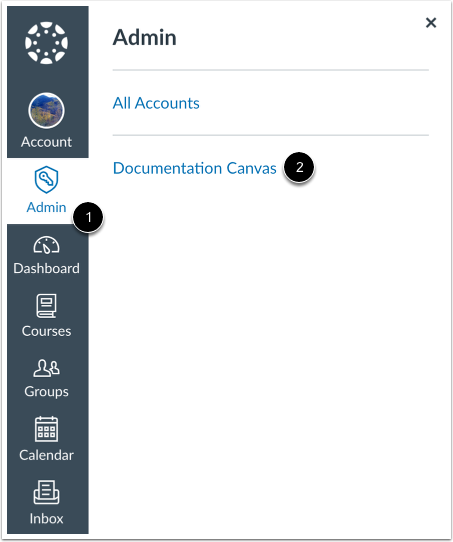
Click the Admin link [1], then click the name of the account [2].
Open Settings
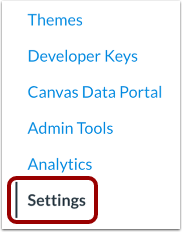
In Account Navigation, click the Settings link.
Open Apps
Click the Apps tab.
View App Configurations
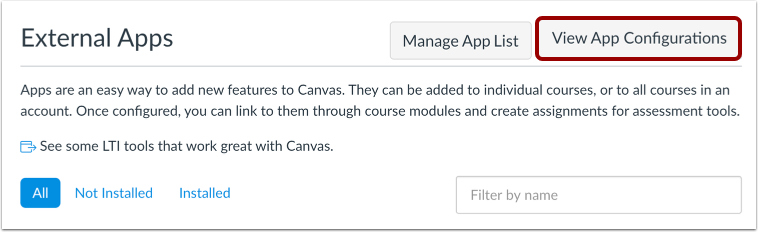
To configure an app, click the View App Configurations button.
Open Placements
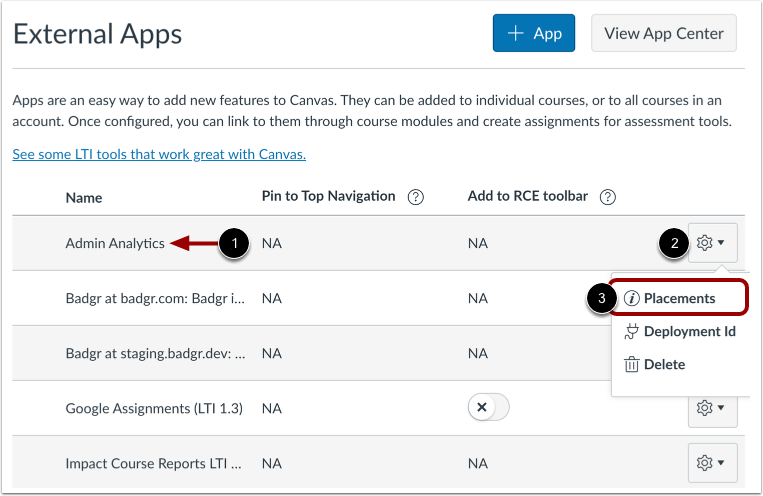
Locate the external app you want to manage [1]. Then click the Settings button [2] and select the Placements option [3].
Note: When you click the Placements link, you may see a No Placements Enabled message. This message indicates that the app does not have any specified placements within Canvas.
View Placements
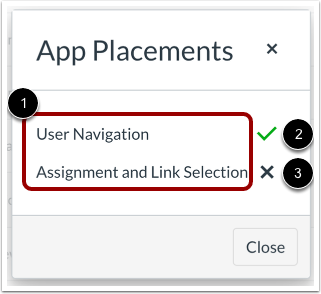
The App Placements menu displays all placements for the external app [1]. An active placement displays the Checkmark icon [2]. An inactive placement displays the X icon [3].
Depending on the LTI tool, the available app placement categories may vary. The following app placement categories are available for some external apps:
- Assignment Selection: Configure an LTI tool to be selectable as an assignment during assignment creation or editing.
- Editor Button: Configure an LTI tool to display as a button in the Rich Content Editor.
- Homework Submissions: Configure an LTI tool to display when a student is submitting content for an assignment. When a tool is configured, users will see an additional tab during assignment submission for assignments that accept online submissions.
- Link Selection: Configure an LTI tool to select LTI to launch URLs as module items.
- Navigation: Configure an LTI tool to display as a link in the navigation for a course, account, or user.
- Migration Selection: Configure an LTI tool to display in the Course Imports menu of a course.
- Submission Type Selection: Configure an LTI tool to display in the Submission Type drop-down menu during assignment creation.
- Top Navigation: Configure an LTI tool to display in the LTI Tools drop-down menu in Top Navigation.
Manage Placement
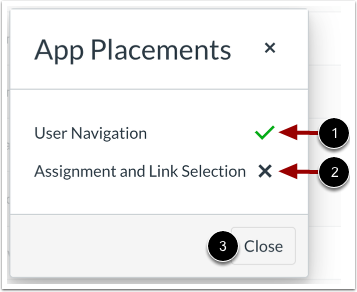
To disable an active placement, click the Checkmark icon [1]. To enable an inactive placement, click the X icon [2].
To close the App Placements menu, click the Close button [3].