If you have added a non-scoring rubric to an assignment, you can assess the rubric in SpeedGrader. Non-scoring rubrics contain rating criteria without point values. Unlike regular rubrics, non-scoring rubrics are not used for grading.
Ensure you have selected the Remove points from rubric option when adding a rubric to an assignment.
Note: If your rubric does not contain any predetermined rubric criteria, you should grade the rubric using free-form comments.
Open SpeedGrader
Open SpeedGrader from any assignment, graded discussion, or quiz.
Open Student Submission
Use the student list to locate a student submission [1]. The Eye icon indicates the student you are currently viewing [2].
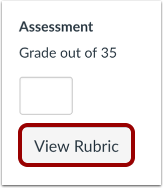
View Rubric
Click the View Rubric button.
Resize Rubric
To view the entire rubric window, you may need to scroll vertically and horizontally. To resize the rubric window, click and drag the sizing column horizontally.
Complete Rubric
For each criterion, click the rating that applies to the student's submission [1].
You can also add a comment for each rubric criterion [2].
To deselect a rating, click the assigned rating [3].
Save Rubric
Click the Submit Assessment button.
View Rubric Ratings
View the rubric ratings.