00:05: How do I add a rubric to a quiz?
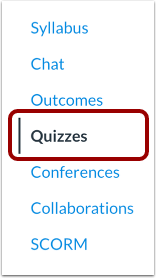
00:08: In Course Navigation,
00:09: click the Quizzes link.
00:11: Click the name of the quiz.
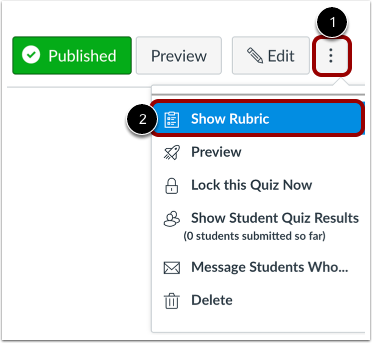
00:14: Click the Options icon and select the Show Rubric link.
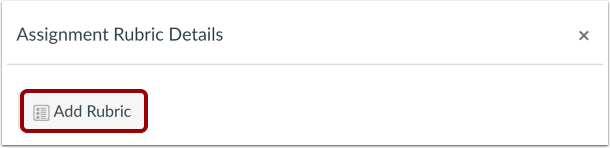
00:18: Click the Add Rubric button.
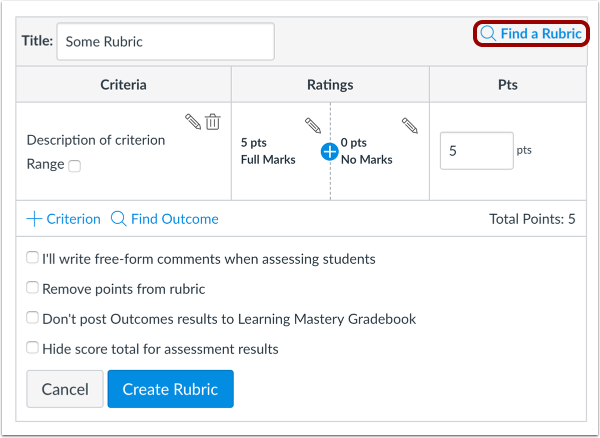
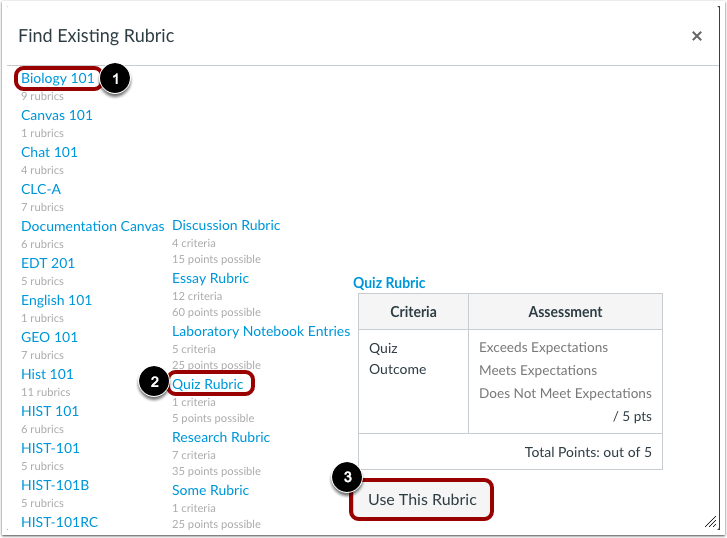
00:21: To find an existing rubric, click the Find a Rubric link.
00:26: You can find rubrics that were created in previous quizzes as well as rubrics created
00:30: in other courses where you have an instructor role.
00:34: In the first column, select a course or account.
00:38: In the second column, locate and click the name of a rubric.
00:41: You can view the criteria and points in each rubric
00:45: To select a rubric for the quiz, scroll to the bottom of the rubric and click the
00:49: Use This Rubric button.
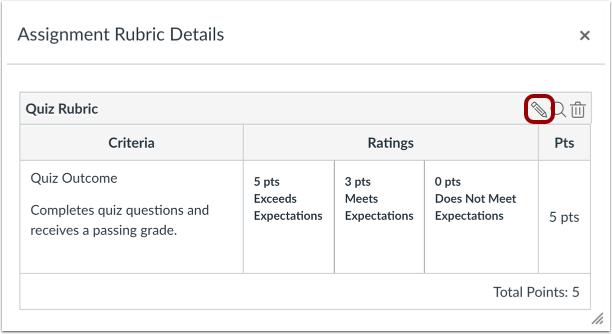
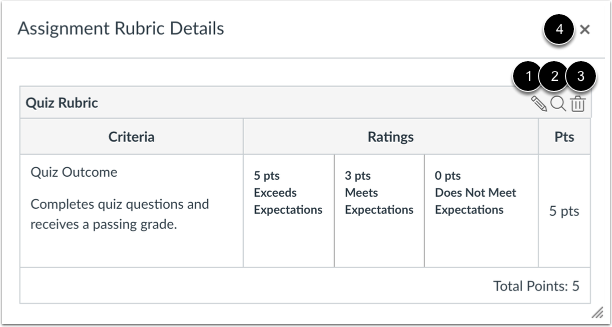
00:52: To reopen the rubric and select rubric settings,
00:54: click the Edit icon.
00:57: If you cannot find an existing rubric to use for the quiz, you can create a new
01:01: rubric for your quiz.
01:02: New rubrics are saved in your course for future use.
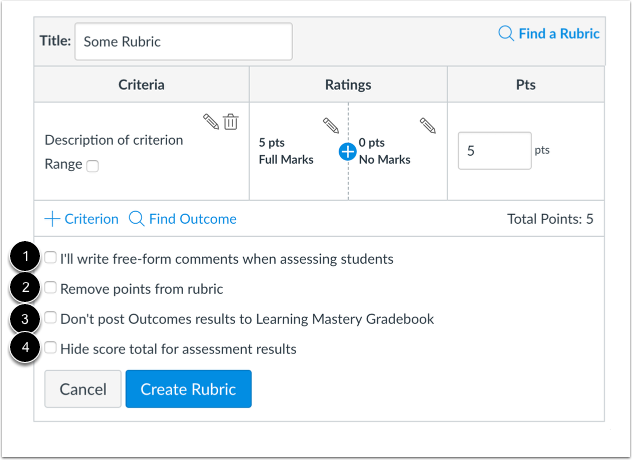
01:07: Once you have added a rubric, you can select several options for the rubric.
01:10: If you want to write free-form comments to students in SpeedGrader, select the I'll
01:15: write free-form comments checkbox.
01:17: If this option is selected, no ratings are used to assess the student and criterion
01:21: values are assigned manually.
01:24: If you want to remove points from the rubric, select the Remove points from rubric
01:28: checkbox. If this option is selected, no points are associated with the rubric, but
01:34: students can still be rated using the rubric criterion.
01:38: If you have the Learning Mastery Gradebook enabled but you don't want outcome
01:42: results posted to the Learning Mastery
01:44: Gradebook, select the Don't post Outcomes results to Learning Mastery Gradebook
01:49: checkbox.
01:50: If this option is selected, students will be able to see rubric and outcome results
01:55: in the Grades and submission details pages
01:57: but results will not be posted to the Learning Mastery Gradebook.
02:01: If this option is selected, students will be able to see rubric and outcome results
02:06: in the Grades and submission details pages
02:08: but results will not be posted to the Learning Mastery Gradebook.
02:13: If you do not want students to see the score total for the rubric, select the Hide
02:18: score total for assessment results
02:20: checkbox. Students can still see the point values for each criterion, but the total
02:25: score will not be shown at the bottom of the rubric. This option applies to students
02:29: when they view rubrics from the Grades page.
02:32: Click the Update Rubric button.
02:35: Note: If you created a new rubric, the assignment will show the Create Rubric
02:39: button.
02:40: This guide covered how to add a rubric to a quiz.