You can align any outcome in your course to a rubric. Rubrics are used to help students understand expectations for an assignment and how their submissions will be graded. Outcomes can be aligned with a rubric for additional assessment and measurable performance.
To align an outcome, the outcome must already exist for your course. You can align outcomes created at the account level, or learn how to create course outcomes.
Notes:
- Outcomes can be added to rubrics, but rubrics cannot be added to outcomes.
- Rubrics cannot be edited once they have been added to more than one assignment in a course.
- If the steps in this lesson do not match what is displayed in your course, learn how to align an outcome in the Enhanced Rubrics interface.
View the video transcript
00:05: How do I align an outcome with a rubric in a course?
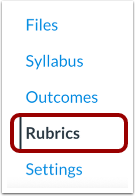
00:09: In Course Navigation, click the Rubrics link.
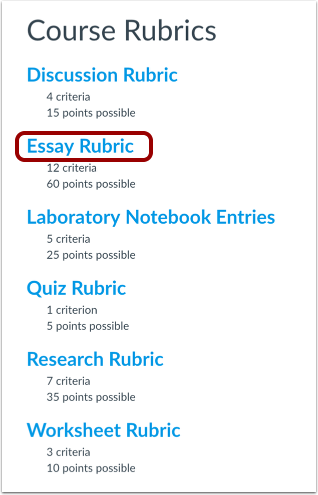
00:12: Click the name of a rubric.
00:15: To create a new rubric, click the Add Rubric button.
00:20: Click the Edit Rubric button.
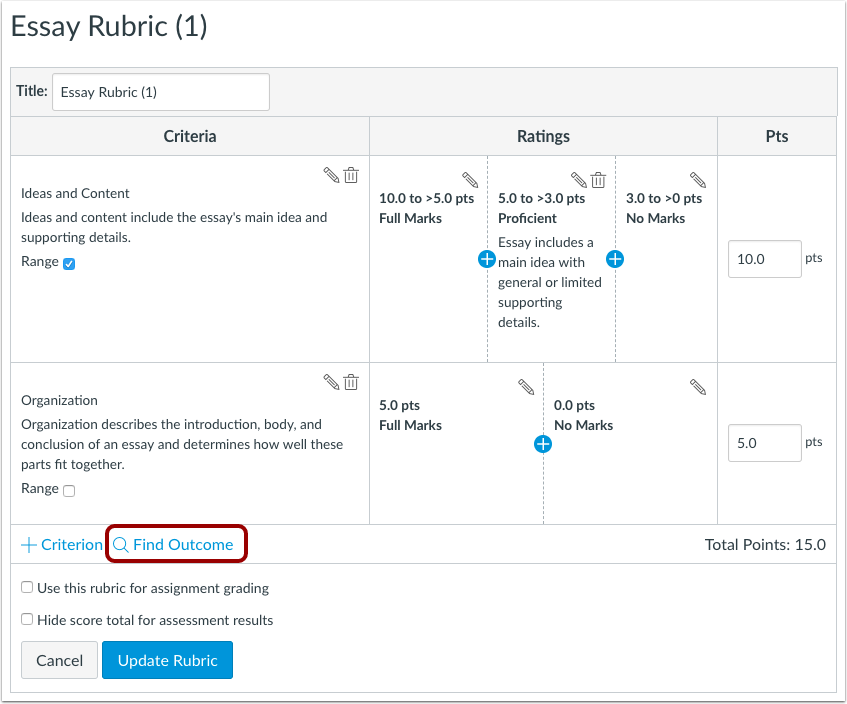
00:23: Click the Find Outcome link.
00:25: Locate and select the outcome
00:27: you want to align.
00:29: If you want to use the criterion for scoring, click the Use this criterion for
00:29: scoring checkbox. Selecting this checkbox displays the point value of the criterion
00:29: directly in the rubric and contributes to the overall rubric point value. However,
00:29: if this checkbox is not selected, the point value will not be factored into the
00:29: rubric. The criterion point value will not be displayed after the rubric is updated.
00:55: Click the Import button.
00:57: View the aligned outcome. Click the Update Rubric button.
01:02: This guide covered how to align an outcome with a rubric in a course.
Open Rubrics
In Course Navigation, click the Rubrics link.
Open Rubric
Click the name of a rubric.
Create Rubric
To create a new rubric, click the Add Rubric button.
Edit Rubric
Click the Edit Rubric button.
Find Outcome
Click the Find Outcome link.
Import Outcome
Locate and select the outcome you want to align [1].
If you want to use the criterion for scoring, click the Use this criterion for scoring checkbox [2]. Selecting this checkbox displays the point value of the criterion directly in the rubric and contributes to the overall rubric point value. However, if this checkbox is not selected, the point value will not be factored into the rubric. The criterion point value will not be displayed after the rubric is updated.
Click the Import button [3].
Note: Available outcomes may vary by institution.
Update Rubric
View the aligned outcome [1]. Click the Update Rubric button [2].