If you accidentally published a quiz with an existing multiple choice question that needs to be corrected, you can use quiz regrade to edit the question and update student grades. Learn more about quiz regrade options.
Notes:
- Quiz regrade only applies to students who have already taken the quiz.
- Adding or removing a question as well as changing the point value for the multiple choice question does not trigger the quiz regrade feature.
- Adding or deleting answers from a multiple choice question with submissions disables the option to regrade that question.
View the video transcript
00:05: How do I regrade a Multiple Choice quiz question?
00:08: To regrade a quiz,
00:09: in Course Navigation, click the Quizzes link.
00:13: Find the quiz
00:13: you want to regrade and click the Options icon, then click the Edit button.
00:19: Click the Questions tab. From there,
00:21: you can regrade Multiple Choice,
00:23: True or False, and Multiple Answers questions.
00:28: Locate the multiple choice question in the quiz.
00:30: Hover over the question until the edit icon appears. Click the Edit icon.
00:36: Hover over the answer you want to select as the new correct answer until a green
00:41: ghost arrow appears. Click the green arrow to select the new answer as the correct
00:46: answer.
00:47: Canvas recognizes you have changed the
00:50: correct answer for this question. In the regrade options dialog
00:53: box, select a regrade option by clicking the radio button next to the
00:57: option you want to apply to this quiz question.
01:00: Click the Update Question button.
01:03: When you've finished editing your quiz, click the Save button.
01:07: When students view their quiz results, they see a notification if their quiz has
01:11: been affected. The attempt history
01:13: also reflects the regraded score.
01:16: This guide covered how to regrade a Multiple Choice quiz question.
Open Quizzes
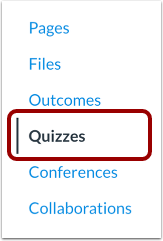
To regrade a quiz, in Course Navigation, click the Quizzes link.
Edit Quiz
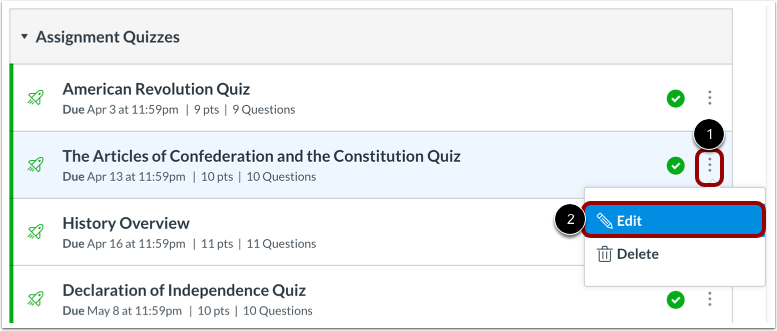
Find the quiz you want to regrade and click the Options icon [1], then click the Edit button [2].
Open Questions Tab
Click the Questions tab.
You can regrade:
- Multiple Choice Questions
- True/False Questions
- Multiple Answers Questions
Edit Multiple Choice Question
Locate the multiple choice question in the quiz. Hover over the question until the edit icon appears. Click the Edit icon.
Select New Correct Answer
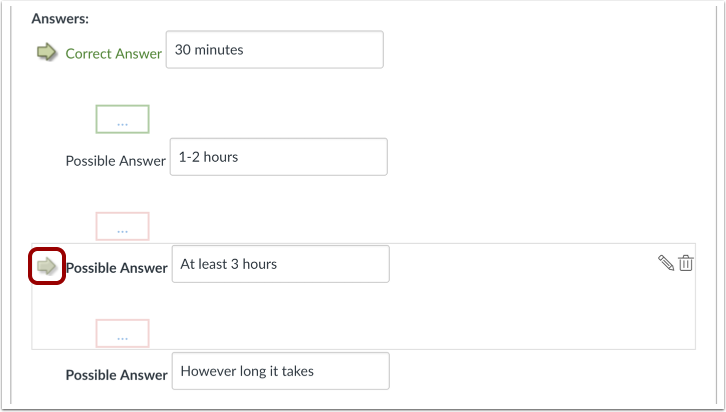
Hover over the answer you want to select as the new correct answer until a green ghost arrow appears. Click the green arrow to select the new answer as the correct answer.
Note: Adding or deleting answers from a question with submissions disables the option to regrade that question.
Select Regrade Option
Canvas recognizes you have changed the correct answer for this question. In the regrade options dialog box, select a regrade option by clicking theradio button next to the option you want to apply to this quiz question.
Update Question
Click the Update Question button.
Save Quiz
When you've finished editing your quiz, click the Save button.
Note: Regrade options will not apply until you have re-saved the quiz.
Save It Now
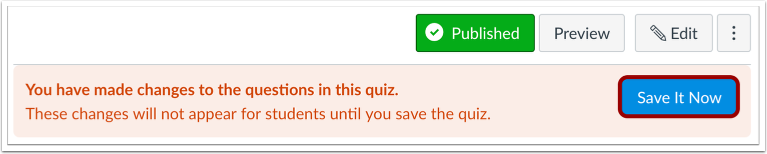
If you exit the quiz without saving, Canvas asks you to save your changes when you return to the quiz. To update your changes, click the Save It Now button.
For help viewing or reverting grade changes in the Gradebook, visit the grading history lesson.
Student View
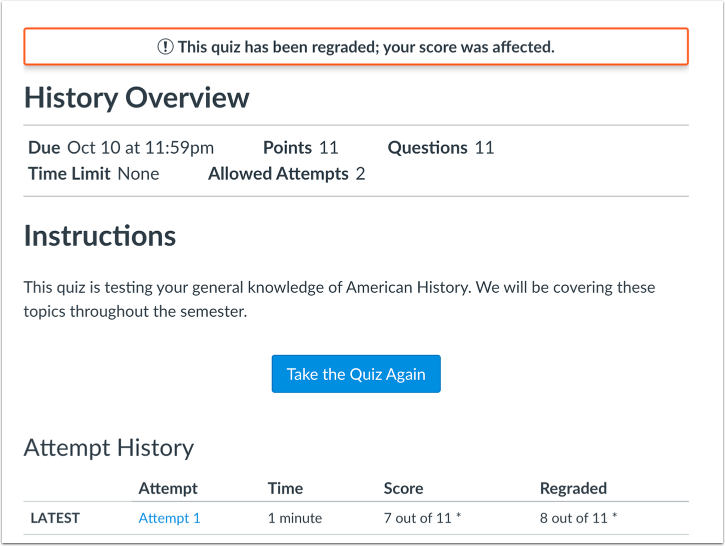
When students view their quiz results, they see a notification if their quiz has been affected. The attempt history also reflects the regraded score.