00:05: How do I view a quiz log for a student?
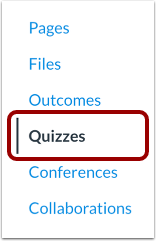
00:08: In Course Navigation,
00:08: click the Quizzes link.
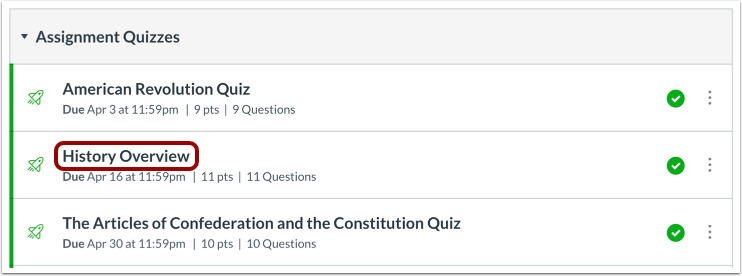
00:11: Click the name of a quiz.
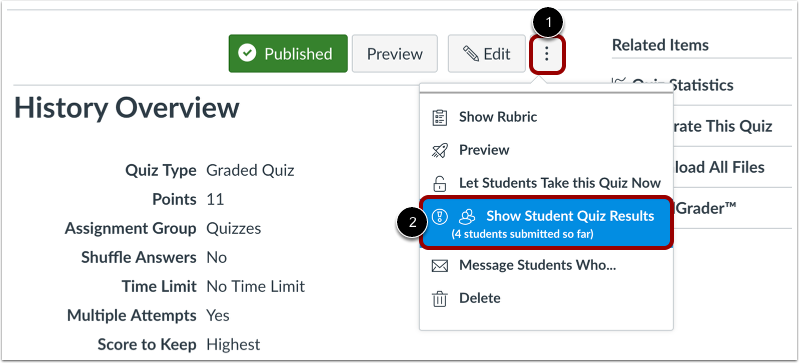
00:13: Click the Options menu and click the Show Student Quiz Results
00:17: option.
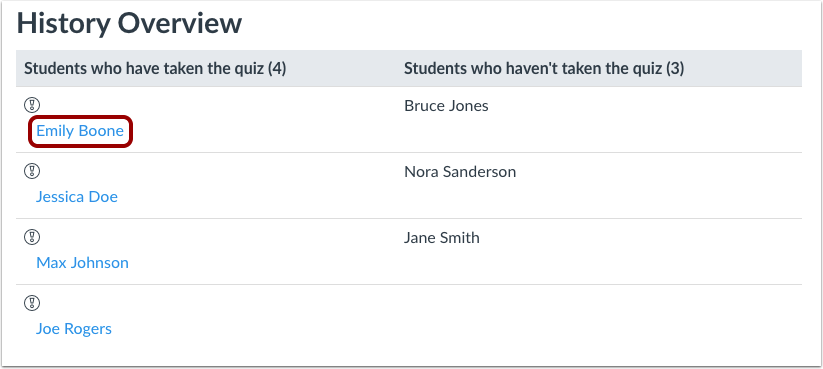
00:19: Click the name of a student.
00:21: Click the View Log link.
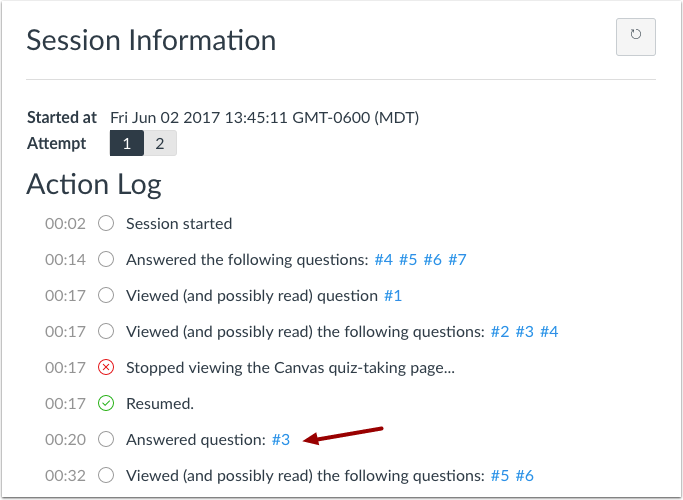
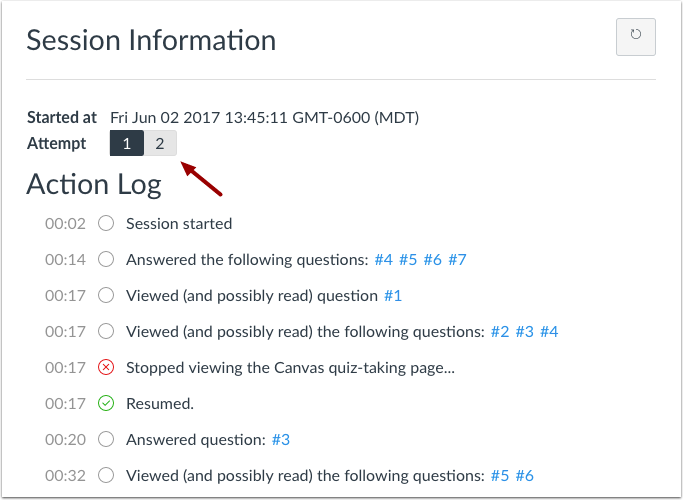
00:24: View the session information and the action
00:26: log for the quiz. The session information shows the start date and time
00:30: for the attempt. The action log for the specified attempt will display a status and
00:35: a timestamp for each quiz action.
00:38: To refresh the quiz
00:39: log, click the Reload icon.
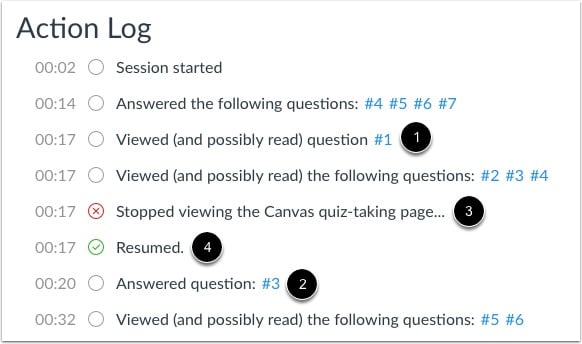
00:42: Each item in the action log contains a status. Viewed and possibly read a question
00:48: displays
00:48: when a student is active on the quiz page, but has not answered the question.
00:54: Answered a question displays
00:55: when a student has answered the question.
00:57: If questions are shown being answered multiple times, the student either changed
01:02: their answer, or the answer was generated by the quiz autosave feature.
01:07: Stopped viewing the Canvas quiz-taking page displays when a student navigates away from
01:12: the quiz for
01:12: example if they closes the browser tab, opens a new browser tab, or navigates to a
01:18: different program.
01:20: Resumed displays when the student has returned to the quiz.
01:24: To view responses to a question,
01:26: click the link to the quiz question number.
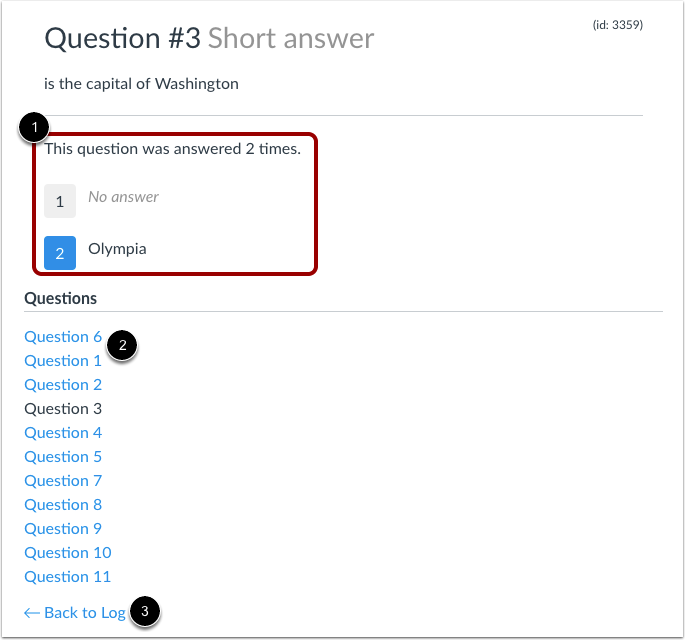
01:29: You can view the number of times
01:30: the question was answered, as well as each specific attempt at answering the
01:34: question.
01:36: To view answers for another quiz question,
01:38: click the question number . To return to the log, click the Back to log link.
01:44: If a student clicks to answer another question, the quiz may autosave supported
01:49: question types and display them in the quiz log as answered.
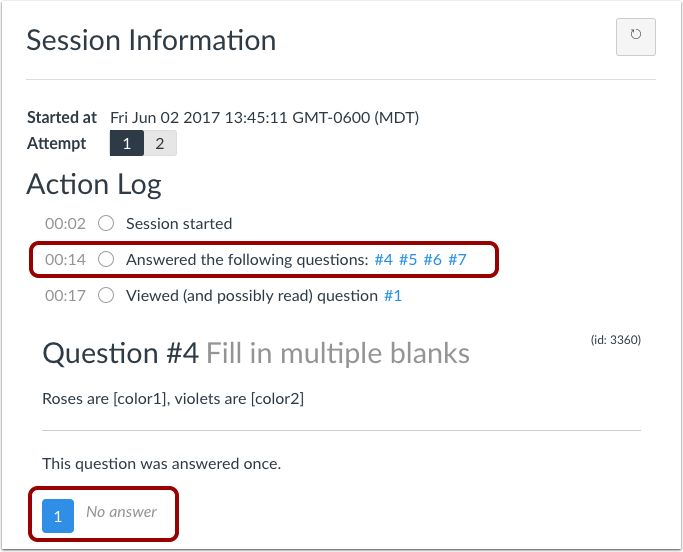
01:53: For Fill-in-Multiple-Blanks, Matching, Multiple Answers, and
01:55: Multiple Dropdown questions, autosaved entries may
01:58: appear earlier in the quiz log than the order in which the student intentionally answered
02:03: the questions. These log entries
02:05: are system-generated autosave events and may not reflect the actual sequence of student
02:11: responses. When viewing the question answers
02:14: in the log, the question will show a
02:16: null or no answer response for the autosaved answer attempt.
02:20: attempt.
02:22: If the student has more than one quiz attempt, the log always shows the last
02:26: attempt.
02:27: Prior attempts can be viewed by clicking the number of the attempt.
02:31: This guide covered how to view a quiz log for a student.