00:05: How do I create a Multiple Dropdown quiz question?
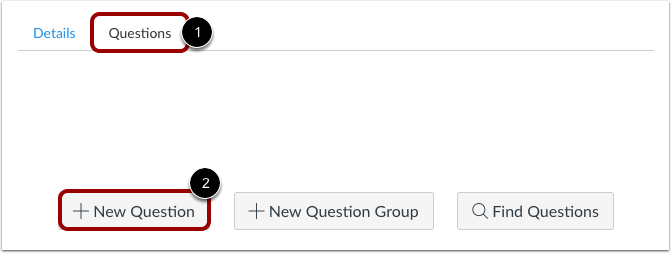
00:09: With the Questions tab selected inside a new quiz, click the New Question button.
00:15: Quiz questions are not automatically numbered for instructors. To add a custom name
00:19: to your quiz question,
00:19: enter the name in the question
00:21: text field. Custom names can help you identify quiz questions more easily. Regardless
00:26: of the question name, students always see quiz questions in numerical order
00:30: (i.e. Question 1, Question 2).
00:33: Click the drop-down menu and select the Multiple Dropdowns
00:36: question type.
00:38: Enter number of points
00:39: the question is worth. Quiz
00:41: totals are calculated based on combined total of questions.
00:45: Type your question into the Rich Content Editor.
00:47: You can also use the Rich Content Editor to include video, images, math equations,
00:53: or flash activities.
00:55: Now replace the words you want students to enter in the question with reference
00:59: words. Reference words should be surrounded by brackets and cannot contain spaces,
01:03: periods, or other non-alphanumeric characters.
01:06: Once you place a word in brackets, the word will populate in the Show Possible
01:11: Answers for drop-down menu.
01:13: For example, red has been replaced with color1, and blue has been replaced with color2.
01:18: color 2.
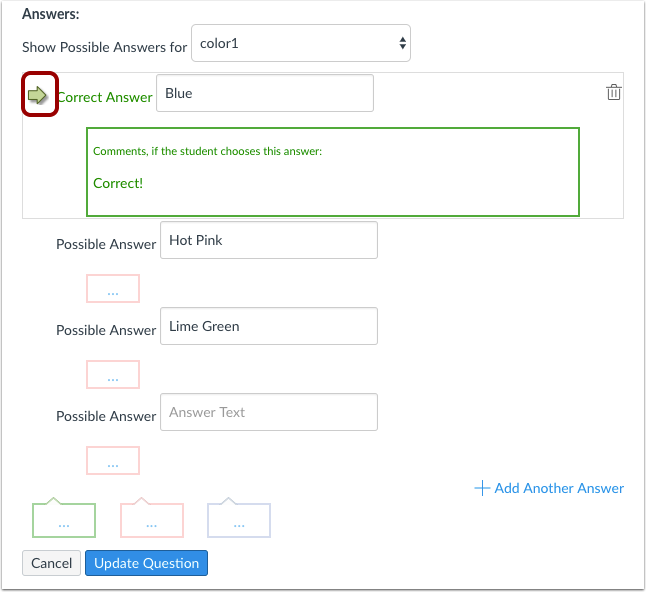
01:20: For each item in the drop-down menu, enter one correct answer and all of the other
01:24: distractors. Type the correct answer and the distractors in the Possible Answer
01:29: fields. Click
01:30: the Add Another Answer link to add additional distractors.
01:35: Hover your cursor to the left of any answer to reveal a green "ghost" arrow.
01:41: Click the green arrow to the left of the correct answer.
01:44: You will know which answer is the correct answer because both the arrow and the
01:50: answer
01:50: comment around that answer will turn green.
01:54: In this example, the first answer is the correct answer.
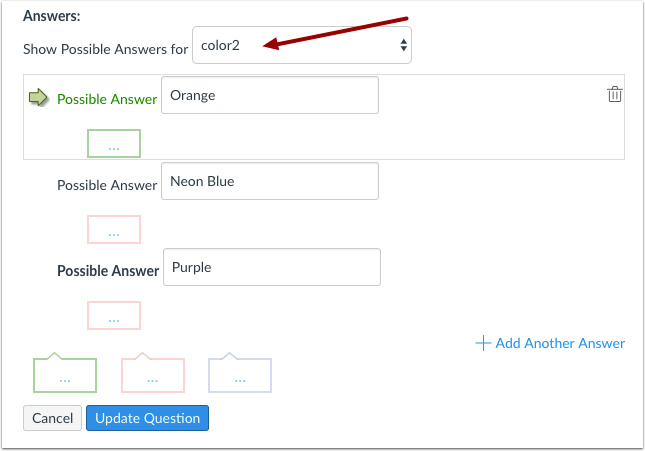
01:58: Select the second item in the drop-down menu and create the associated answers.
02:02: Repeat this process for as many reference words as are in your question.
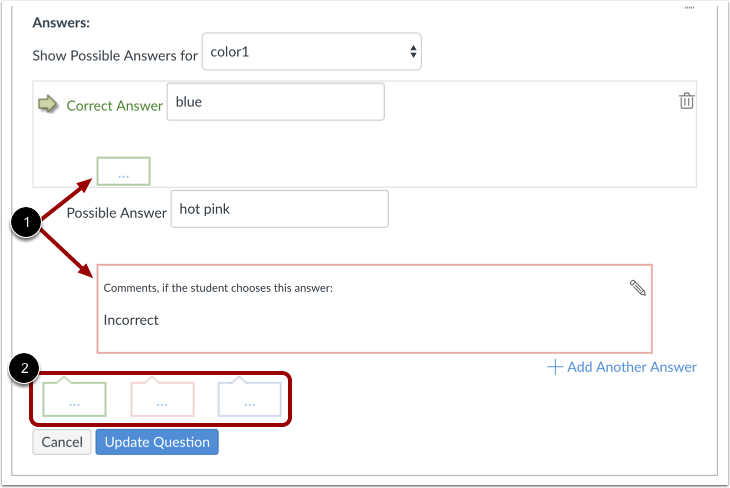
02:08: You can choose to give students feedback in the answer comments fields. To leave
02:12: feedback for a specific answer, click the comment field beneath the answer.
02:18: You can also create general answer comments for the quiz question as a whole.
02:22: Students who select the correct answer will see the feedback in the green comment
02:27: field.
02:28: Students who select any incorrect answer will see the feedback in the red
02:33: comment field.
02:34: All students will see the feedback in the blue comment field.
02:38: To resize the Rich Content Editor, click the Plus and Minus icons.
02:42: You can also click and drag the Resize icon.
02:46: Click the Update Question button.
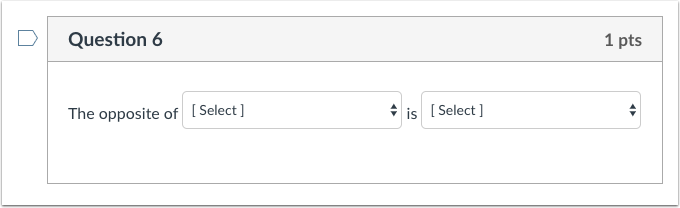
02:49: This is what students see when they encounter a Multiple Dropdowns question in a
02:49: quiz.
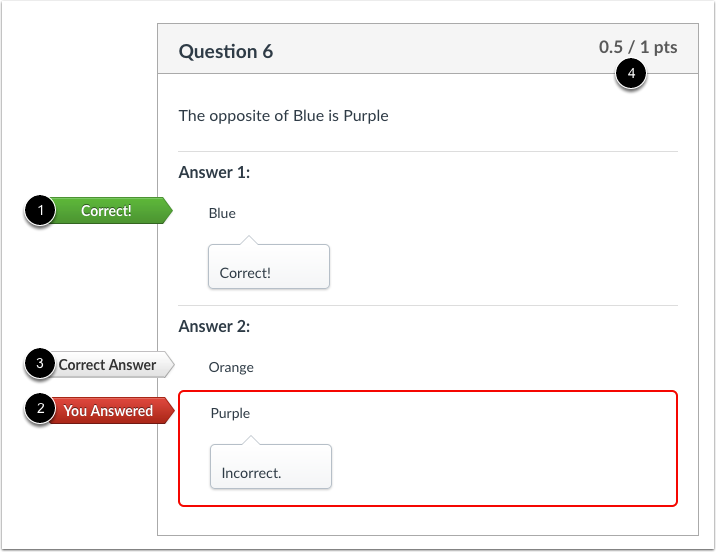
02:54: If you allow students to see the correct answers,
02:56: correct responses are marked with a green flag.
02:59: Incorrect responses will be marked with a red flag and any correct answers not
03:04: indicated by the student are marked with a gray flag.
03:07: Partial credit will be assigned if some of the blanks are completed correctly.
03:12: This guide covered how to create a Multiple Dropdown quiz question.