00:05: How do I use the Learning Mastery Gradebook to view outcome results in a course
00:10: from the Gradebook?
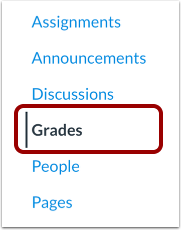
00:12: In Course Navigation,
00:13: open the Grades tab.
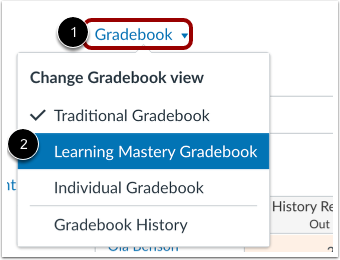
00:15: Click the Gradebook menu, then click the Learning Mastery Gradebook link.
00:20: The Learning Mastery Gradebook displays all students
00:22: at the same time. You can use the search and filter options to locate specific data.
00:27: To search for a specific student,
00:29: enter a name in the Search Students search box. To view a list of all students,
00:34: select an option from the Student Names drop-down menu. To look for a specific
00:39: outcome, enter an outcome name in the Outcomes search box. To view a list of all
00:45: types of outcomes, select an option from the Outcomes drop-down menu.
00:50: To view more students on a page, select the 15, 30, 50, or 100 option from the
00:58: Students per Page
01:00: drop-down menu. The
01:01: mastery bar charts illustrate student mastery levels for each outcome
01:05: by column. Each column consists of a course outcome and the outcome grade for each student.
01:12: Click the student's name to view more information. To message
01:15: the student, click the Message link. To view their Grades page,
01:18: click the View Mastery Report link.
01:21: On the Student Grades page, you can choose to let each student
01:24: see his or her outcome scores by clicking the Learning Mastery tab. Students can
01:29: view the outcomes and expand them to view individual outcome items.
01:34: The Gradebook has two views. The Learning Mastery Gradebook allows you to see all students
01:39: and outcomes at the same time. The
01:41: Individual Gradebook allows instructors to assess one student and one outcome at a
01:47: time and is fully accessible for screen readers. Both
01:50: views retain the same Gradebook settings. You
01:53: can switch Gradebook views at any time.
01:57: To open Gradebook Settings, click the Settings button.
02:01: To set the secondary information, click the radio button next to your preferred
02:04: option under the Secondary info section.
02:08: To choose what items to display,
02:09: click the checkboxes next to your preferred options under the Display section. To
02:15: choose a scoring view,
02:16: click the radio button next to your preferred option under the Scoring section. To
02:21: choose how to arrange outcomes, select an option from the Arrange Outcomes by
02:26: drop-down list.
02:26: To apply your changes, click the Save button.
02:31: Scores have unique icons and are color-coded to show outcomes and the level attained
02:37: by each student. Exceeds mastery is blue,
02:40: Mastery is green, Near Mastery is yellow, and Well Below
02:45: Mastery is red.
02:47: Score levels are calculated based on half of the outcome mastery threshold.
02:51: For example, if the mastery threshold is 4 points, half of 4 is 2. Scores between
02:58: 2 and 2.9 are counted as near mastery while scores between 3 and 3.9 are considered
03:06: mastery. Scores less than 2 are considered remedial. Therefore, a student score of 2/4
03:12: would count as near mastery.
03:16: To sort scores in ascending or descending order,
03:19: click one of the outcome column heading menu icons or the second student menu icon,
03:25: then select the desired sort option.
03:29: To view Outcome details, hover over a graph and click the Expand button.
03:34: The bar graph shows how the individual student scores were divided into the outcomes
03:39: criterion ratings.
03:41: To download a CSV file of the Learning Mastery Gradebook, click the Export button.
03:46: The student learning outcomes report will include the Student Name, Student ID
03:51: Student S.I.S. ID, and Outcome Group columns in the CSV file.
03:56: This guide covered how to use the Learning Mastery Gradebook to view
04:00: outcome results in a course from the Gradebook.