00:05: How do I import grades in the Gradebook?
00:08: For new files,
00:08: save the file as Grades-Course_Name.csv. The required columns and their order are
00:14: Student Name, Student ID, S.I.S.
00:15: User ID, S.I.S. Login ID, Section, and Assignment. The S.I.S. columns are
00:22: only required if you use S.I.S..
00:25: The Assignment column can be used for existing or new assignments. Retain the same IDs
00:30: for existing assignments.
00:34: In Course Navigation, click the Grades link.
00:37: Click the Import button.
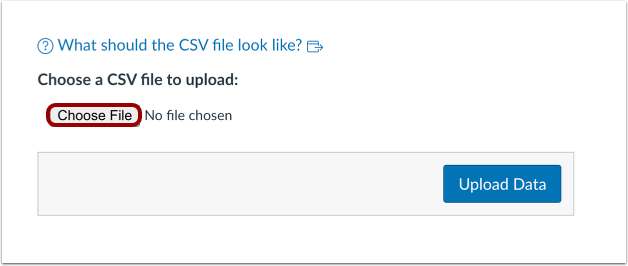
00:40: Click the Choose File or Browse button, depending on your browser.
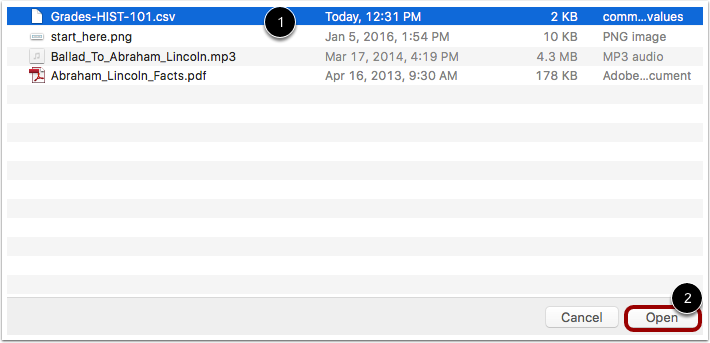
00:44: Locate the CSV file then click the Open button.
00:48: Click the Upload Data button.
00:51: If you add a new column to the CSV file and then upload the file, Canvas will ask you
00:56: what you want to do with the new column. In the drop-down menu,
00:59: choose the A new assignment option.
01:02: Then assign the number of points possible. Click the Continue button.
01:07: Review the changes made to your Gradebook. Any changes that will result in a lower
01:11: grade than the previous version are highlighted in red.
01:14: If you upload assignments with no grade changes, they will be hidden from the
01:18: upload.
01:19: Click the Save Changes button.
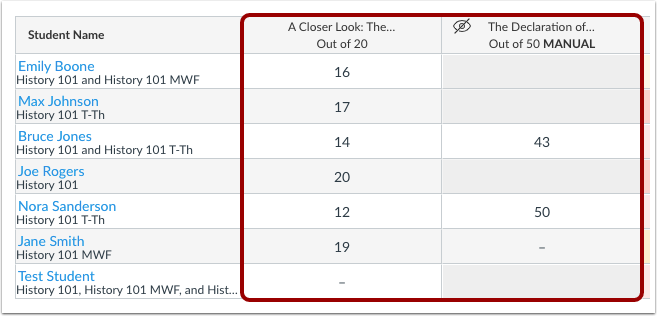
01:22: View the updated data in the Gradebook.
01:25: This guide covered how to import grades in the Gradebook.