If enabled by your institution, you can submit an assignment on behalf of a student in the Gradebook.
This feature also supports group submissions.
Notes:
- A File Upload submission type must be allowed to submit an assignment on behalf of a student.
- If you are unable to submit on behalf of a student, your institution has not enabled this permission. Please contact your Canvas admin.
View the video transcript
00:05: How do I submit an assignment on behalf of a student as an instructor?
00:09: In Course Navigation, click the Grades link.
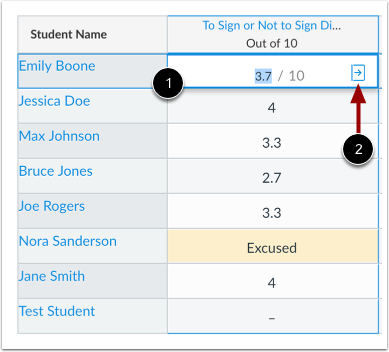
00:12: Locate the student name and assignment. Click the Gradebook cell and click the Grade
00:17: Detail Tray icon.
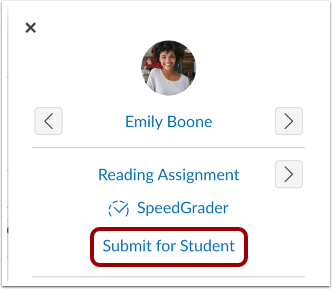
00:19: To submit for a student, click the Submit for Student link.
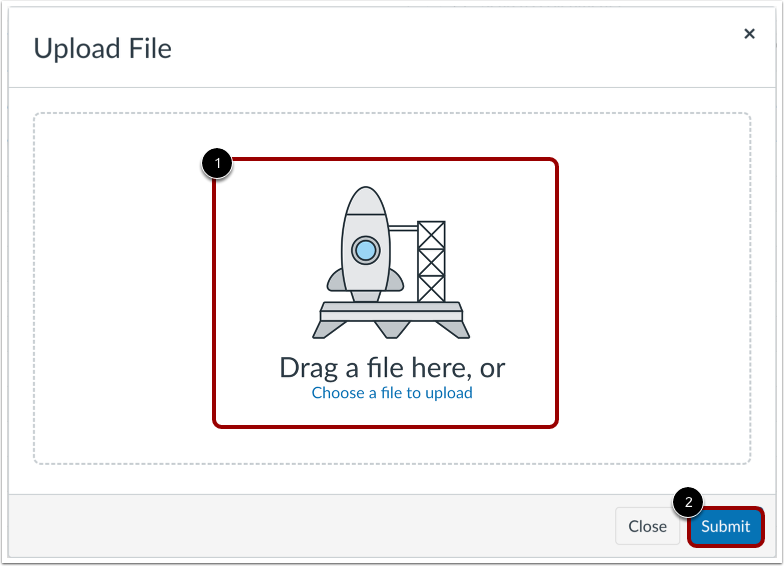
00:23: To upload a file from your computer, drag and drop a file, or browse your computer
00:27: files by clicking
00:28: the Choose a file to upload link. To submit the file,
00:31: click the Submit button.
00:34: View
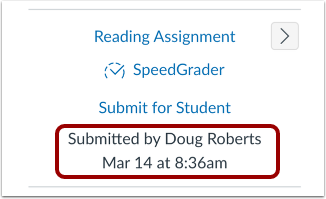
00:34: submission details in the Grade Detail Tray.
00:36: You can also view the uploaded file uploaded in Speedgrader.
00:41: This guide covered how to submit an assignment on behalf of a student as an
00:45: instructor.
Open Grades
In Course Navigation, click the Grades link.
Open Grade Detail Tray
Locate the student name and assignment. Click the Gradebook cell [1] and click the Grade Detail Tray icon [2].
Submit for Student
To submit for a student, click the Submit for Student link.
Upload File
To upload a file from your computer, drag and drop a file [1], or browse your computer files by clicking the Choose a file to upload link [2]. To submit the file, click the Submit button [3].
View Submission Details
View submission details in the Grade Detail Tray. You can also view the uploaded file uploaded in Speedgrader.
Note: Students and Observers can see the submission details when they view the assignment.