00:05: How do I apply a Late Submission policy in the Gradebook?
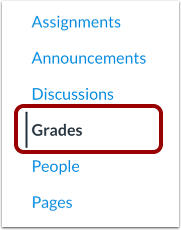
00:09: In Course Navigation, click the Grades link.
00:12: Click the Settings icon.
00:14: In Gradebook Settings, view the Late Policies tab.
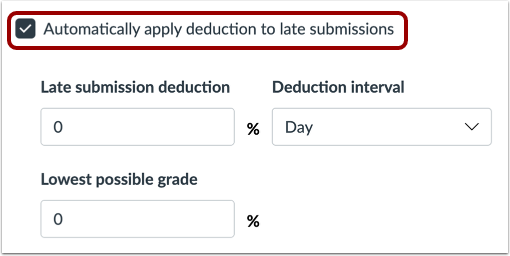
00:18: Click the Automatically apply deduction to late submissions checkbox.
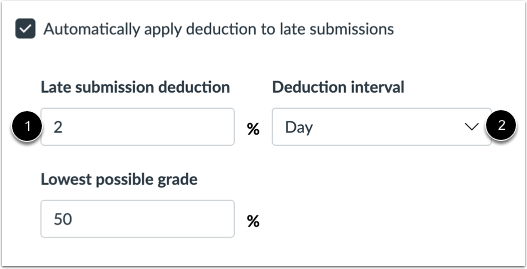
00:23: To set the percentage
00:24: you want late submissions to be deducted, set a percentage in the Late submission
00:29: deduction field. Then set the interval for which you would like Canvas to deduct
00:34: points in the Deduction interval drop-down menu. Available interval options are Day
00:40: or Hour.
00:42: To manage the lowest possible grade threshold for the late policy, enter a
00:47: percentage in the Lowest possible grade field.
00:50: The lowest possible grade percentage is the lowest score a student can receive when
00:55: late policy deductions are applied to grades entered above that percentage. Any
01:00: grade awarded equal to or below that percentage will not receive late policy
01:05: deductions.
01:06: Click the Apply Settings button.
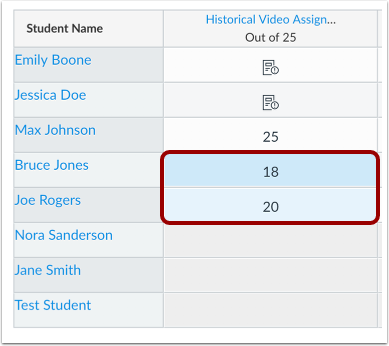
01:09: View the affected grades in the Gradebook.
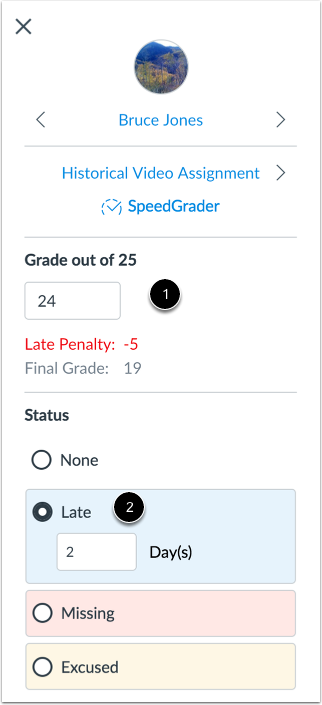
01:12: In the Grade Detail Tray, you can view details about the student's grade and adjust
01:16: settings on each student's individual submission.
01:20: In the Grade info section, you can view or edit the grade you awarded the student
01:24: for their submission, the late penalty deduction, and the student's final grade on
01:28: the assignment.
01:30: In the Status section, you can view how many days late the student submitted the
01:34: assignment and adjust the amount of days late in the interval field. You can also
01:39: manually change the submission to a status other than Late,
01:43: but changing the status will remove any late penalties that had been automatically
01:48: applied to the student's submission.
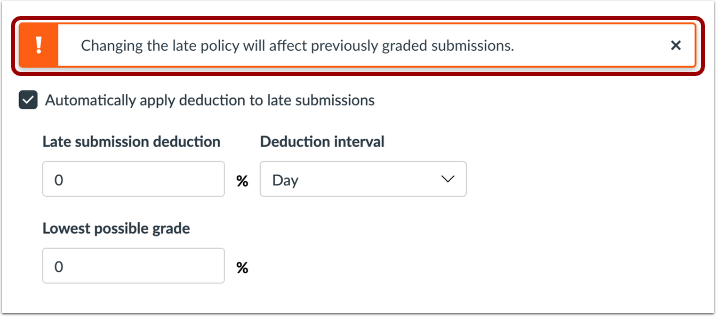
01:50: If you set a late policy, and then adjust any of the parameters, Canvas will display a
01:55: warning to notify you that changing the late policy will affect previously graded
02:00: submissions. To exclude a submission from the late penalty you will have to manually
02:05: change a submission's status to something other than late in the Grade Detail Tray.
02:11: This guide covered how to apply a Late Submission policy in the Gradebook