00:05: How do I enter and edit grades in the Gradebook?
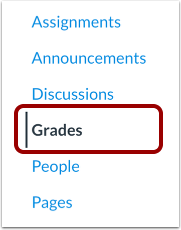
00:08: In Course Navigation, click the Grades link.
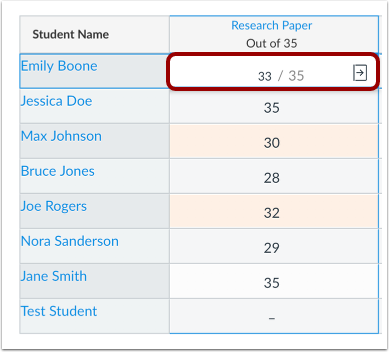
00:11: Locate the student name and assignment where you want to enter a grade.
00:16: Grades are entered according to the assignment's
00:18: Display Grade setting. Grades can be entered as one of five options: points, complete
00:23: or incomplete, letter grade, percentage, and GPA. You can change the assignment to
00:29: display grades for a specific grading type.
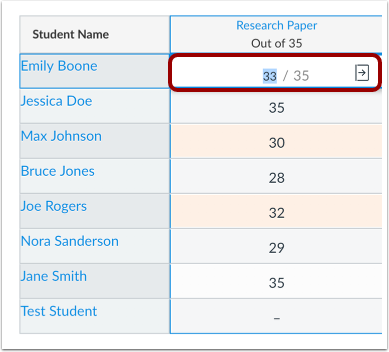
00:33: To enter a points grade, enter the number of points in the cell and press the Return
00:36: key on a Mac keyboard or the Enter key on a PC keyboard.
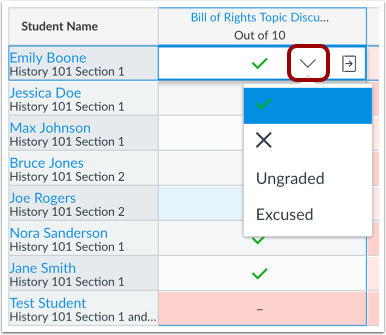
00:41: To enter a complete or incomplete grade,
00:43: click the drop-down menu in the cell and select the desired icon.
00:47: Grading options include complete, incomplete, ungraded, and excused.
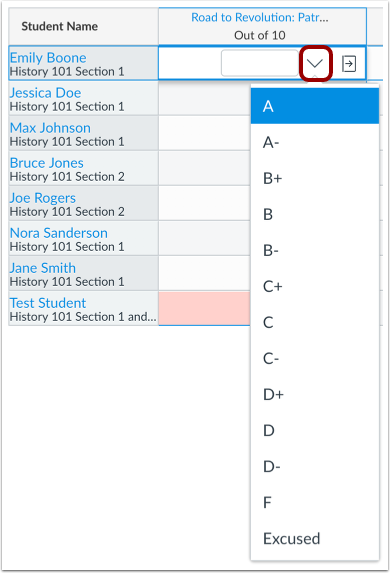
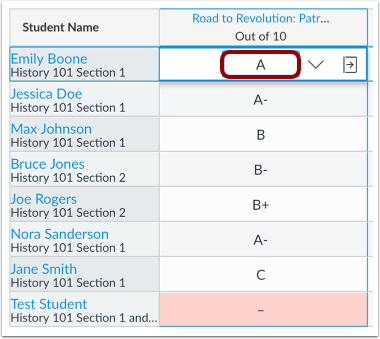
00:54: Click the drop-down menu and select a letter grade from the menu.
00:58: You can also manually enter a letter grade. Enter the letter which corresponds to
01:03: the letter scale defined by the grading scheme and press the Return key on a Mac
01:07: keyboard or the Enter key on a PC keyboard.
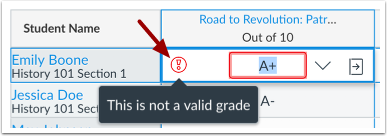
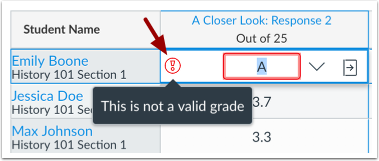
01:11: If you enter a letter grade that is not supported in the grading scheme, the cell
01:15: displays an invalid grade warning icon.
01:19: Canvas will also display an invalid grade warning message.
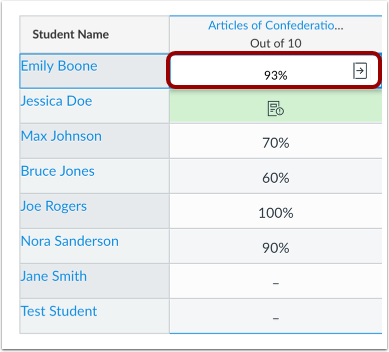
01:24: To enter a percentage grade, enter the percent in the cell and press the Return key
01:28: on a Mac keyboard or the Enter key on a PC keyboard.
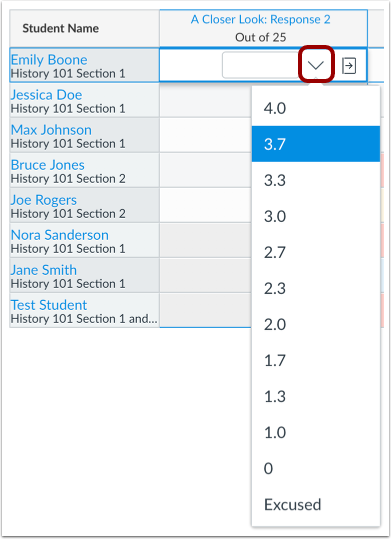
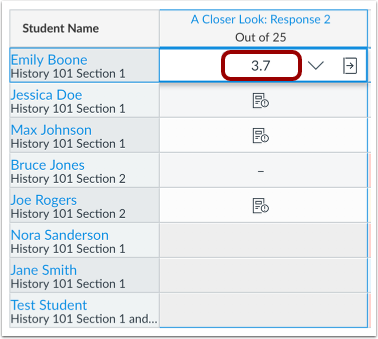
01:33: To enter a GPA grade, click the drop-down menu and select the desired grade from the
01:38: menu.
01:39: You can also enter the number which corresponds to the GPA scale defined by the
01:44: grading scheme and press the Return key on a Mac keyboard or the Enter key on a PC
01:49: keyboard.
01:51: If you enter a letter grade that is not supported in the grading scheme, the cell
01:55: displays an invalid grade warning icon. Canvas will also display an invalid grade
02:01: warning message.
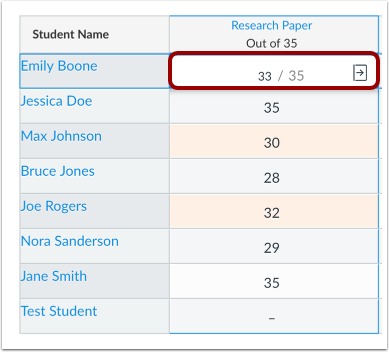
02:03: To edit an existing grade in the Gradebook,
02:05: click the assignment cell for the grade. To assign a new grade,
02:09: enter the new grade. To delete
02:11: the grade, click the Delete key. To apply the edited grade,
02:15: press the Return key on a Mac keyboard or the Enter key on a PC keyboard.
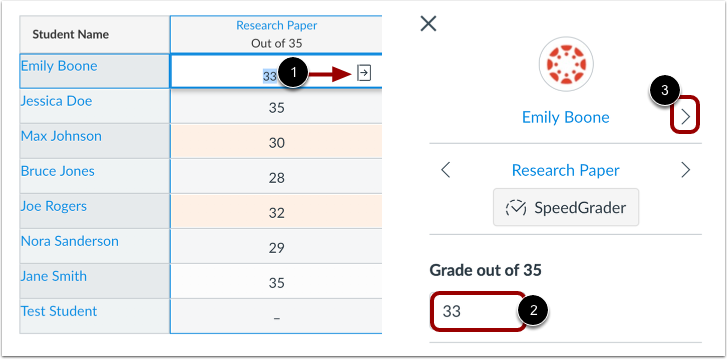
02:20: Grades can also be entered in the Grade Detail Tray
02:23: according to the assignment's display grade setting.
02:26: To open the tray, click an assignment
02:28: cell for a student and click the Grade Detail Tray icon.
02:33: In the Grade field,
02:34: enter the grade for the student. To advance to the next student, click the arrow
02:38: icon .
02:40: If an excessive amount of points is added to a student's grade, Canvas will generate
02:44: an alert notifying that the student was awarded an unusually high grade. You can
02:49: either keep or correct
02:51: the point value. Excessive points can occur in the following situations:
02:55: The amount entered is 50% above the total points possible,
02:59: n extra digit is entered for example 500 instead of 50. Or an assignment is given
03:06: negative points.
03:08: This guide covered how to enter and edit grades in the Gradebook.