00:05: How do I change the status of a submission in the Gradebook?
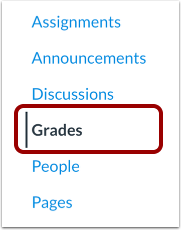
00:09: In Course Navigation, click the Grades link.
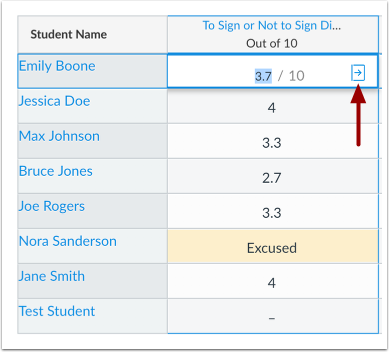
00:12: Locate the student name and assignment where you want to change the status. Click
00:16: the Gradebook cell and click the Grade Detail Tray icon.
00:21: The Status section of the Grade Detail Tray displays available status options. Any
00:26: selected status is applied immediately. Depending on the assignment's settings and
00:30: student submissions, a status may already be selected for you.
00:35: To select no status,
00:36: click the None radio button.
00:39: The None status indicates that no status exists, or that the assignment was turned in
00:45: before the due date.
00:47: When a grade is added to an assignment with a missing status, the missing label is
00:52: automatically removed.
00:53: You can also update any late or missing assignment to have no status
00:58: if you do not want a label displayed in the student's grades page.
01:03: To select a Late status, click the Late radio button.
01:07: The Late status indicates an assignment that was submitted after the due date.
01:11: You can enter a number of how many days late the student submitted the assignment.
01:17: To select a Missing status, click the Missing radio button.
01:21: The Missing status indicates an online assignment
01:24: that has not been submitted and is past the due date.
01:28: When a missing label is manually
01:30: applied, the missing label is removed by a new submission or manual removal. Entering
01:36: a score does not remove a manually-applied missing label.
01:40: To select an Excused status, click the Excused radio button.
01:45: The Excused status indicates that the student has been excused from making a
01:50: submission.
01:51: Students are not able to submit excused assignments,
01:54: and excused assignments are not calculated in the student's total grade.
01:59: You can also excuse an assignment by typing EX in the assignment cell.
02:04: Depending on your institution, you may be able to view and select a custom status.
02:10: To select a custom status, click the custom status radio button.
02:13: You cannot make changes to the custom statuses.
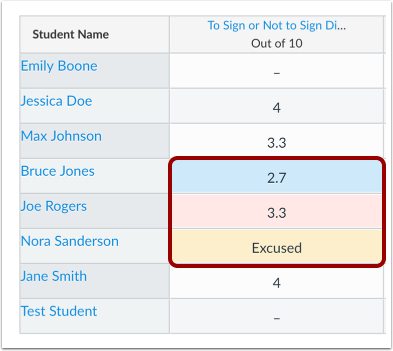
02:18: Assignment cells in the Gradebook will display the color assigned to the
02:22: corresponding status.
02:24: The student grades page will display a label corresponding to the status setting in
02:28: the Gradebook. Labels will display for late assignments or missing assignments.
02:33: Excused assignments are noted by EX in the points column. Students who submit
02:38: assignments that are marked EX can still see their scores when viewing their own
02:43: grades.
02:44: Assignments with no status do not display a label in the Status column of the
02:48: student grades page.
02:50: This guide covered how to change the status of a submission in the Gradebook.